Your shop or school’s website shows your Instagram posts. Then one day you notice it still shows posts from weeks ago, or the section has gone blank. You can’t log in to the site’s admin screen, the site was built by a previous staff member or a web agency, and you don’t know how it works. When an Instagram section stops, this is often the situation people are in when they come to us.
This article isn’t about predicting whether it will stop. It’s about deciding, at the ordering stage, who can bring the Instagram section back and how, if it ever stops. For those whose feed has already stopped, it also explains how to tell what kind it is without access to the admin screen.
The first thing to check is what kind of Instagram section you have.
- If it shows pinned specific posts, it’s normal for it not to switch to new posts. It isn’t broken
- If it automatically shows your latest posts, the mechanism is one of three: a plugin, a custom build, or an external service. Who can fix it differs for each
- With the official API, an automatic connection must be refreshed every 60 days. If the permission is removed, it stays stopped until the account owner logs in again. The old API (Basic Display API) ended on December 4, 2024. Since the web agency alone may not be able to fix it, decide before ordering “who logs in and grants permission”
- Someone without admin access can only offer an educated guess. Don’t state it as fact; put it in a request memo and hand it over
The first fork: pinned posts or an automatic feed?
Instagram sections fall broadly into two kinds.
Pinned display means choosing the posts you want to show and pasting them in one by one. It uses the official embed code you get from a post’s menu on Instagram, or WordPress’s embed block. The posts you pasted keep showing as they are, so the section doesn’t change when you post something new. Not changing is normal. If you want new posts to appear, someone has to replace them.
Automatic display pulls your account’s latest posts automatically and lines them up. There’s a mechanism somewhere that connects to Instagram, and when it stops, the section stays old or goes blank.
Automatic display splits into three kinds depending on where the mechanism lives.
| Type of automatic display | Who holds the settings | Where to check |
|---|---|---|
| WordPress plugin | Whoever can log in to the site’s admin screen (your own staff, the web agency, the maintenance company) | The plugin list in the admin screen and that plugin’s settings screen |
| Custom build by the web agency | The agency that built it (the connection is written into the program) | The agency’s handover documents, the program on the server |
| External service (widget) | Whoever created the account for that service | The service’s dashboard (first confirm who owns the account) |
The third one, external services, is easy to overlook. Sometimes the agency’s staff member signed up for the service with their own email address and pasted the code made there into your site. In that case, even with access to the site’s admin screen, you can’t fix it without access to the service’s account.
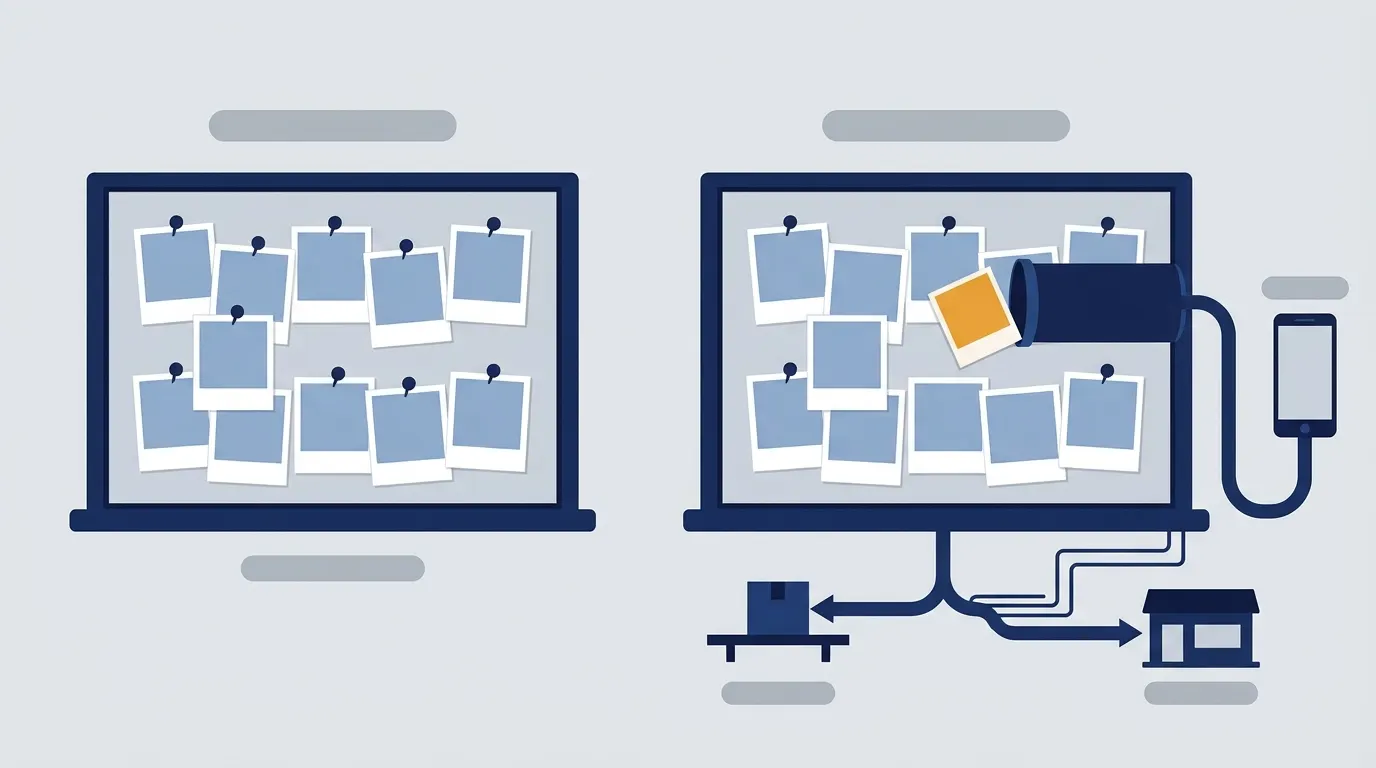
An automatic feed can stop for more than one reason
There are many reasons an automatic feed stops. Here are the typical ones. Checking in advance can make each less likely, but checking doesn’t guarantee you’ll prevent them.
Expired connection and revoked permission
According to Meta’s official developer documentation for Instagram (Instagram API with Instagram Login), the long-lived access token used for the connection is valid for 60 days. It can be refreshed while still valid, and refreshing gives it a new 60-day validity period from that day. There are conditions, though.
- The token must be at least 24 hours old and not yet expired
- The account owner must still be granting the connected app the basic permission (
instagram_business_basic)
A token that isn’t refreshed even once in 60 days expires and can no longer be refreshed. Some plugins and external services are built to refresh it automatically before it expires. Even so, if the permission is removed, the account owner has to log in and grant permission again. The web agency can’t necessarily do this on your behalf.
The end of the old API
There used to be the “Instagram Basic Display API,” which let even personal accounts display their posts elsewhere. Meta announced its end on its developer blog on September 4, 2024, and shut it down on December 4, 2024. Since then, every request to this API fails.
Any mechanism that relied on it stays stopped unless it has been switched to the new API. The new official API can connect only professional accounts (Business or Creator). The need for a professional account applies only to connections that use the official API; the conditions are different for pinned display, where you paste posts one by one with the official embed code.
Caching
Plugins and servers temporarily store (cache) the posts they fetch. Even when the connection itself is working, the old stored content may keep showing. Conversely, even after the connection stops, the stored content may keep displaying for a while, so you notice late.
The 2020 WordPress change (a separate event)
Separately, something changed in WordPress in 2020 as well. According to WordPress’s official announcement (September 22, 2020), Facebook began requiring a token to use oEmbed (the mechanism that displays a post when you paste its URL), so WordPress core removed its oEmbed support for Facebook and Instagram.
- Embeds pasted before October 24, 2020 remain as they are, using the content saved in the database
- URLs newly pasted after that are shown as a link rather than the post, unless there is a token
This differs in both timing and mechanism from the 2024 end of the old API. When “a way of pasting that used to display the post doesn’t display it anymore,” it’s this change that’s relevant.
Five questions to ask before ordering, with sample answers
When having an Instagram section built, ask about who does what when it stops before asking how it will be built.
| What to ask | Sample answer |
|---|---|
| ① What type of display is it? | “We’ll show your 9 latest posts automatically using a plugin.” |
| ② Which account is connected, and who owns it? | “The shop’s professional account. The owner is you, the shop owner.” |
| ③ When permission needs to be granted again, who logs in? | “We’ll ask the owner to log in, and we’ll guide you via screen sharing.” |
| ④ When it stops, what does the site look like? | “The last posts it fetched keep showing.” or “The section goes blank.” |
| ⑤ Is reconnecting included in the maintenance contract? | “It’s within the monthly maintenance scope. The work on the account side is yours.” |
There’s no single right answer. For all five, see whether you get a clear answer and whether they’ll put it in writing. For ③ in particular, it’s reassuring to designate two people who can log in, so you aren’t stuck when the owner is off or staff change. How to think about whether reconnecting should be included in maintenance is also explained on our maintenance and operations service page.
Confirm the answers in the following parts of the quote and contract.
| Document | What to confirm |
|---|---|
| Quote | Whether the Instagram section’s line item says “pinned” or “automatic,” and whether it names the plugin or external service used |
| Quote | If the external service has a monthly fee, whose name it is paid under |
| Contract / maintenance contract | Whether “problems with connections to external services” are included in or excluded from maintenance |
| Handover documents | The connected account, the email address registered with the external service, where the settings screen is |
What to look at in the contract as a whole is covered in 7 places to always check in a website development contract, and how to decide what you can update yourself is in How much of your website can you edit yourself?.
Narrowing it down when Instagram isn’t updating or is blank
If it has already stopped, fit your situation into one of the following three.
You know the type
If you know the type from the handover documents or by asking the web agency, contact the person under “Who holds the settings” in the table above. If it’s automatic display and you suspect an expired connection or revoked permission, arrange for the account owner to be available too.
You don’t know the type
Even without admin access, you can look for clues in your browser. Open the page with the Instagram section, right-click and choose “View Page Source” (ページのソースを表示), and on the screen that appears, use keyboard search (Ctrl+F on Windows, Command+F on Mac) to look for the following strings.
| String found (examples) | Likely type |
|---|---|
instagram-media and instagram.com/embed.js | Pinned display using the official embed code |
A name containing instagram or feed after wp-content/plugins/ (e.g. instagram-feed) | WordPress plugin |
The name of a company other than your site’s, such as snapwidget, lightwidget, or elfsight | External service |
| None of these | Custom build or another method. Ask the web agency |
The strings you’ll see vary by product and version. If you find one, note down that line as is; it helps when you make your request. Look through the contract and handover documents as well.
If you find it’s pinned display, check the following.
| Method | What to check |
|---|---|
| Official embed code | Whether the pasted posts are showing as they are |
| WordPress embed block | Whether the post displays, or only a link to the URL appears (the 2020 change is relevant) |
You know the type but not the cause
Is it an expired connection, revoked permission, caching, or a problem on the service’s side? You can’t tell without looking at the admin screen or the connected account. Someone without admin access can only offer an educated guess. If you state “it’s probably expired” as fact when you make the request, it becomes a detour when the cause turns out to be something else. Separate what you know from what you don’t when you pass it on.
For those who can access the admin screen: reconnecting the plugin
Staff with admin access can try reconnecting from the plugin’s settings screen. In Smash Balloon’s “Instagram Feed,” a widely used plugin, the steps are as follows.
- Open “Instagram Feed” in the admin screen
- Open “Settings” (設定)
- Under “Manage Sources” (ソースの管理), find the connected account
- Click “Reconnect” (再接続), log in with the Instagram account, and grant permission
According to Smash Balloon’s documentation, your feed and design settings are kept when you reconnect. Smash Balloon may also send an email saying “action required within 7 days.” If you get one, reconnect before the deadline. Menu names may differ depending on the plugin version and display language. Only the account owner can log in and grant permission, so have them present or proceed via screen sharing.
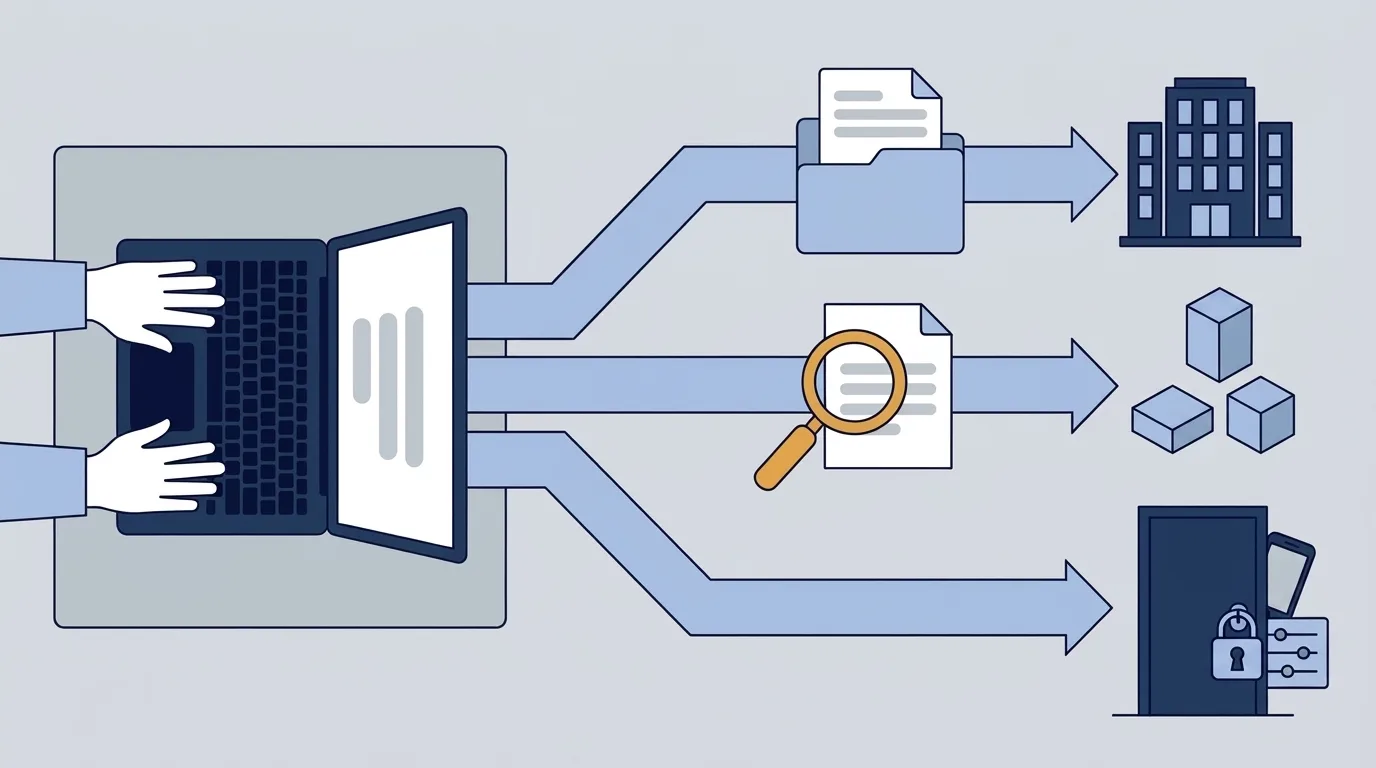
Request memo template, and what to show until it’s fixed
Request memo template
When you ask for help, fill in the following memo and hand it over. It’s formatted so you can paste it straight into an email.
Subject: The Instagram section on our site isn’t updating
– URL of the page: https://( )
– Date noticed: (month) (day)
– What it looks like: stuck on old posts / blank / showing an error (wording: )
– Date of the last post shown: around (month) (day)
– Type of display (as far as known): pinned / plugin / external service / unknown
– String found in the page source: ( )
– Connected Instagram account: @( )
– Person who can log in to the account: ( ) Contact: ( )
– Recent changes to the account: password change / change of account type / none / unknown
– What we’d like: confirmation of the cause, and guidance on what our shop needs to do to reconnect
“Recent changes to the account” is information only your shop has. If the person in charge has just changed, ask the previous person too before filling it in. Items that tend to get missed when handing over responsibilities are also covered in When your website staff member leaves: handover.
Until it’s fixed, show only a link to your profile
If it will take days to confirm the cause, rather than continuing to show a blank or old posts, you can temporarily replace the section with just a link to your profile, such as “See our latest on Instagram.” It confuses visitors less than a row of posts from a past season. Once it’s fixed, put the original section back.
Beyond the Instagram section, the overall order of checks when your site won’t display is covered in Emergency response when your website won’t display or has been tampered with.