“We’re building it on WordPress, so you’ll be able to update it yourself afterward.” You place the order after a web development company tells you this, and then, after launch, you open the admin screen and can’t find the part you want to change anywhere in the editor. This mismatch is something we have experienced ourselves.
In most cases, the cause is neither cutting corners nor a lack of technical skill. It’s that nobody decided “which parts should be editable” at the ordering stage. This article sorts out how editable and non-editable parts are decided, why the difference arises, and what you should communicate before placing an order.
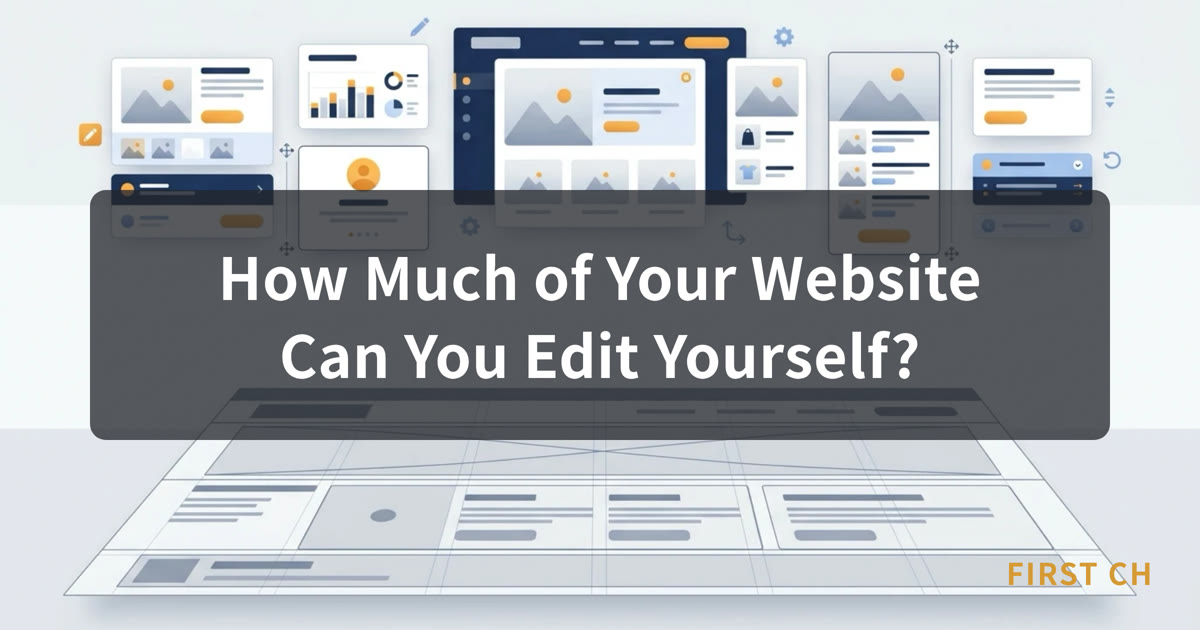
“It’s WordPress, so everything can be edited” is not correct. What you can edit is determined by how the site was built. Two pages that look the same can, depending on how they were built, either let you “freely change the text and images” or “not let you change a single character.” That is exactly why the only real safeguard is to list the specific “parts you want to update yourself” before ordering. Rather than saying “everything,” tell your developer by naming the page and the part.
Why Are There Parts You Can’t Edit in the First Place?
Broadly speaking, the content of a website is split into two layers.
| Layer | Contents | Editing |
|---|---|---|
| Data | The body of news posts, the figures in a price list, staff introduction text, etc. | Can be edited from the admin screen |
| Template | The page framework, heading placement, decoration, repeating structures | Cannot be edited from the admin screen |
What you can change from the admin screen is only the parts that were set up as data. If text was written directly into the template, that text becomes “part of the design” and doesn’t appear anywhere in the admin screen.
The tricky part is that you can’t tell the difference by looking. It’s quite common for two headings that look identical to be one in the data and the other in the template.
Examples: Common Mismatches
- The tagline on the home page — Because it’s tightly built into the design, it’s often fixed in the template
- Price lists — If the whole table is written into the template, you can’t even change the amounts
- Header and footer menus — Some sites are built so you can edit them from “Appearance > Menus (外観 > メニュー),” while others have them written directly in the code
- Notation based on the Specified Commercial Transactions Act and the privacy policy — Because the text is long, it tends to be hard-coded into the template
All of these are “places people commonly want to update.” That’s exactly why it causes problems later when they can’t be edited.
“Make Everything Editable” Isn’t Always Best
Then should everything be made into data? It’s not that simple.
If you make everything editable, the admin screen ends up with an enormous number of fields. A situation where “I just want to add one news post, but I don’t know what to touch” is effectively the same as not being able to edit. Also, if you allow free editing of parts related to the layout, the risk of accidentally touching something and breaking the design goes up.
The practical approach is to draw the line based on update frequency.
| Update frequency | Examples | Recommendation |
|---|---|---|
| Several times a month | News, blog, case studies | Must be editable |
| A few times a year | Prices, business hours, staff | Safer to make editable |
| Almost never | Company history, site structure | Requesting changes from the developer is enough |
Making even “parts that almost never change” editable isn’t worth the cost and the added complexity of the admin screen. Making only the things you plan to change editable is also the practical choice in terms of cost-effectiveness.
What to Communicate Before Ordering
Simply saying “I’d like to be able to update it myself too” in a meeting isn’t enough. To the developer, this one sentence could mean “it’s fine as long as I can update the news” or “I want to freely edit every page.”
Name Them Specifically
- Home page tagline → want to change (about once a year)
- Price list amounts → want to change (whenever prices are revised)
- News → want to add myself (2–3 posts a month)
- Staff introductions → want to swap out (2–3 times a year)
- Company history → won't change (fine to request)
If you write it this specifically, the developer can decide how to build it. As long as you cover three points, the page name, the part, and how often you’ll update it, that’s enough.
Also Mention “I Won’t Change It Now, but I Might in the Future”
This is surprisingly important. Making something editable later requires rebuilding the template and moving the existing content into data. This often takes more effort than making it editable from the start, and becomes a source of additional costs.
What You Should Always Receive at Delivery
When the build is finished, be sure to get a list of which parts can and cannot be edited. We call it an “editability map,” and we hand it over at delivery in a format like this.
| Page | Part | Editable | Where to edit |
|---|---|---|---|
| Home | Tagline | ○ | Body of the “Home” page (固定ページ「トップ」) |
| Home | Case study slider | ○ | “Case Studies” post type (投稿タイプ「実績」) |
| Home | Background decoration | × | Part of the design |
| Pricing | Amounts and plan names | ○ | Body of the “Pricing” page (固定ページ「料金」) |
| Site-wide | Header menu | ○ | Appearance > Menus (外観 > メニュー) |
With this list, the mismatch of “I thought I could edit it, but I couldn’t” won’t happen. We recommend not settling for a verbal explanation alone, because it leaves you no way to check later.
Frequently Asked Questions
Q. Can I add new pages?
Adding a page itself can be done from the admin screen, but it won’t have the same design as the home page. That’s because pages with a fixed design (the home page, service introductions, etc.) are built with dedicated templates. If you plan to add pages with the same look, you need to mention that at the start as well.
Q. Can I replace images?
If they were set up as data, you can replace them from the admin screen. However, images built in as part of the design (background patterns, decorative illustrations, etc.) are not included. Also, if the size or aspect ratio of the replacement image differs greatly from the original, the layout may break.
Q. I was told “you can update it,” but I couldn’t. Will they fix it?
First, check what the contract and the quote say. If the editable scope is clearly stated, you can ask for it to be handled within that scope. If it isn’t stated, it’s common for this to be billed as additional work. That’s exactly why deciding specifically before ordering pays off.
Summary
- “It’s WordPress, so everything can be edited” is not correct. What you can edit depends on how the site was built
- Because you can’t tell data from template by looking, you need to agree on it in advance
- Making everything editable isn’t always best. Drawing the line by update frequency is the practical approach
- Before ordering, name the three points specifically: page name, part, and update frequency
- At delivery, receive a list of what’s editable. Don’t settle for a verbal explanation
A website’s life begins once it’s published. The regret of “I was supposed to be able to update it myself” can be prevented with a 10-minute discussion before you order.
We explain the specific steps for updating your site yourself in the WordPress Basic Operations Guide, and the overall production process in The Website Production Process. For operating costs after launch, see also Website Maintenance Costs.