A MEO (map search optimization) agency or a web design company has asked you, “We’d like to update your shop’s information on Google Maps, so please give us access.” Or you already use an agency and have started to think about cancelling. Either way, you probably want to know two things: which access you should give, and what will happen when you end the contract.
The shop information shown on Google Maps is managed through a free service called Google Business Profile. When you add people to it, you can give them one of two roles: “owner,” who can do everything, and “manager,” who can do almost everything. Most guides stop at “Invite the agency as a manager, not an owner.” This article goes further. When you remove the agency as a manager, what happens to the posts and replies they wrote? We separate what Google’s official help says from what it doesn’t say, which you need to check on your own screen. Then we list what to record before you remove the agency, and the questions to ask an agency before you sign a contract.
You can trust day-to-day management to someone with manager access. Managers can do everything except add or remove users and delete the profile.
- Even after you remove the agency, the posts, review replies, and comments the agency wrote stay and are not deleted (stated in Google’s help)
- The person you remove receives an email. Newly added owners and managers can’t remove other users or take certain other actions for about 7 days
- Google’s official explanation doesn’t say whether photos stay, or whether you can later trace who changed what. These are things to check on your own screen
- There are three things to ask the agency: whether the shop stays the owner, whether they will report changes to you, and whether they can return control within 7 business days of your cancellation notice
The short answer: you can trust day-to-day management to a manager
First, here is how owners and managers differ. Google’s help article “Manage owners and managers of a Business Profile” says that managers “have almost the same permissions as owners. However, they can’t add or remove users or delete the profile.”
| Only owners can do this | Managers can also do this |
|---|---|
| Add users (owners and managers) | Edit business information such as hours, address, and URL |
| Remove users | Approve changes suggested by Google |
| Delete the Business Profile itself | Create posts |
| Add photos and logos | |
| Manage products | |
| Reply to reviews | |
| Download performance insights |
What you ask an agency to do is usually in the right-hand column: changing business hours, publishing seasonal posts, adding photos, and replying to reviews. Manager access is enough for all of these.
The left-hand column lists “actions that protect the shop.” If the agency is an owner, they can remove the shop’s own people or delete the whole profile. Even without bad intent, the shop can lose control if the agency’s contact person leaves or the agency goes out of business. You can have several owners, but only one primary owner. Make the primary owner a Google account that belongs to someone at the shop. This is the starting point.
For the basics of MEO itself, see What Is MEO? The Basics of Ranking Higher on Google Maps.
What Google’s help says: what stays after removal, the email that is sent, and the 7-day restriction
Google’s help articles (the Business Profile management overview and “Manage owners and managers of a Business Profile”) describe what happens when you remove an agency as follows.
Past actions stay
The help says that even if you remove a user, “past actions by that user, such as review replies, posts, and comments, remain on the Business Profile.”
In other words, replies the agency wrote in the shop’s name keep appearing as the shop’s replies after the contract ends. Good replies are an asset. But replies that are just pasted boilerplate, or that use wording that doesn’t match the shop’s views, also stay. This is why you should read through the agency’s replies once before you remove them.
The removed person receives an email
When you remove a user, that person is notified by email. Assume you can’t remove someone quietly. The right order is to tell the agency you are cancelling first, and then remove them.
Also, when someone accepts your invitation, the owner receives an email. People who haven’t accepted yet appear in the user list as “Pending invite” (招待保留中), and you can cancel the invitation.
Newly added people can’t take some actions for about 7 days
For about 7 days after being added, new owners and managers can’t delete the profile, remove other users, or transfer primary ownership.
Managers can’t remove other users anyway, so this restriction mainly affects people added as owners. Even if you invite an agency “as an owner for now,” they can’t remove the shop’s people during the first week. After that week, however, they can. The 7-day restriction is a safeguard, but it is not a reason to invite an agency as an owner.
Only owners manage users
Google’s “Tips for working with third parties to manage your Business Profile” says that only the profile’s owner manages access and can update permissions at any time. Removing the agency is also the shop owner’s job.
What Google doesn’t say: three things to check on your own screen
Even after reading the explanation of permissions, some questions remain unanswered. Don’t fill the gaps with guesses. Check them on your own shop’s screen.
| What to check | What Google’s explanation says | How to check |
|---|---|---|
| Do photos the agency added stay after you remove them? | It says “posts, replies, and comments stay,” but doesn’t mention photos | Record the list of photos before removal, and compare it with the same list after removal |
| What does the removed person see on their screen? | It only says the person receives an email | Invite an account, such as a family member’s, as a manager, remove it, and ask that person to show you their screen |
| Can the owner later trace who changed what? | The explanation of permissions doesn’t say how to view a record of who made changes | Ask a manager to change one business hour, and see whether the owner’s screen and emails show who made the change |
If you test, only try actions you can undo
When you check for yourself, invite a family member’s or employee’s account as a manager and try only actions you can undo. For example:
- Publish one post, then delete it later
- Add one photo
- Add special hours (such as a temporary closing day) for one day, then delete them later
- Save one of your own review replies again with the same text
Don’t try deleting the profile or transferring primary ownership. You can’t undo these.
Cover “how you find out about changes” with a promise from the agency
The help articles covered here don’t say which changes trigger an email to the owner. Since you can’t be sure the system will notify you, the reliable approach is to include a promise in the contract that the agency will report changes to you. This is the second of the three questions covered later.
The flow from invitation to removal
From handing work to an agency to removing them, the whole flow looks like this.
- Confirm that someone at the shop is the primary owner (in the profile settings, go to “People and access” (ユーザーとアクセス権) and check your role)
- Invite the agency’s account as a manager (use the add button on the same screen and enter the email address and role)
- The agency accepts (the owner receives an email; you can cancel before they accept)
- While they manage the profile, get reports of changes and compare them with the screen (check business hours and photos once a month)
- Notify the agency that you are cancelling
- Record what you need before removing them (the items in the next section)
- The shop’s owner removes the agency (select the user and choose “Remove user” (ユーザーを削除); the agency receives an email)
- After removal, compare against your records
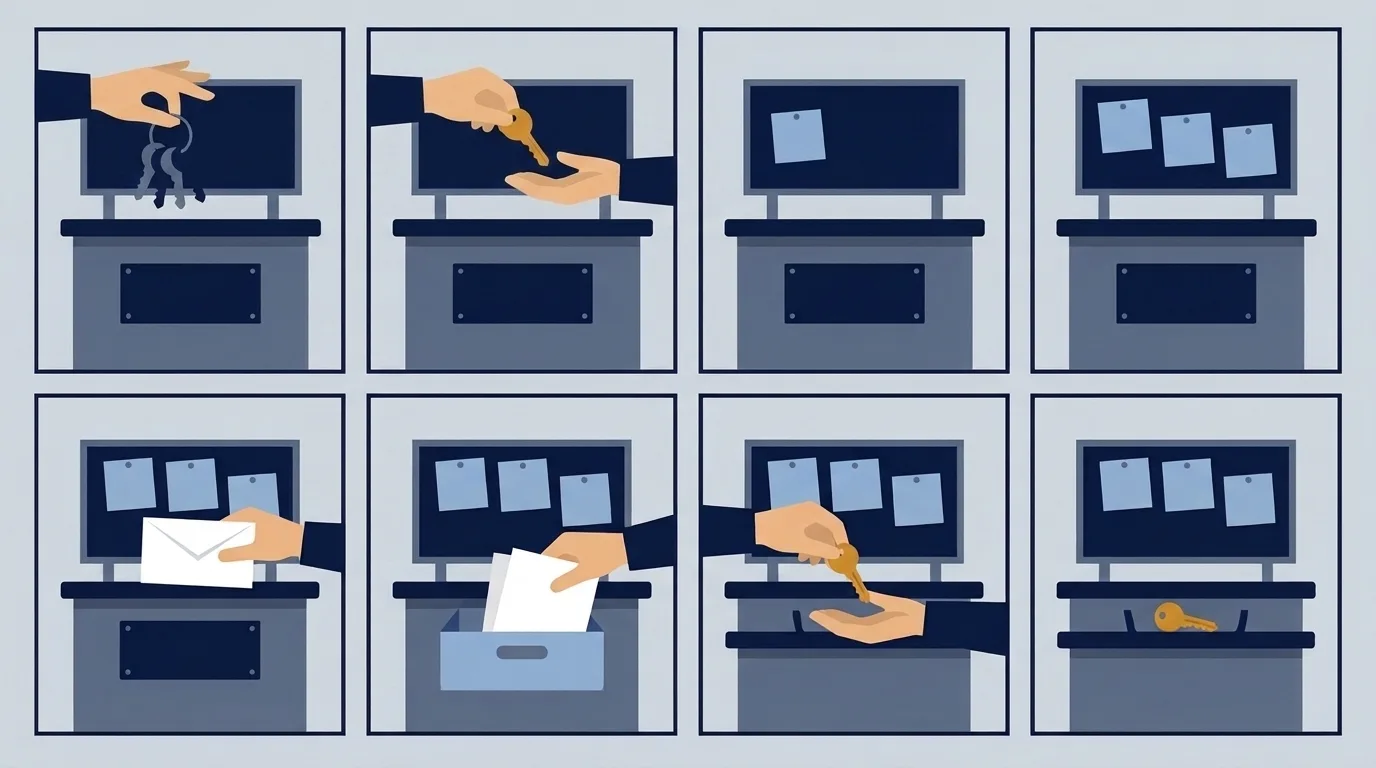
The order of steps 6 and 7 matters. If you try to take records after removal, it will be too late for anything that can only be seen from the agency’s screen.
If the agency is the primary owner and no one at the shop is an owner, you must first have them give owner access back to the shop before this flow. Managers can’t remove other users, so the shop can’t remove the agency while the shop is only a manager.
What to record before you remove the agency
Once you decide to cancel, record the following before you remove the agency. Screenshots are enough.
A list of the posts and replies the agency wrote
Posts and review replies stay after removal. Because they stay, record which ones the agency wrote. Mark any replies whose wording you want to fix later, and any posts for campaigns that have ended.
Photos
Google doesn’t say whether photos stay. If you capture the photo list before removal, you can compare it afterward. If you also use photos the agency took on your shop’s website, check the contract to see whether you can receive the original files.
Business hours and other settings
Record your regular hours, special hours, phone number, website URL, booking link, and list of services or products. Pay special attention to the URL and booking link. Agencies sometimes replace them with their own tracking URLs or booking pages. If that URL stops working after cancellation, people coming from the map can’t reach your shop.
Whether you are an owner
In the “People and access” (ユーザーとアクセス権) list, check whether your role is owner. The agency’s staff may be added with personal Google accounts, so record everyone in the list.
If you are also handing over your website at the same time, read Want to Change Your Website Developer? 7 Things to Check When Handing Over and Want to Stop a Monthly Subscription Website? 5 Points to Check Before Cancelling and How to Switch as well.
Three questions to ask the agency
Google publishes a “Third-party policy” for agencies that manage businesses’ profiles on their behalf. It includes three rules that matter to shops. Turned into questions to ask before signing a contract, they look like this.
| What the policy says | Question to ask the agency |
|---|---|
| The business must always have owner or co-owner access to its own profile | “Can you join as a manager, with our shop remaining the primary owner?” |
| The agency must notify the business of all changes and edits to the profile | “When you change business hours, URLs, photos, or anything else, will you tell us what you changed every time? How will we receive that notice?” |
| When the contract ends, the agency must let the business regain control of the profile within 7 business days of the business’s request | “When we notify you of cancellation, within how many days, and by whom, will access be removed?” |
You don’t need to judge whether the answers are good or bad. Check whether the agency gives clear answers to all three, and whether they will write those answers into the contract or quote.
The policy also requires agencies to state their management fees clearly in writing, and to explain that Google Business Profile itself is free. Keep this in mind when they explain their pricing.
If you are looking for someone to handle customer acquisition through maps, see our SEO and MEO services. For how to divide roles with your website, see Connecting Google Business Profile and Your Website for Shop-Based Businesses.
A printable pre-cancellation checklist
Finally, here is a one-page memo to fill in before you cancel. Print it and keep it with your records of communication with the agency.
Access
- Is the primary owner an account belonging to someone at the shop? (Account: ________)
- I recorded the “People and access” list (Number of people: ____)
- Is the agency’s role manager? (If owner, have them give it back first)
Records
- I recorded the list of posts the agency wrote
- I reread the review replies the agency wrote and marked the ones I want to fix
- I recorded the photo list (Original files of photos the agency took: receive / not needed)
- I recorded business hours, special hours, and phone number
- I confirmed the website URL and booking link belong to the shop
Promises with the agency
- Date I notified the agency of cancellation: ____ (year) ____ (month) ____ (day)
- Who removes access (shop / agency): ________
- Planned removal date (within 7 business days of notice): ____ (year) ____ (month) ____ (day)
After removal
- I confirmed the agency no longer appears in the list
- I compared posts, replies, photos, and business hours with my records
- I opened the URL and booking link and confirmed they lead to the shop’s pages
If you fill in the “Promises with the agency” section of this memo before giving access, you can settle these points at the contract stage. Then you won’t have to scramble when you cancel.