You may change your form’s notification address to a company address, but inquiry emails can still stop if sending is authenticated with the former staff member’s account. Once their password is changed or their account is suspended, the site can no longer send email.
Here is a typical case. On the staff member’s last day, the general affairs team follows its usual procedure, shuts down their email and changes their password. A few weeks later, sales says, “We haven’t had a single inquiry from the website lately.” This article shows how to use a checklist to find where you still depend on the former staff member before you shut anything down, and how to then set the shutdown date. Cleaning up Search Console, WordPress users and FTP is covered in a separate article.
The inquiry path can depend on the former staff member in two ways: where notifications are delivered (their inbox) and sending authentication (their account or app password). Shutting down their email cuts off the first, and changing their password cuts off the second. Separately, check whether admin access to related Google services, such as Google Business Profile, is tied to their account.
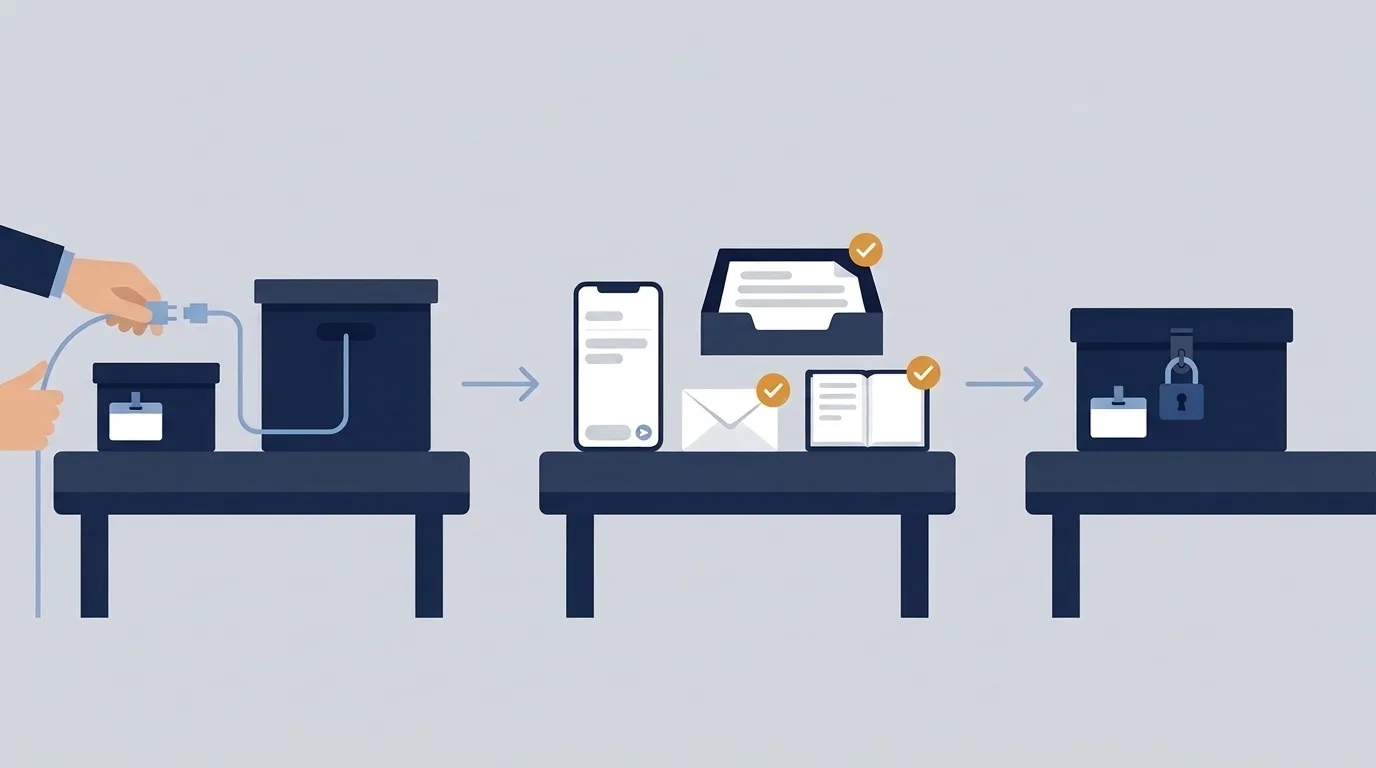
Before you shut anything down, fill in the checklist’s four columns (Where to check / Dependency on the former staff member / Who makes the change / Done when). Then go in this order: switch to company addresses → the successor tests with the real form → shut down the former staff member’s access. Suspend the whole account only after the email tests pass and the Google service access has also been moved to the successor.
The inquiry path can depend on the former staff member in two ways
1. Notifications are delivered to the former staff member’s inbox
This is when your contact form sends its notifications to the former staff member’s personal address. Domain renewal notices and server billing notices may also be going to that address. Once the account is shut down, nobody receives them, and they either bounce or disappear unread.
2. Sending is set up with the former staff member’s account or app password
Some sites use a sending plugin such as WP Mail SMTP so that WordPress emails are reliably delivered. In that case, the plugin’s sending “username and password” may be the former staff member’s email account or an app password they created. Then even if notifications go to a company address, sending authentication fails as soon as the password on the former staff member’s account is changed.
What you see: sometimes an error, sometimes emails simply don’t arrive
What happens when the path breaks depends on where it fails.
- When the sending process itself fails: for example, when sending authentication fails. In Contact Form 7, if the email fails to send, the visitor sees an error message (Contact Form 7 official FAQ). Even if a visitor notices, they won’t necessarily tell your company
- When sending succeeds but the email never reaches the recipient: for example, when notifications still go to a shut-down address. The site did send the email, so the completion screen appears. Nothing looks wrong from the outside, and you only find out when inquiries seem to have dropped off or a customer says, “I never got a reply”
In either case, you will miss the problem if you only open the site and look. You need a test submission from the real form, as explained below.
Separate from the inquiry path: admin access to related Google services
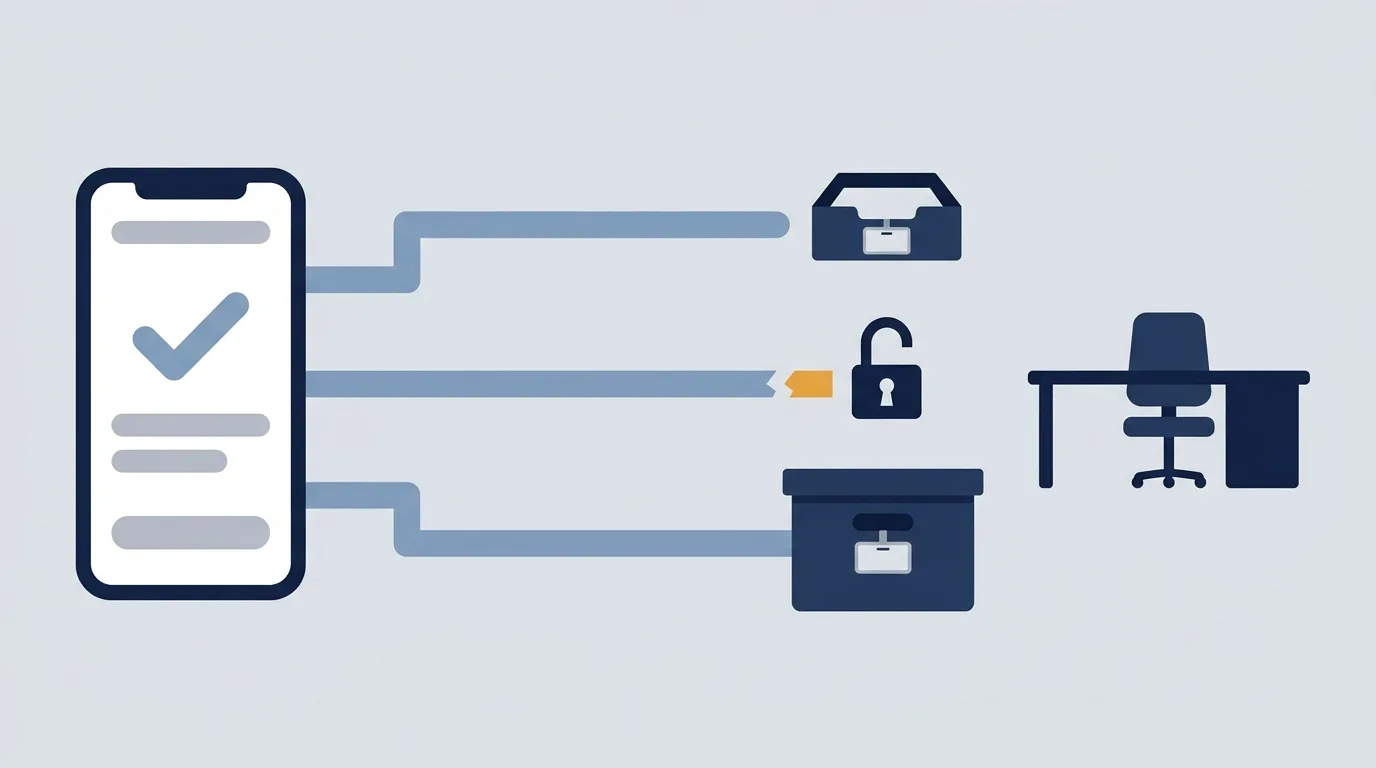
Admin access, such as ownership of a Google Business Profile, may be tied to the former staff member’s Google account. This is a matter of handing over access, separate from the inquiry email path.
What remains depends on how you shut things down. For personal Google accounts, Google’s help explains that deleting only Gmail does not delete the whole Google account. For work or school accounts, it advises you to check with your administrator (Google Account Help). If an administrator suspends the account in your company’s Google Workspace or similar, assume that the access tied to that account will also stop working.
So even if all three email tests pass, that alone does not mean you can suspend the whole account. Check separately whether admin access to Google services has been moved to the successor or a company account.
The checklist: list dependencies on the former staff member in four columns
Limit the checklist rows to the inquiry path and the contacts on your website-related contracts. The four columns are “Where to check / Dependency on the former staff member / Who makes the change / Done when.”
| Where to check | Dependency on the former staff member (example) | Who makes the change | Done when |
|---|---|---|---|
| Form notification address | Goes only to the former staff member’s personal address | Web agency | It arrives at the company’s shared address |
| Auto-reply sender | Shows the former staff member’s address and name | Web agency | It arrives with the company name and shared address |
| Sending plugin connection method | Gmail integration, authorized with the former staff member’s Google account | Web agency + successor | Reconnected with a company account, and a test email arrives |
| Sending plugin username | The former staff member’s address and app password | Web agency + successor | Authentication now uses a company account |
| Registered email at the server company | The former staff member’s address | General affairs | Changed to the successor’s address or a shared address |
| Registered email at the domain registrar | The former staff member’s address; renewal notices also go here | General affairs | A confirmation email arrives at the new address |
| Where bills are sent | The former staff member’s address and card | General affairs / accounting | The next bill’s recipient and payment method belong to the company |
| Admin access to Google services | The owner of Google Business Profile and similar is the former staff member’s account | General affairs + successor | The company’s successor can do what they need with their own account |
In the “Dependency” column, write down what it is and whose it is, as in the examples. “Email” alone doesn’t tell you whether it’s receiving or sending authentication. In the “Done when” column, don’t write that a setting was changed. Write the state in which you confirmed that something actually arrived.
If you don’t use the admin screens yourself, sort the work by which screens to capture
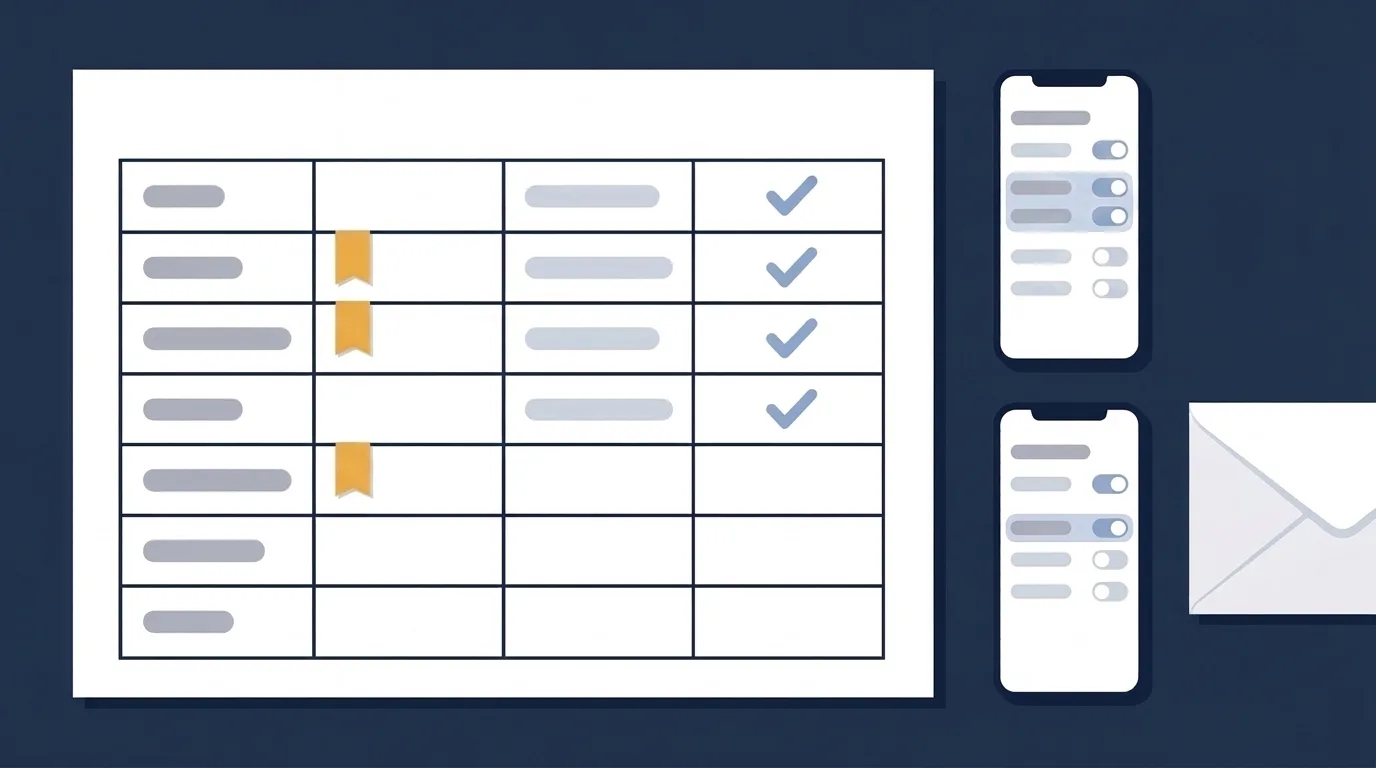
If general affairs staff or the business owner don’t use the admin screens, they don’t need to change any settings. Taking screenshots of the following screens and sending them to your web agency will fill in most of the checklist.
- The form’s settings screen: the part showing the notification recipient and the auto-reply sender. In Contact Form 7, go to the left menu “Contact” (お問い合わせ) → edit the form → the “Mail” (メール) tab
- The sending plugin’s settings screen: the name of the connection method (mailer) and the username field. In WP Mail SMTP, go to the left menu “WP Mail SMTP” → “Settings” (設定). The password field doesn’t need to be in the shot
- The plugin list: the part showing the names of the form plugin and the sending plugin
- Account information at the server company and domain registrar: only the registered email address field (ask someone who can log in to take the screenshot)
Before you send them, make sure no passwords appear in the screenshots.
Changing a password alone can stop emails from sending
Changing a Google account password revokes app passwords
Google’s help says app passwords are available on accounts that use 2-Step Verification. It also explains that changing your Google account password revokes your app passwords, and you have to create new ones to keep using them. If the sending plugin uses the former staff member’s app password, the site stops sending email from the day general affairs changes that password for security.
Main causes of authentication failures in WP Mail SMTP
WP Mail SMTP’s official documentation explains that “SMTP Error: Could not authenticate” means the connection to the server succeeded, but the username or password was rejected. It lists these main causes:
- The password was changed on the email side, but the plugin settings weren’t updated
- 2-Step Verification is enabled, but an app password isn’t being used (Gmail, Yahoo, Zoho, iCloud, etc.)
- The username is in the wrong format (the full address vs. only the part before the @)
- The account was locked after repeated failures
- In a Microsoft environment, basic authentication (sending with a username and password) is disabled
The first two are the ones that mainly matter when someone leaves. A lockout can follow later as a result of repeated authentication failures.
Note: Changing the notification address only changes “where it’s delivered.” Sending authentication is on a different screen in the sending plugin, and it stays as it was.
The fix depends on the connection method
- Other SMTP (enter a username and app password): Replace the former staff member’s app password with one created on a company account. The steps for fixing authentication errors are in WP Mail SMTP’s official guide, with screenshots
- Google integration (connect by authorizing Gmail): Instead of replacing a password, reconnect with a company Google account. Before you start, check on the settings screen which account is currently connected
The order for shutting down: switch over → the successor tests → shut down
1. Switch to company addresses
Change the notification address, the auto-reply sender, the sending plugin’s authentication and the registered email at each provider to the company’s shared address or the successor’s account. If you use a shared address for notifications instead of a personal one, you won’t have to repeat this work every time the person in charge changes, which makes the next handover easier.
2. The successor tests with the real form
For the test, submit from the real form and check each of the following three things separately. One passing doesn’t mean the others pass.
| What to check | How | Who checks |
|---|---|---|
| It reaches the person in charge | Submit from the real form and check the shared address’s inbox | Successor |
| The auto-reply arrives | Use an external address as the sender’s address, and also check the sender name shown | Successor |
| It matches the records | Match the notification and auto-reply sent from the real form against the log by date, time and recipient | Web agency |
Also check that they haven’t landed in the spam folder.
The sending plugin’s test email (in WP Mail SMTP, the left menu “WP Mail SMTP” → “Tools” (ツール) → “Email Test” (メールテスト)) checks the connection to the server and authentication. Passing it doesn’t mean the form’s recipient and auto-reply settings are correct. WP Mail SMTP’s official instructions also tell you to submit from the form itself after the test email (WP Mail SMTP official setup guide).
The email log is a paid feature (log settings). If you use the free version, record the following in a table instead of a log: the date and time sent, the recipient, the result shown on the form screen, and whether it actually reached the inbox.
3. Shut down the former staff member’s access
Shut down the former staff member’s email and password only after the day all three checks pass. Suspend the whole account only once the “Admin access to Google services” row on the checklist is also done. The day after the shutdown, submit from the form once more. If it arrives, you’re done.
When to get outside help, and what information to provide
If any rows on the checklist still list the web agency under “Who makes the change,” or if even one test submission failed to arrive, ask your web agency or maintenance contact. Give them the following when you ask:
- The checklist fields you couldn’t fill in
- The names of the form plugin and the sending plugin
- The name of the server company
- The error text (paste the test submission result or the wording in the email log exactly as shown)
- The planned date for shutting down the former staff member’s account
Don’t write passwords in emails or chat messages. If you need to send one, first agree with the other party on how to hand it over. If they are going to create a new app password, it may be enough for the successor to be present only while they do it.
If you can’t reach your previous web agency, see Can’t Reach Your Previous Web Agency: Steps and Checks for Taking Over Your Website. If you’re looking for someone to review your settings after launch, see also our maintenance and operations service.
If you’ve already shut things down
Look for inquiries that were missed
Even if you’ve already shut down the former staff member’s account, the content of inquiries may still be stored somewhere.
- The sending plugin’s email log: the recipient, subject and date/time of emails that failed to send may be recorded. WP Mail SMTP’s email log is a paid feature, so the free version may have no record
- The form’s storage feature: depending on the form plugin, there may be a feature that saves submissions in the admin screen. Some require adding another plugin to save them
- The former staff member’s mailbox: if it was only suspended and not deleted, an administrator may be able to check its contents
You can only search features that were already enabled before the shutdown. Logs and storage features only record from the time they’re enabled, so turning them on now won’t bring back past submissions. Also, even if the email log has the recipient and subject, you can’t recover what the inquiry said unless the log was set to save the message body.
Contact the people whose inquiries you find, starting with the oldest.
Narrow down where it’s failing
| Symptom | Likely cause | What to do next |
|---|---|---|
| Submitting the form shows an error, or the test email shows an authentication error | Sending authentication | Depending on the connection method, reconnect with a company account or create a new app password |
| The form’s completion screen appears, but nothing reaches the person in charge | Notification address, spam filtering or delivery failure | Check, in order, the real form’s notification address setting, the spam folder, and the delivery results in the email log or bounced emails |
| Emails arrive, but you can’t get into admin screens such as Google Business Profile | Admin access to Google services | Ask an administrator to check the account’s status and access |
Don’t conclude that the notification address is the cause just because the test email was sent. The test email checks the connection. It doesn’t tell you the real form’s recipient or the delivery results.
If emails from the form aren’t arriving for reasons unrelated to someone leaving, go through the checks in Why Contact Form Emails Aren’t Arriving and How to Fix It. If emails started landing in spam after a server migration, Company Email Going to Spam After a Server Migration: 4 Things to Check Before You Order covers a closely related issue.