A customer tells you that the QR code on your flyer, business card, or in-store display “won’t open when I scan it.” When you scan it yourself, you get an unfamiliar notice from a service you don’t recognize, an “expired” screen, or your own website’s “Page not found.” You’re not even sure who made the code. We sometimes get asked for help in exactly this situation.
The content of a printed QR code never changes afterward. What changed is something in the system behind the QR code. This article explains how to use the screen you see and its URL to work out where things stopped, and then decide whether you can fix it yourself or who you need to ask.
The problem is in one of these three places:
- A. The QR service’s redirect: You see the QR service’s notice or an “expired” screen. Only the person who holds the account with that service can fix it
- B. The destination page: You see a “404” or “can’t connect” error on your own domain. You can fix it on your own website
- C. Printing and scanning: The camera doesn’t show a URL. The problem is with the paper or the smartphone
First, take screenshots of two things: the URL that appears when you scan with your camera and the browser URL on the error screen. These two usually tell you where it stopped. Flyers you have already handed out won’t work again unless the route through A or B is restored.
There are only three places where it can stop
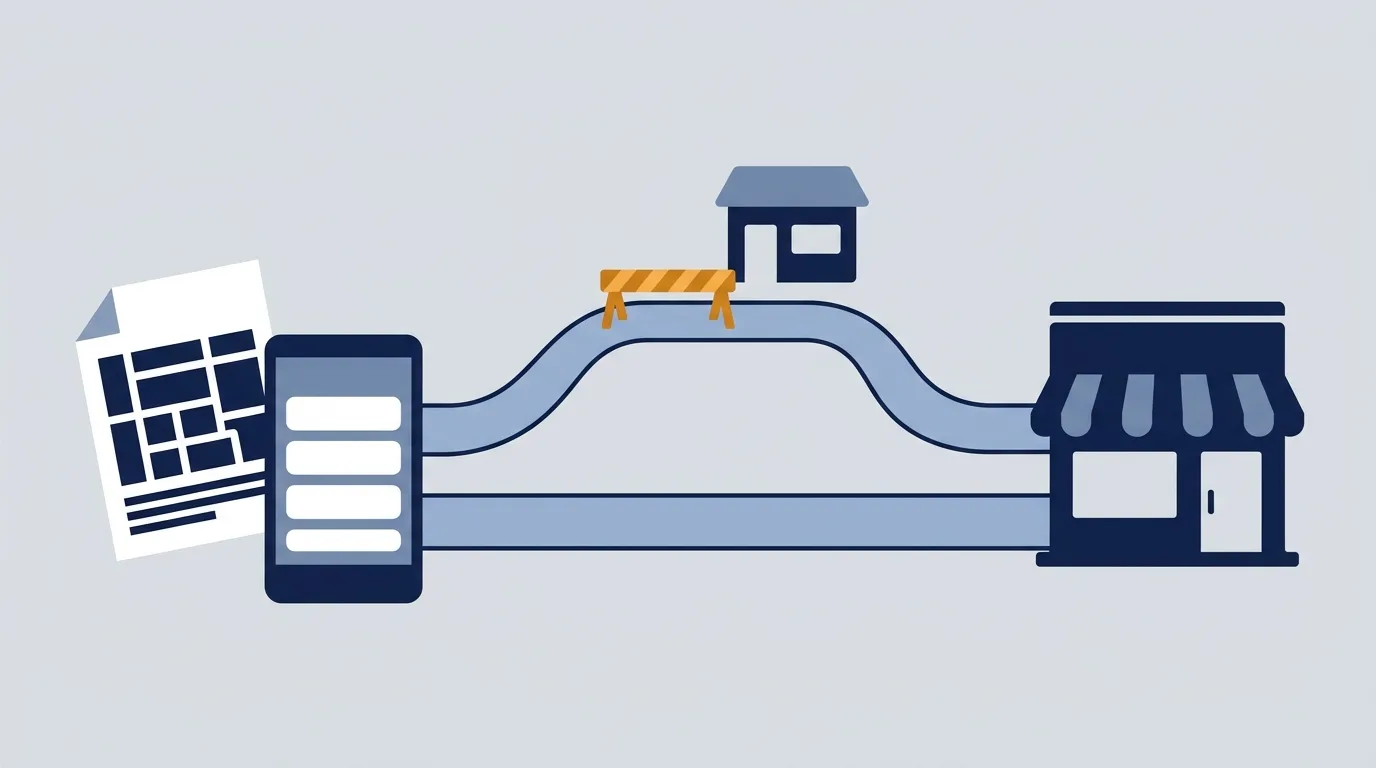
A QR code is a URL turned into a black-and-white pattern. The pattern itself never goes out of date. Between scanning and the page appearing, there are three places where things can stop.
| Place | What it is | What you see when it stops |
|---|---|---|
| Printing and scanning | The camera turns the pattern on paper back into text | No URL appears |
| The URL inside the QR code | If it is a short URL from a QR service, the service redirects you to the destination there | The QR service’s notice or an “expired” screen |
| The destination page | A page on your own website | A 404 on your own domain, or “can’t connect” |
There are two main ways a QR code is made. In a direct code, the URL of your own page is turned into the pattern as is. The route has only two places: “printing” and “your own page.” In a redirect code, the pattern contains a short URL from a QR service, so scanning it first goes through the QR service and is then sent to your page. With a redirect code, you can change the destination later. The trade-off is that it stops if your contract with the QR service ends or you hit a limit.
First, save these two URLs
Whoever ends up fixing it, these are the two things needed first. Save both as screenshots.
① The URL that appears when you scan with your camera
When you point your smartphone’s standard camera at the QR code, a banner with the URL appears at the bottom or top of the screen before the page opens. Without opening it, take a screenshot here. This is “the URL inside the QR code.”
- If it starts with your own domain (the same part as your company website’s address), it is a direct code
- If it is a short domain you don’t recognize, it is a redirect code using a QR service or URL shortener
② The browser URL when the error appears
Next, go ahead and open it, and take a screenshot of the error screen including the address bar. With a redirect code, URLs ① and ② will be different. Whether ② is still on the QR service’s domain or has changed to your own domain tells you where it stopped.
With these two screenshots, you can show your web agency or the service’s support team “how far it got before it stopped” without having to explain it in words.
Which way to go, depending on the screen
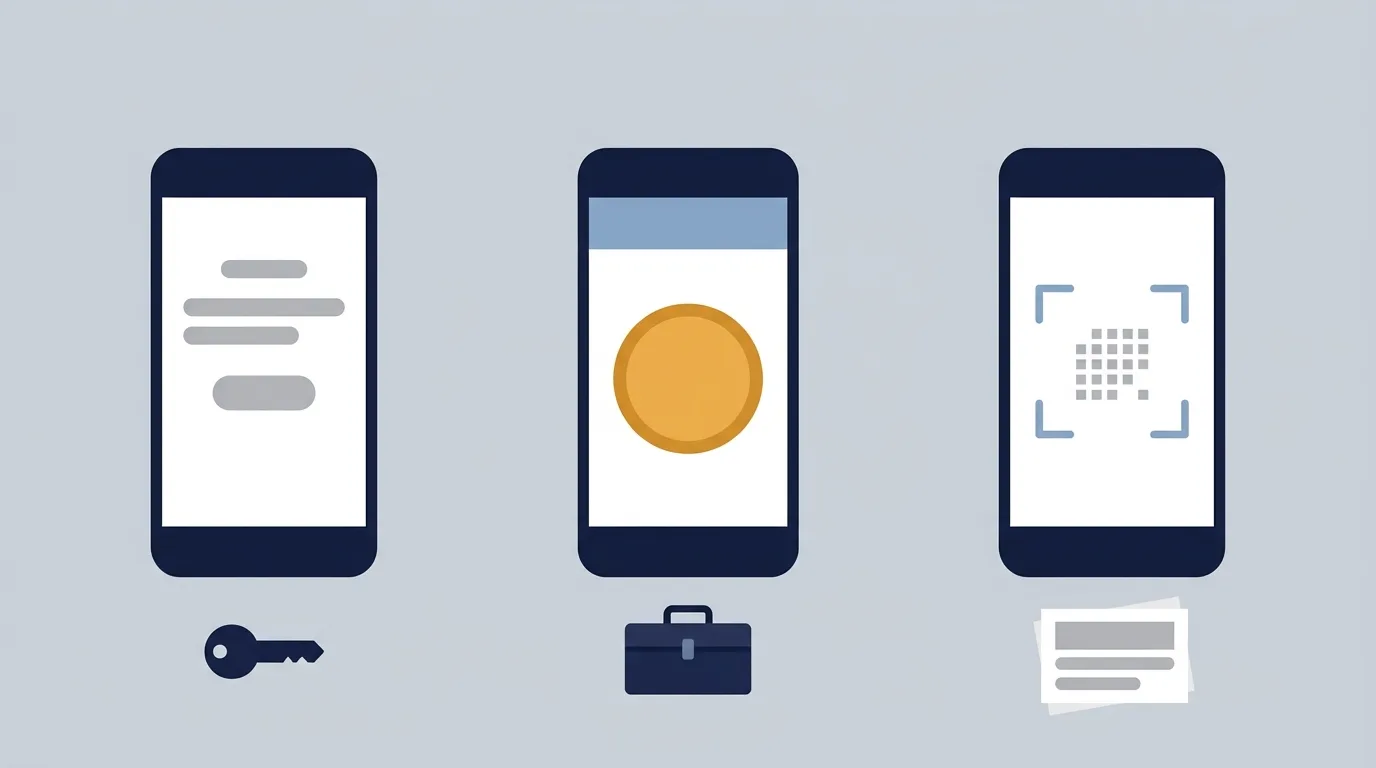
A. It stops at the QR service’s notice or an “expired” screen
If URL ② is still on the QR service’s domain, the redirect has stopped. Your own website has nothing to do with it. Check in this order:
- The account holder reactivates it in the dashboard. According to QR Code Generator’s support article, when the free trial ends, the dynamic QR codes created during the trial are deactivated, and scanning them sends people to the service’s notice page. The same article says that upgrading to a paid plan lets you reactivate them no matter how long it has been since the free trial ended. Codes listed as paused (Paused) can be restored by selecting them and choosing “Activate”
- Change the destination. If the code is simply pointing to an old page, change the destination in the dashboard. Bitly’s support pages describe changing the destination (redirecting) as a feature of certain paid plans
- Ask support. If you can’t find where to do either of the above, contact support with screenshots ① and ② attached
If the service has shut down, the code can’t be restored. From August 25, 2025, Google’s URL shortener links (goo.gl) that had no activity in late 2024 and had shown a warning stopped responding. Google’s developer blog (updated August 1, 2025) says that other links, and links created by Google’s apps, continue to work. A redirect that has shut down can’t be restored, even by the account holder.
B. A 404 or “can’t connect” appears on your own domain
If URL ② has changed to your own domain, the redirect is working and the destination page is what has stopped. Bitly’s blog also lists a broken, moved, or mistyped destination URL as reasons a code can scan but still give an error.
- 404 (Page not found): Common causes are deleting the page or changing its URL during a website redesign. If you restore the page at its original URL, or redirect it to the new page on your own website (a 301 redirect), the printed flyers can stay in use as they are. We explain how to do this in URL migration during a site redesign
- “Can’t connect” / “This site can’t be reached”: The whole site, not just one page, may be down. If the home page won’t open either, check your domain and server contracts. Narrow it down following the steps in Emergency response when your website won’t display
If a direct QR code gives a 404, it also falls under B.
C. The camera doesn’t show a URL
If no URL appears at step ①, the problem is with the paper or the scanning. Try another smartphone as well, and scan again in a bright place. The causes Bitly lists include low print quality, too little color contrast between the pattern and the background, printing that is too small, and not enough blank margin around the code. If the paper is dirty or folded, the problem is limited to that one sheet. If several copies fail to scan the same way, the problem is in the print artwork, so ask the person who designed it to check the original file.
What the major QR services officially say
If you know which service made your QR code, you can get an idea of whether it might stop. The table below summarizes what each service’s official help and information pages say (checked: November 11, 2026). Service descriptions change, so when you actually make a decision, open that service’s help pages again.
| Service | URL inside the QR code | Type | Officially stated stop conditions |
|---|---|---|---|
| Chrome’s share feature (Create QR code) | The URL of the page you had open, as is | Direct | Because it doesn’t go through a QR service, there is no redirect to stop. Only the destination page can stop |
| Canva | For static codes, the destination URL; for dynamic codes, Canva’s redirect URL | Two kinds: static and dynamic | Static codes can’t have their link changed after creation and have no expiry. Dynamic codes can have an expiry date set on paid plans such as Business, and after expiry people are sent to a URL you specify or to Canva’s error page. Deleted dynamic QR codes created on or after October 1, 2026 can be restored by contacting support within 60 days of deletion |
| Adobe Express | The destination URL | Static (direct) | Described as having no expiry and working as long as the destination URL works |
| QR Code Generator | For dynamic codes, the service’s redirect URL | Dynamic (redirect) codes start with a free trial | When the free trial ends, dynamic QR codes are deactivated and people are sent to a notice page. Static QR codes keep working |
| QR TIGER | For static codes, the destination URL; for dynamic codes, the service’s redirect URL | Static and dynamic | Static codes have no expiry and no scan limit. The free plan allows up to 3 dynamic QR codes, each of which stops after 500 scans |
| Bitly | A short Bitly URL | Redirect | The QR pattern itself doesn’t expire, but dynamic QR codes depend on the redirect service running. Changing the destination is only available on certain paid plans |
This table is not the result of actually creating and testing QR codes on each service for this article. We did not create codes that require signing up, nor did we capture the screens shown after a code is stopped, so the post-stop screens for each service are not included here. To work out which one applies to your QR code, compare the domain in the URL you captured in ① with the “URL inside the QR code” column above.
Treat flyers already handed out and flyers in stock separately
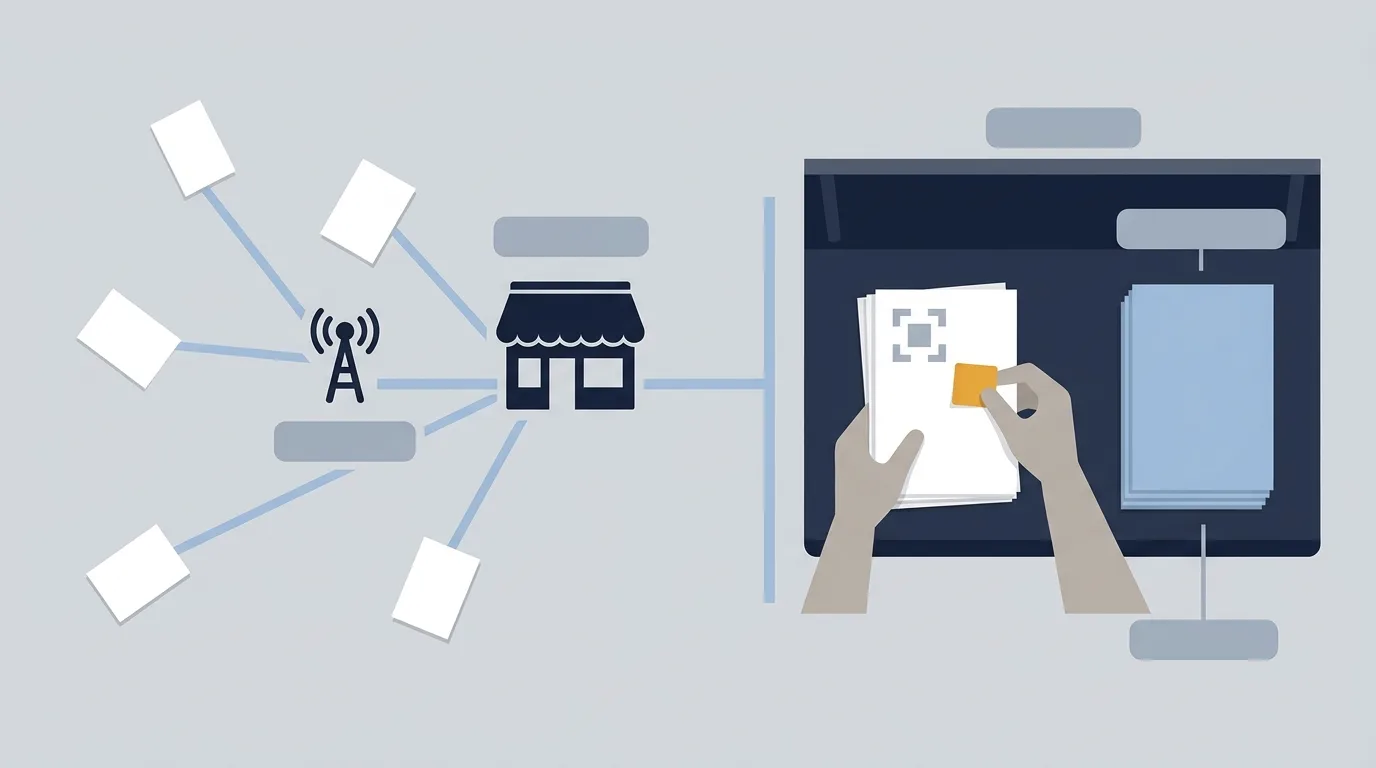
Flyers already handed out
Paper in customers’ hands and flyers left at stations or business partners can’t be collected back. The only way to fix them is to restore the route through A or B.
- For A, the account holder reactivates the redirect or changes the destination
- For B, restore the page on your own website, or set up a redirect on your own website
If the route through A can no longer be restored (the service has shut down, or the account holder can’t be found), you have to give up on the flyers already handed out. Instead, let people know the correct place to go through your shop, your website, and social media.
Flyers in stock
For paper you haven’t handed out yet, put a new QR code sticker over the old one or reprint. When you make a new code, keeping these two points in mind makes the same problem less likely:
- Put a URL on your own domain in the QR code. If you want to change the destination later, you can just redirect it on your own website
- If you use a redirect code, keep a record of the account holder, the registered email address, and the payment method
Before applying the stickers, scan the new QR code with several smartphones and check the URL using the same steps as in ①.
Where to look when you don’t know who manages it
To restore the route through A, you need the account holder at the QR service. If the person in charge has left, or you used a web agency but have no records, look in this order:
- The person who made the QR code: Ask the print shop or designer you hired to design the flyer, or the person in charge at the time, which service they used. Showing them the domain from URL ① gets you a faster answer
- The registered email: Search your company’s shared mailbox and the mailbox of the person in charge at the time for the service name or domain name. Emails confirming registration or announcing the end of a free trial may still be there
- Billing history: Check company credit card statements and expense records for charges under the service’s name. If there are charges, whoever paid is someone close to the account holder
- Where the domain is registered: You need this for B. Check where your domain and server are contracted and in whose name. For how to think about this, see Server and domain ownership
To avoid repeating this when staff change, it helps to add one line for the QR code service to the checklist in Handing over website responsibilities.
A note to hand over when you ask for help
If you can’t fix it yourself, hand over the note below with screenshots ① and ② attached. For A, give it to the person who made the QR code or the service’s support team; for B, give it to your web agency or maintenance provider.
Subject: QR code on our flyer won't open
- Printed material: (e.g.) Spring 2026 flyer, business cards, in-store display
- Distribution: about ◯ copies handed out / about ◯ copies in stock
- URL shown by the camera: (screenshot ①)
- URL on the error screen: (screenshot ②)
- Screen shown: QR service notice / 404 on our own site / no URL appears
- Service and person we think made it:
- What we'd like done: reactivate the redirect, change the destination, restore the page
If you’re looking for someone to help with rebuilding pages or planning your URLs, see our website production service as well.