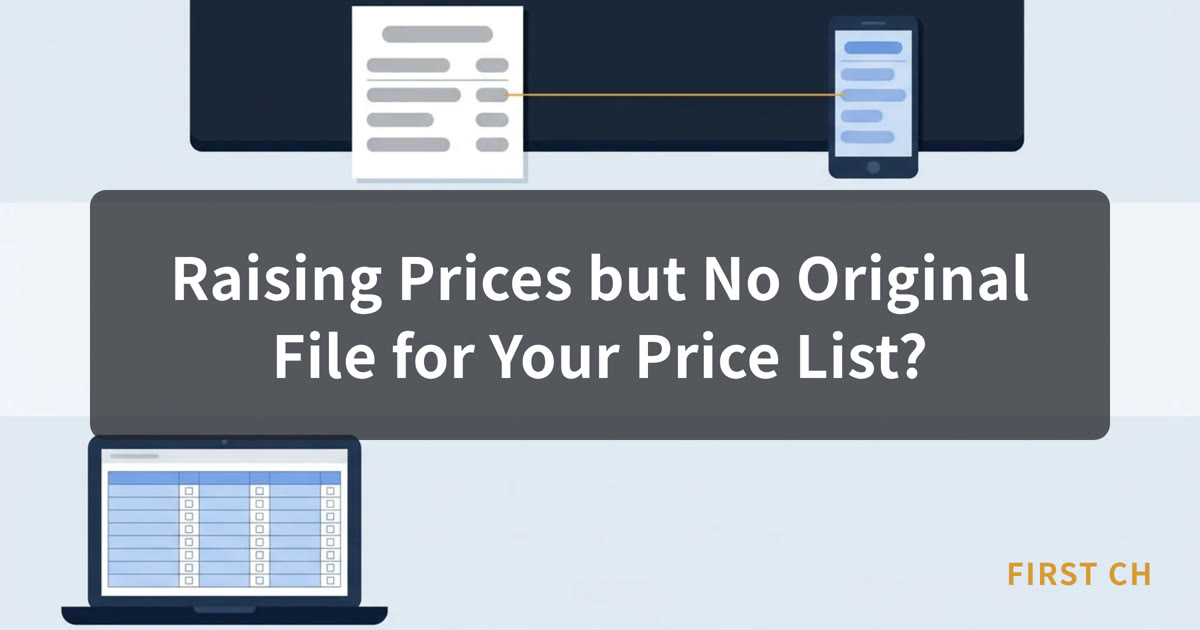
You want to update the price list on your website after a price increase or revision. But the original file is still with the print shop or your previous web agency, and all you have are printed flyers and photos of your storefront. Many shops and classes are in exactly this position. Often the price list on the site is just the flyer image pasted in, with no actual text.
If you plan to retype everything from scratch, the job feels heavy and keeps getting postponed. But the free text recognition (OCR) already built into your phone or computer can save you most of the typing. What remains is checking that the prices were read correctly, and you can finish that by putting them in a table and working through it one row at a time.
You don’t need to retype everything from scratch. Transcribe the flyer with a free text recognition tool, and check only the prices against the flyer, one row at a time, in a “reconciliation sheet.” Hand over the checked sheet together with a photo of the flyer and the date the new prices take effect, and your web agency can do the work without coming back to you with questions.
Conclusion: before retyping, split the job into reading and checking
Split the work into two parts.
- Reading: transcribe the text from the flyer photo. Leave this to the machine
- Checking: confirm the transcribed prices match the original flyer. A person does this
If a menu item name has a one-character typo, readers usually notice. The problem is misread prices. If “5,500” turns into “5,000,” nothing looks wrong as text, so it slips past. Limit the human checking to the price column and only skim the menu names, and you can focus your effort where it matters.
Here is just one reason to put prices back on the page as text rather than as an image. Google Search Central lists “Making sure that important content is available in textual form” as a basic practice for AI features in search. Prices are what customers check most often before they visit. There is no reason to leave them as text inside an image.
Tools: three free text recognition features you already have
You’ll use the following three. None of them cost anything. Here are the conditions confirmed in each company’s official help pages.
| Tool | Device | What you need | Cost | Conditions to note |
|---|---|---|---|---|
| Google Drive (open the image with Google Docs) | Browser on a computer | Google account | Free | Formats: JPEG, PNG, GIF, PDF. 2 MB or less per file. Text at least 10 pixels high. Language is detected automatically |
| Google Lens | iPhone and Android (Google app; on Android, also from Google Photos) | Google app | Free | Read with “Text” (テキスト) and copy the selected part |
| iPhone Live Text | iPhone XS/XR or later | iOS 15 or later (Japanese recognition from iOS 16) | Free (built-in feature) | Turn on “Live Text” (テキスト認識表示) under “Settings” (設定) → “General” (一般) → “Language & Region” (言語と地域) |
The Google Drive help page also has a caution relevant to this job: “Lists, tables, columns, footnotes, and endnotes may not be detected.” A price list is exactly a table, and it usually has notes too. Use it on the assumption that menu names and prices may come out in separate paragraphs and that “※” notes may be dropped.
Depending on your settings, photos taken on an iPhone may be saved in a format called HEIC. Google Drive accepts JPEG, PNG, GIF and PDF, so export the photo as JPEG, or take a screenshot to make a PNG before uploading.
Which to try first
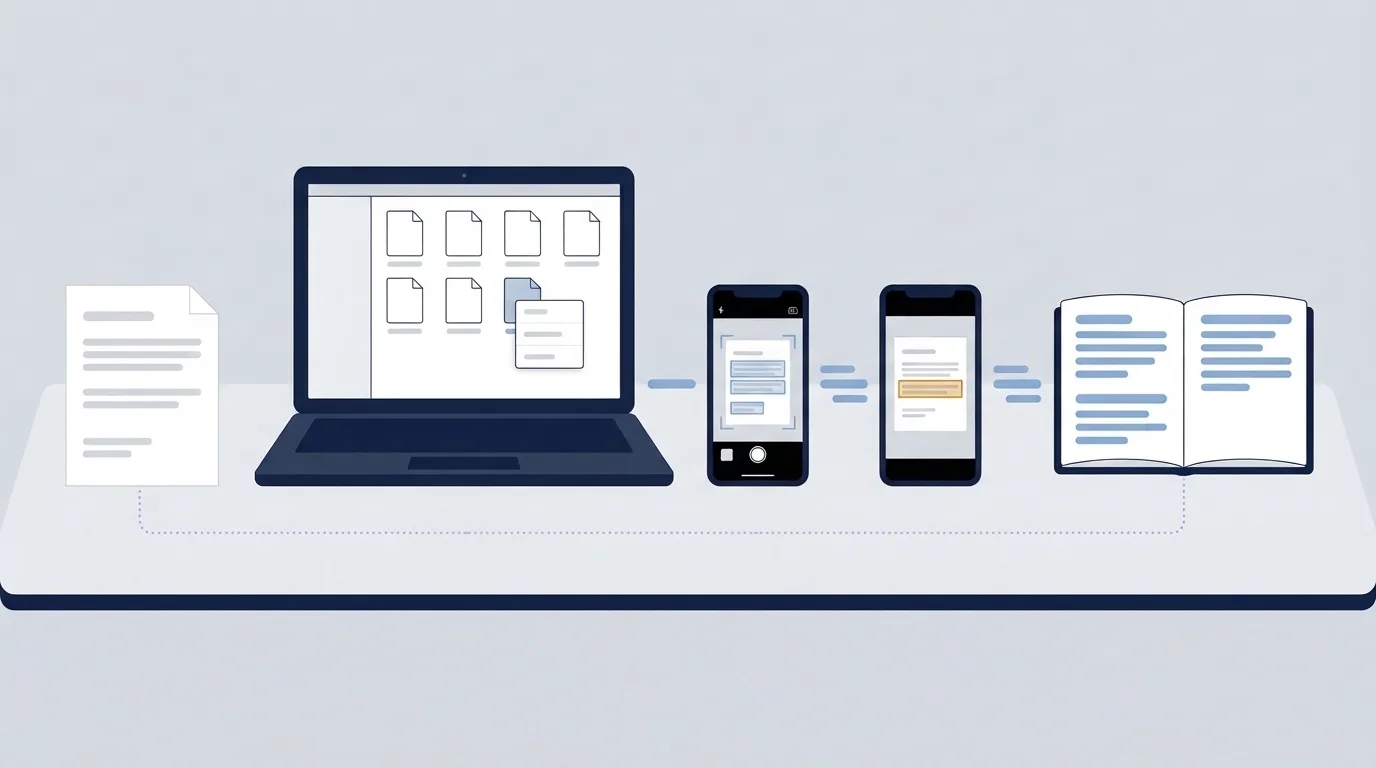
If the flyer photo is on your computer, start with Google Drive. The output is a document, so you can paste it straight into a spreadsheet. If you only have the paper flyer, use Google Lens on your phone or iPhone Live Text to capture the paper and read it. If one tool can’t handle a particular row, re-read just that row with another tool. Each tool misreads in different ways, so one of them will usually get it right.
Test-read your own flyer and count misreadings by type
Don’t read everything at once; try a single sheet first. How easily a flyer can be read varies a lot by type.
- Pick one flyer and photograph it straight on
- Read it with the three tools and paste the output into a notepad or spreadsheet without changing anything
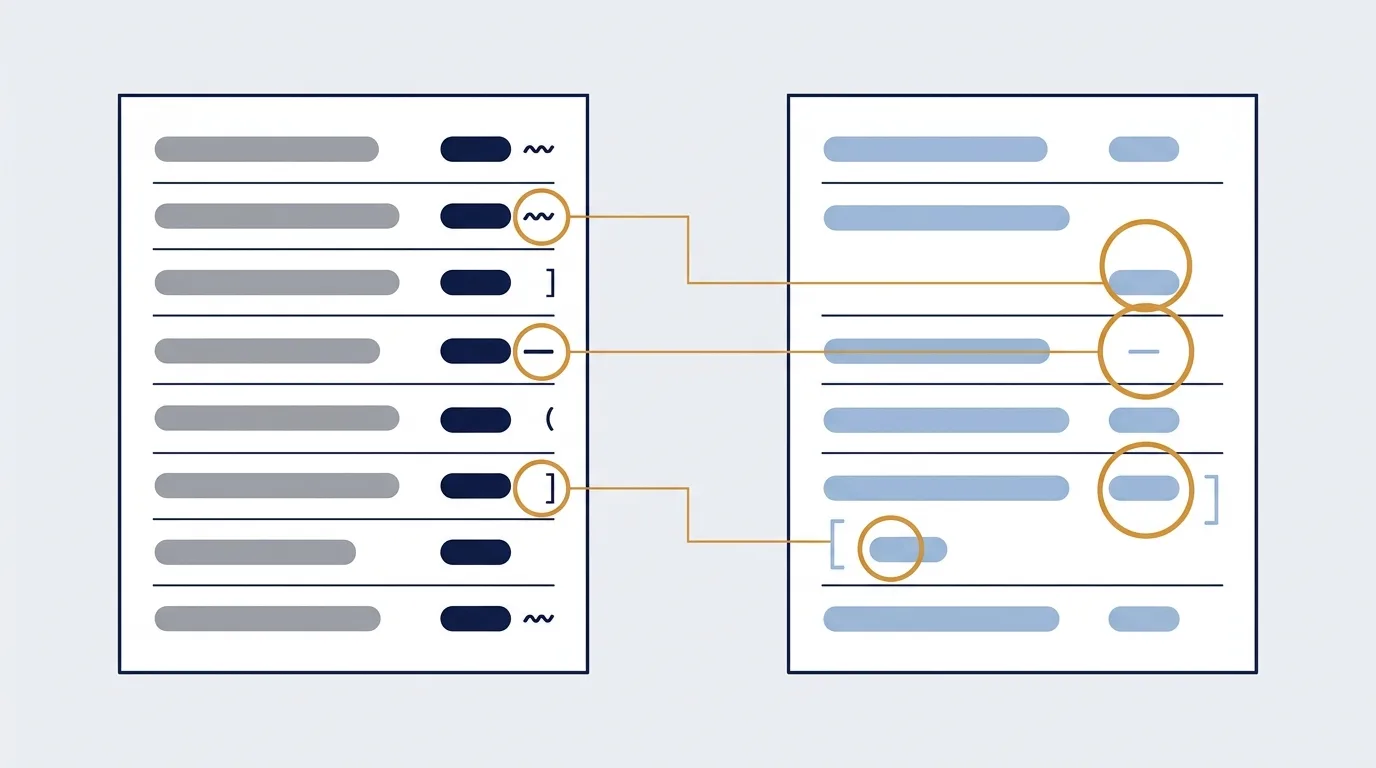
- Compare it with the original flyer row by row, and count the price differences under the six types below
Pasting without edits is the most important part. If you fix things as you read, you won’t be able to tell which tool makes mistakes where.
Six types of price misreading
| Type | Where to check | How to compare |
|---|---|---|
| Digits | Number of zeros; missing or extra digits | Does the price have the same number of digits as the flyer? |
| Comma | Has “,” turned into “.”, a space, or another digit? | Is the comma at the thousands place? |
| ¥ | Has “¥” turned into a digit or symbol and stuck to the price? | Does the price start with a digit or “¥”? |
| 〜 | Has “〜” turned into “-” or “ー,” or disappeared? | Does a “from” price still have its 〜? |
| Tax-included parentheses | Parentheses and contents such as “(税込)” or “(税込5,500円)” | Has the price inside the parentheses split onto another line? |
| Misalignment with menu names | Is a price attached to the menu item one row above or below? | Are the number and order of rows the same as on the flyer? |
Which types appear most depends on the layout.
- Horizontal tables: rows are aligned, so misalignment is less likely. Notes alone sometimes jump to a separate line
- Two-column layouts: rows from the left and right columns can get interleaved one by one. Focus on misalignment
- Text over a photo background: parts of the text may not be recognized. Focus on digits and 〜
Note the types that came up in the test read, and focus on those when you do the full check.
The core: check prices one row at a time in a reconciliation sheet
Don’t send the recognized text straight to your web agency; move it into a reconciliation sheet. It has these seven columns.
| Menu item | Original price | Recognized price | Tax included or excluded | 〜 present? | Notes | Checked |
|---|
“Original price” is filled in by a person looking at the flyer, and “Recognized price” is where you paste the recognition result as is. Putting these two side by side lets you spot differences by eye.
Example (a fictional hair salon)
| Menu item | Original price | Recognized price | Tax included or excluded | 〜 present? | Notes | Checked |
|---|---|---|---|---|---|---|
| Cut | 4,400 | 4,400 | Included | No | ✓ | |
| Cut + shampoo | 5,500 | 5.500 | Included | No | Comma read as “.” | ✓ |
| Color | 6,600 | 6600 | Included | Yes | Long hair charged separately; 〜 had disappeared | ✓ |
| Perm | 8,800 | 8,800 | Included | Yes | ||
| Bangs trim | 1,100 | 8,800 | Included | No | Price from the row above was entered |
Three tips for using it in a spreadsheet:
- Add one “Match” column and compare the original and recognized prices with
=B2=C2. Stray commas or “¥” signs cause a mismatch, so differing rows surface automatically - Mark “Checked” only on rows you’ve confirmed by tracing the actual flyer with your finger. Even if the Match column says “TRUE,” the original price itself could have been typed wrong
- Write new prices in a separate “Revised price” column only after checking is done. Don’t mix checking and the price increase in the same column
To use this reconciliation sheet, just paste the header row above into the first row of Google Sheets or Excel.
When recognition doesn’t work well
Conditions for retaking the photo
The Google Drive help page asks for sharp images with even lighting and clear contrast, in the correct orientation. For a flyer, review the following.
- Shoot in daytime light by a window, from a position where no shadow falls on the paper
- Shoot from directly above. At an angle, rows at the edges get narrower and digit misreadings increase
- Fill the frame with just the price list. Don’t fit the whole flyer into one shot
- Glossy paper reflects lights, so shift the angle slightly to get rid of white glare
For how to take photos in general, the “Photo shooting guide for your website” is also useful.
Text over a photo background
Flyers with text laid over photos are a combination that text recognition struggles with. For rows that still can’t be read after retaking, don’t keep trying; type them by hand. If you write “typed by hand” in the Notes column of the reconciliation sheet, you can tell later which entries a person typed.
Handwriting
Handwritten price lists and photos of chalkboards can sometimes be read, but the digits “1” and “7,” and “0” and “6,” are easily swapped. For handwriting, it’s more reliable to have a person type the “Original price” in the reconciliation sheet from the start and treat recognition as a reference only.
When retyping is faster
If the test read shows corrections needed on almost every row of the reconciliation sheet, that flyer isn’t suited to text recognition. There is no fixed threshold for what share of rows means you should retype, so decide using the one sheet you test-read, comparing the number of rows you corrected with the effort of retyping.
What to hand over to your web agency
When checking is done, hand over the following five items together. If any one is missing, the agency will come back with questions and the work will stall.
| What to hand over | Why it’s needed |
|---|---|
| The checked sheet (with the revised price column) | They can lay it out as text as is, without having to check for misread prices themselves |
| A photo of the original flyer | To match the order, groupings and placement of notes |
| The date the new prices take effect | To align the publishing date. Keep the old prices up until the day before |
| Tax included or excluded | Changes how the table headings and notes are written |
| How often prices are revised | If you change them several times a year, this informs the decision to build it so you can edit it yourself |
Revision frequency is often overlooked. If prices change every year, having the list built so you can rewrite it from the admin screen means the next price increase won’t need a request at all. For deciding what you can edit yourself, see “How much of your website can you edit yourself?“, and for how to make a request, see “How much can you outsource website updates?“.
If you’re using the price list rebuild as a chance to review your whole site or find someone to take it on, see also Website Development.
Summary: if you have the flyer, you can rebuild your price list
- Even without the original file, if you have a photo of the flyer, free text recognition can transcribe it
- Reading is for the machine, checking is for people. Concentrate human effort on the price column
- Test-read one sheet, count misreadings under the six types, and focus on the types that appear most
- In the reconciliation sheet, put “Original price” and “Recognized price” side by side, and mark Checked only on rows confirmed against the actual flyer
- Hand over the checked sheet, the flyer photo, the start date, tax included or excluded, and the revision frequency
The reconciliation sheet you made this time can be reused for the next revision as is. Rewrite the price column and hand over the same five items, and next time you won’t even need to start from text recognition. If you want to rethink what to put on your shop’s website in the first place, also read “How to build a website for your shop“.