“The booking form is hard to fill in.” “I entered my address and the street number disappeared.” “My phone number doesn’t fill in automatically.” Customers or coworkers have told you this, but you can’t tell what is wrong. You want to ask your web production company for help, but all you can say is “Please fix the form.” This article is for you.
Problems with autofill don’t always come from how the form is built. Sometimes they come from the visitor’s browser settings. Sometimes the component that fills in the address from the postal code overwrites the values the browser entered. This article explains how to check the cause in three places, one at a time, and how to turn what you find into a request to your web production company.
- There are three possible causes: (1) the visitor’s browser, (2) how the form is built, and (3) the address lookup component. Check them in this order
- Check (1) in Chrome’s settings and saved information. Check (2) with a comparison form and the “Autofill” panel in DevTools
- For (3), YubinBango runs every time a key is released in the postal code field, and it empties the address fields before writing to them again. Even just tabbing into the postal code field can make the street number disappear
- Your request should cover two things: “which autocomplete value to add to which field” and “don’t let the lookup component rewrite the street number field”
Three Places the Cause Can Be: The Browser, How the Form Is Built, and Address Lookup
The cause is in one of three places
| Where | What happens | Who fixes it |
|---|---|---|
| (1) The visitor’s browser | Autofill is turned off, or no address or phone number is saved | The visitor |
| (2) How the form is built | Fields have no autocomplete value, labels aren’t linked to fields, or the name attribute gives no clue to what the field holds | The web production company |
| (3) The address lookup component | The lookup from the postal code rewrites the address the browser entered | The web production company |
People often say, “The phone number won’t fill in because it’s split into three fields.” But the HTML specification has a value for each of the three parts of a split phone number. Sometimes the cause isn’t the split itself but the missing values. The same goes for address lookup: the problem isn’t that you use the component, but which fields it is set to rewrite.
Why to check in order
If you fix (2) without checking (1), nothing may change on the device of the person who reported the problem. If you suspect (3) without fixing (2), you can’t tell whether the component overwrote anything when the browser never entered a value in the first place. That is why you check from the outside in.

Start by Checking Your Own Device
Chrome settings and saved information
According to Chrome Help, you turn autofill on or off under “Settings” (設定) → “Autofill and passwords” (自動入力とパスワード). The “Save and fill” (保存、入力する) setting is on by default. You can add, edit, and delete saved addresses under “Addresses and more” (住所やその他の情報).
Check these three things:
- Is address autofill turned on?
- Is there at least one entry under “Addresses and more” that includes an address and phone number?
- Does the saved entry have blank or outdated values in the phone number or postal code?
Do suggestions appear on another major site’s form?
Next, click an address field on a major site such as a large online store, and see whether your saved address is suggested. Only look at the suggestions. Don’t register an account or submit anything. If no suggestions appear here, suspect the device’s settings or saved information.
Don’t call it a defect just because no suggestions appear
If no suggestions appear on your own form, that alone doesn’t mean the form is defective. With no saved information, even a perfectly built form shows no suggestions. Just asking the person who reported it “Was it Chrome or another browser?” and “Do suggestions appear on other sites?” narrows it down a lot between (1) and (2) onward.
Isolate the Cause with a Comparison Form
To tell (2) and (3) apart, build a small comparison form on your own computer. Put sets side by side that differ in only one thing, and see which difference matters. You don’t need to submit anything from your live form.
HTML for the comparison form
Paste the code below into Notepad and save it with a name ending in .html, such as “compare.html” (use UTF-8 encoding). Drag the saved file into a Chrome window to open it. Address C loads YubinBango from the internet, so open it while connected. There is no submit button, so nothing is sent anywhere.
<!DOCTYPE html>
<html lang="en">
<head>
<meta charset="UTF-8">
<title>Autofill comparison form</title>
<script src="https://yubinbango.github.io/yubinbango/yubinbango.js" charset="UTF-8"></script>
</head>
<body>
<h2>Phone A (no autocomplete)</h2>
<form onsubmit="return false">
  <label for="ta-1">Phone number</label>
  <input id="ta-1" name="tel1"> - <input name="tel2"> - <input name="tel3">
</form>
<h2>Phone B (split into 3, with autocomplete)</h2>
<form onsubmit="return false">
  <label for="tb-1">Phone number</label>
  <input id="tb-1" name="tel1" autocomplete="tel-area-code"> -
  <input name="tel2" autocomplete="tel-local-prefix"> -
  <input name="tel3" autocomplete="tel-local-suffix">
</form>
<h2>Phone C (one field)</h2>
<form onsubmit="return false">
  <label for="tc">Phone number</label><input id="tc" name="tel" autocomplete="tel">
</form>
<h2>Address A (no autocomplete)</h2>
<form onsubmit="return false">
  <label for="aa-zip">Postal code</label><input id="aa-zip" name="zip"><br>
  <label for="aa-pref">Prefecture</label><input id="aa-pref" name="pref"><br>
  <label for="aa-city">City</label><input id="aa-city" name="city"><br>
  <label for="aa-addr1">Town and street number</label><input id="aa-addr1" name="addr1"><br>
  <label for="aa-addr2">Building name</label><input id="aa-addr2" name="addr2">
</form>
<h2>Address B (with autocomplete)</h2>
<form onsubmit="return false">
  <label for="ab-zip">Postal code</label><input id="ab-zip" name="zip" autocomplete="postal-code"><br>
  <label for="ab-pref">Prefecture</label><input id="ab-pref" name="pref" autocomplete="address-level1"><br>
  <label for="ab-city">City</label><input id="ab-city" name="city" autocomplete="address-level2"><br>
  <label for="ab-addr1">Town and street number</label><input id="ab-addr1" name="addr1" autocomplete="address-line1"><br>
  <label for="ab-addr2">Building name</label><input id="ab-addr2" name="addr2" autocomplete="address-line2">
</form>
<h2>Address C (with autocomplete + YubinBango)</h2>
<form class="h-adr" onsubmit="return false">
  <span class="p-country-name" style="display:none;">Japan</span>
  <label for="ac-zip">Postal code</label><input id="ac-zip" name="zip" class="p-postal-code" autocomplete="postal-code"><br>
  <label for="ac-pref">Prefecture</label><input id="ac-pref" name="pref" class="p-region" autocomplete="address-level1"><br>
  <label for="ac-city">City</label><input id="ac-city" name="city" class="p-locality" autocomplete="address-level2"><br>
  <label for="ac-addr1">Town and street number</label><input id="ac-addr1" name="addr1" class="p-street-address" autocomplete="address-line1"><br>
  <label for="ac-addr2">Building name</label><input id="ac-addr2" name="addr2" autocomplete="address-line2">
</form>
</body>
</html>
In Address C, the town and street number field has p-street-address. If the street number field on your own form has a different class, change it to that class before testing.
The three phone sets
| Set | Fields | Label | name | autocomplete |
|---|---|---|---|---|
| Phone A | Split into three | Phone number (one label only) | tel1, tel2, tel3 | None |
| Phone B | Split into three | Phone number (one label only) | tel1, tel2, tel3 | tel-area-code, tel-local-prefix, tel-local-suffix |
| Phone C | One field | Phone number | tel | tel |
The only difference between A and B is whether autocomplete is set. The only difference between B and C is the number of fields. The HTML Standard defines tel-area-code as the area code, including the leading domestic 0. It defines tel-local-prefix and tel-local-suffix as the first and second parts of the number after the area code, when that part is split in two.
The three address sets
| Set | Fields | autocomplete | Lookup component |
|---|---|---|---|
| Address A | Postal code, prefecture, city/ward/town/village, town and street number, building name | None | None |
| Address B | Same | postal-code, address-level1, address-level2, address-line1, address-line2 | None |
| Address C | Same | Same as B | YubinBango (add class=”h-adr” and so on) |
Link each label to its field with <label for>, and use the same wording in all three sets. Keep the name attributes the same across the three sets too. If you also change labels or names from set to set, you won’t be able to tell which difference mattered.
Fictional saved information and how to record results
- Save just one fictional address and phone number under “Addresses and more” in Chrome. Don’t use a real address
- Open the comparison form, choose “Show Autofill” from the DevTools Command Menu, and open the “Autofill” (自動入力) panel
- Pick a suggestion from the first field of each set to fill it in
- Write down the “field,” “predicted autofill type,” and “filled value” shown in the panel. Also note whether the prediction came from the autocomplete value or from the browser’s guess
- For Address C, try each of the following three input methods once, and write down the values right after each. Reload the page each time to empty the fields
- Click a suggestion with the mouse
- Select a suggestion with the arrow keys and confirm with Enter
- After selecting a suggestion, tab through the postal code field from another field
Finally, delete one character in the postal code field, type it again, and write the changed values in a separate column
- Write the Chrome version (shown at
chrome://version) and the test date above the table
According to the official DevTools documentation, this panel can only examine address information. Mistakes in autocomplete values also appear in the “Issues” (問題) panel.
The Results Table and What the Spec and Code Tell Us
Layout of the record sheet
This article doesn’t include a table of values measured on the author’s device. The table below lists what we expect based on the specification and the YubinBango code, alongside columns for you to record your own results. If the expectation and your record don’t match, treat your record as correct.
| Set / field | Expected | Result (filled correctly / not filled / filled in the wrong field) |
|---|---|---|
| Phone A | Depends on the browser’s guess. Whether the three fields are recognized as a phone number may vary by version | |
| Phone B | Filled in separately as area code, local prefix, and subscriber number | |
| Phone C | Filled into one field. Record whether it starts with +81 or is in domestic format | |
| Address A | Depends on the guess from the labels and names | |
| Address B | Filled into the fields as specified | |
| Address C | Right after selecting with the mouse, same as B. After selecting with the keyboard, or tabbing through the postal code field, the street number field may become empty |
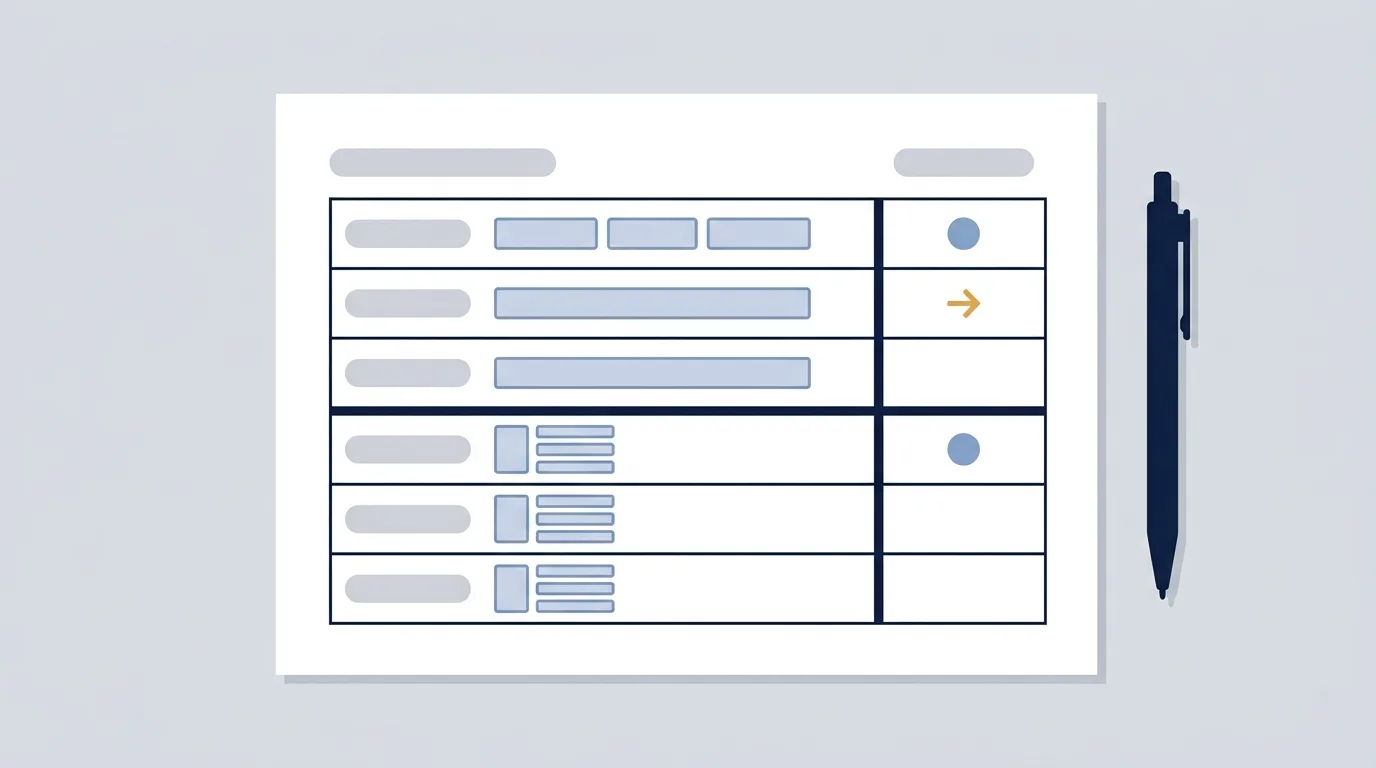
For addresses, record “right after” and “after lookup” in separate columns
Reading the code in the YubinBango repository shows that it works like this:
- It runs only when a key is released (keyup) in the postal code field. It doesn’t run on change or input
- It searches when all 7 digits of the postal code are present. It can handle full-width digits and hyphens
- Before writing, it first empties the p-region, p-locality, p-street-address, and p-extended-address fields
This tells us three things:
- If a suggestion is selected with the mouse, the value goes in without any key press, so the component is not expected to run
- It does run with keyboard operation. Selecting a suggestion with the arrow keys and Enter in the postal code field, or tabbing into the postal code field, both count as releasing a key in that field
- When the person later corrects the postal code, the target fields are emptied and rewritten every time
If the field for the street number has p-street-address or p-extended-address, the street number disappears there. Reports that the street number disappears when tabbing into the postal code field are also known for EC-CUBE and other systems. Even when someone reports “the street number disappeared even though I didn’t retype anything,” don’t rule out cause (3).
| Field | Right after selecting with the mouse | Right after selecting with the keyboard | After tabbing through the postal code field | After retyping the postal code |
|---|---|---|---|---|
| Postal code | (record) | (record) | (record) | (record) |
| Prefecture | (record) | (record) | (record) | (record) |
| City/ward/town/village | (record) | (record) | (record) | (record) |
| Town and street number | (record) | If the street number disappeared, write the class the field had | Same as left | Same as left |
| Building name | (record) | (record) | (record) | (record) |
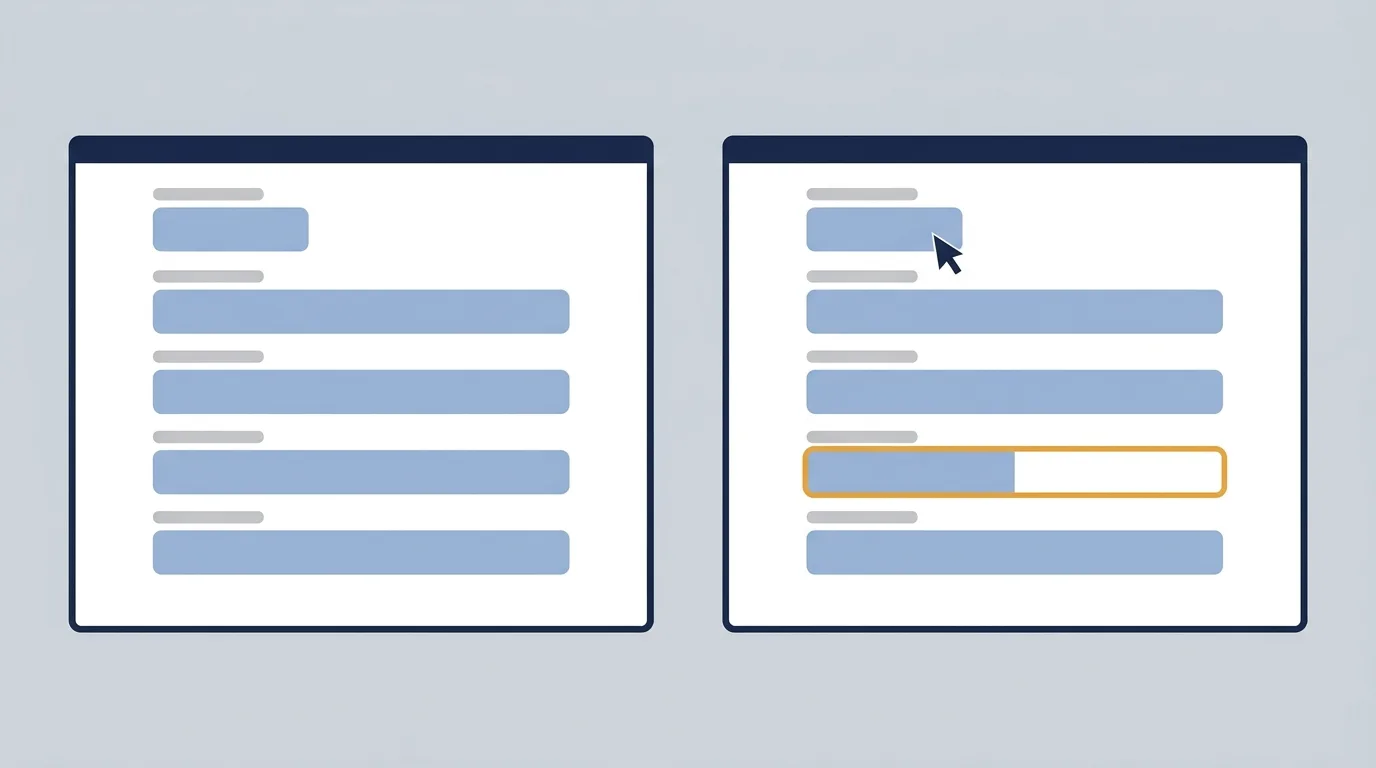
Only draw conclusions from conditions you actually observed
If the street number disappears, write down “which field, with which class, after doing what.” Don’t generalize to “YubinBango deletes street numbers.” Label mistakes you made yourself, such as a typo in a value on the comparison form, separately as “own mistakes.” Also, even if suggestions fill in for Phone A, that only applies to that version of Chrome.
If You Use a WordPress Form Plugin
If you build forms with Contact Form 7 or a similar plugin, you may be able to add autocomplete to the form tag settings, such as autocomplete:tel. Whether you can depends on the version you use, so after adding it, open the form and check in the DevTools Elements view that autocomplete=”tel” appears on the input. If you use an address lookup plugin such as zipaddr-jp, the “right after” and “after lookup” record sheet above works as is.
Sample Request to Your Web Production Company
Attach your record sheet and make a request like the one below. Change the field names and autocomplete values to match your own form.
We’d like to ask you to fix autofill on our inquiry form.
Conditions for reproducing: Chrome (version: ___), Windows, tested with fictional saved information. The record sheet is attached.
1. Please add autocomplete to the three phone number fields: tel-area-code for the area code, tel-local-prefix for the local prefix, and tel-local-suffix for the subscriber number. If combining them into one field with autocomplete=”tel” is an option, please give us a quote for that as well.
2. Please add autocomplete to the address fields: postal-code for the postal code, address-level1 for the prefecture, address-level2 for the city/ward/town/village, address-line1 for the town and street number, and address-line2 for the building name.
3. When the postal code is retyped, or when someone tabs through the postal code field, the street number field becomes empty. Please make sure the lookup from the postal code doesn’t rewrite the street number and building name fields. We have in mind limiting the lookup to the town name and putting the street number in a separate field.
4. After the fix, please send us a screenshot of the DevTools Autofill panel showing each field recognized as specified, and the results of checking that the street number stays after the postal code is retyped.
For name and furigana fields, it’s enough to ask them to follow Google’s official recommendations. The official Chrome blog post of April 15, 2026 says to use standard values such as name, family-name, and given-name for furigana as well, and that separate fields for family name and given name are the most reliable.
If you’re looking for someone to rebuild your site, including its forms, see also Website Development.
Limits of This Method
Results apply only to the version and browser you tested
Autofill detection includes the browser’s guesses, so results may change with the version. Treat your record sheet as results for “Chrome version ___, tested on ___,” and check again with the same form after a version update. If you keep the comparison form as a single file, rechecking takes only a few minutes.
Check Safari and iPhone separately
The steps in this article assume Chrome on a computer. Safari and iPhone autofill use different saving and detection, so Chrome’s results don’t tell you it’s “fixed on iPhone too.” If most of your customers fill in forms on smartphones, open the same comparison form on an iPhone, write down the values that are filled in, and check.
What we didn’t examine
| Scope | How this article handles it |
|---|---|
| Comparing form builder tools | Not covered |
| How much the submission rate changes | No figures given |
| Whether to reduce the number of fields | Not covered |
| Furigana autofill | Only cites the official Chrome blog’s recommendation; not measured again |
Related articles: if emails from your form don’t arrive, see Why Contact Form Emails Don’t Arrive and How to Fix It. For how to count submissions, see Counting Inquiries Correctly in GA4.