This guide is for staff who update a WordPress site and can’t get into the admin screen. It shows what to check and what to do next, based on the screen you see. WordPress itself has no feature that locks you out after a number of failed attempts. Whether a lockout happens depends on the settings of any security plugin installed on the site.
Stop retyping your password after a few tries. If you see an administrator account you don’t recognize, stop what you are doing and ask for help right away. If you don’t know your own permissions, the only things to stop are server and file operations. You can keep checking handover documents and your inbox, and you can try opening the page in a different browser. Then use the table below to narrow what to check down to one thing, based on the screen you saw. When you ask for help, include these five items: the site URL, the screen you saw, what you tried and how many times, the email address you think is registered, and who your contracts are with.
Narrow down what to check from the screen you see
When you can’t log in, what you see generally falls into one of six patterns. Use them to choose what to check next, not to decide the cause.
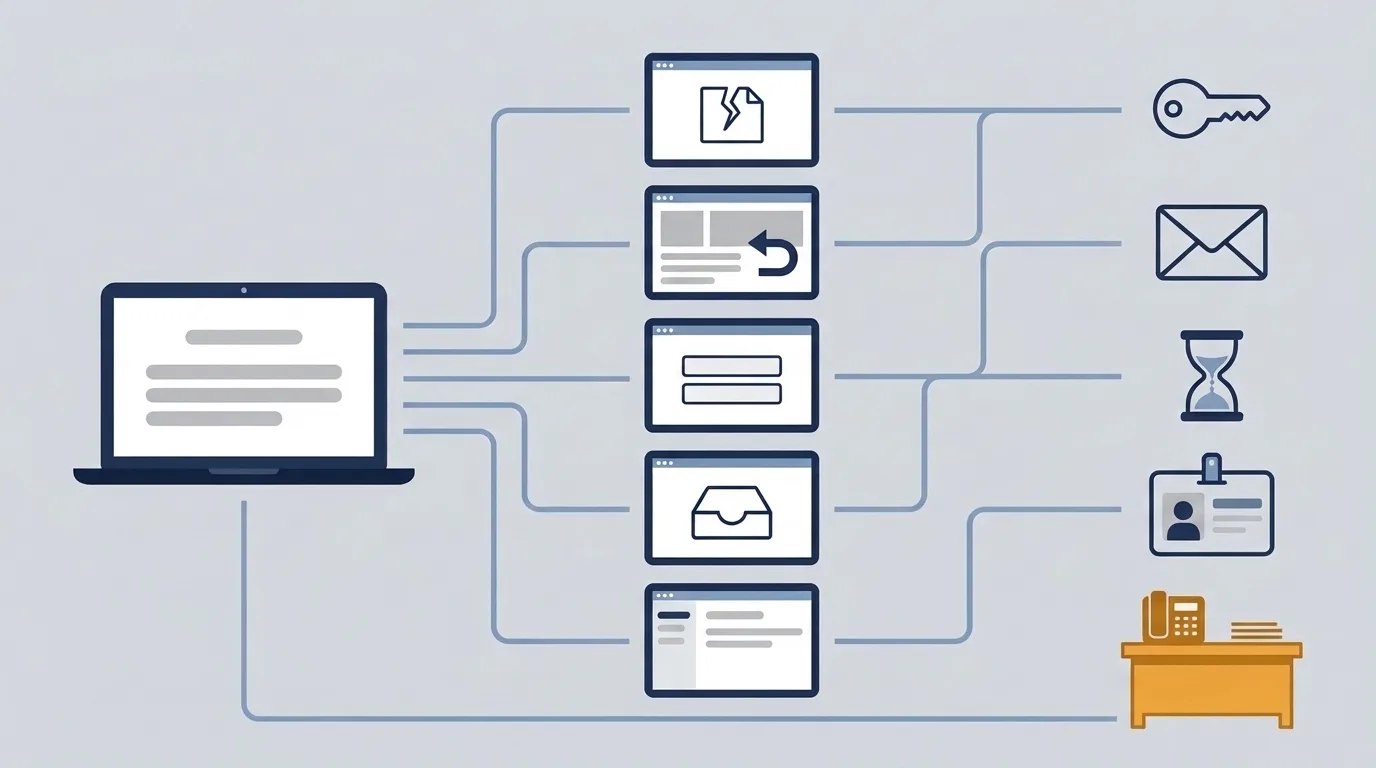
| Screen you see | What to check | First step |
|---|---|---|
| A message such as “Page not found,” or you are sent back to the homepage | Login URL | Look for the login URL in handover documents and your inbox |
| A message saying the password is wrong | Registered email / waiting time | Stop retyping and request a password reset |
| The password reset email doesn’t arrive | Registered email | Check the address you think is registered and your spam folder |
| A lockout message, or one asking you to wait before trying again | Waiting time | Wait for the time shown and don’t try during that period |
| After you enter your details, you return to the same login screen with no error | Browser | Try once in a different browser or a private/incognito window. If nothing changes, ask for help |
| You can log in, but there are only a few menu items | Permissions | Ask an administrator to check your permissions |
| None of the above | Ask for help | Take a screenshot and send a request with the five items described later |
Reopening the page in a different browser or a private window is something you can try yourself, and it is unlikely to make things worse. If the cause is old data stored in your browser, this may let you in. If you still return to the same login screen in a different browser, the site or server settings need to be checked, so contact your web agency or server administrator.
If the screen goes blank, or you see only a number such as “500” or “403,” the server or files need to be checked, so pass it on to whoever handles them. Do the same if you aren’t sure which case applies.
Three situations where you should stop
You keep retyping your password
On many sites, a security plugin temporarily blocks logins from a connection that has failed several times in a row. For example, the login lock in SiteGuard WP Plugin, by default, locks you out for 1 minute after 3 failures within 5 seconds. The time window, number of attempts, and lock duration can be changed in the settings (SiteGuard WP Plugin “Login Lock”).
While you are locked out, you can’t log in even with the correct password. As a result, people often assume a correct password is wrong and go on trying other passwords. Some servers also have defenses that block an entire connection source. If a few attempts fail, stop typing. Note which passwords you tried (not the passwords themselves, but labels such as “old password” or “the one in my notebook”), how many times, and when.
You see an administrator account you don’t recognize
If the user list includes an administrator you don’t recognize, or the login screen or site looks different from before, the problem may be unauthorized access rather than a login issue.
Don’t delete that account or change passwords yourself. Take screenshots to keep a record, and contact your web agency or server administrator. Deleting the account removes clues about when it was created and by whom. The steps to take are covered in Emergency response when your website won’t display or has been tampered with.
You don’t know whether you are an administrator
If your predecessor only told you “log in with this ID,” you may not know whether that account is an administrator or has another role, such as Editor. In that case, stop any operations that touch the server control panel or files. If someone else holds the server contract, or a web agency is involved, your changes could conflict with their work or settings.
You can keep checking handover documents and your inbox, or reopening the page in another browser. At the same time, find out who the site administrator is.
Check the login URL
The default URL, and when it has been changed
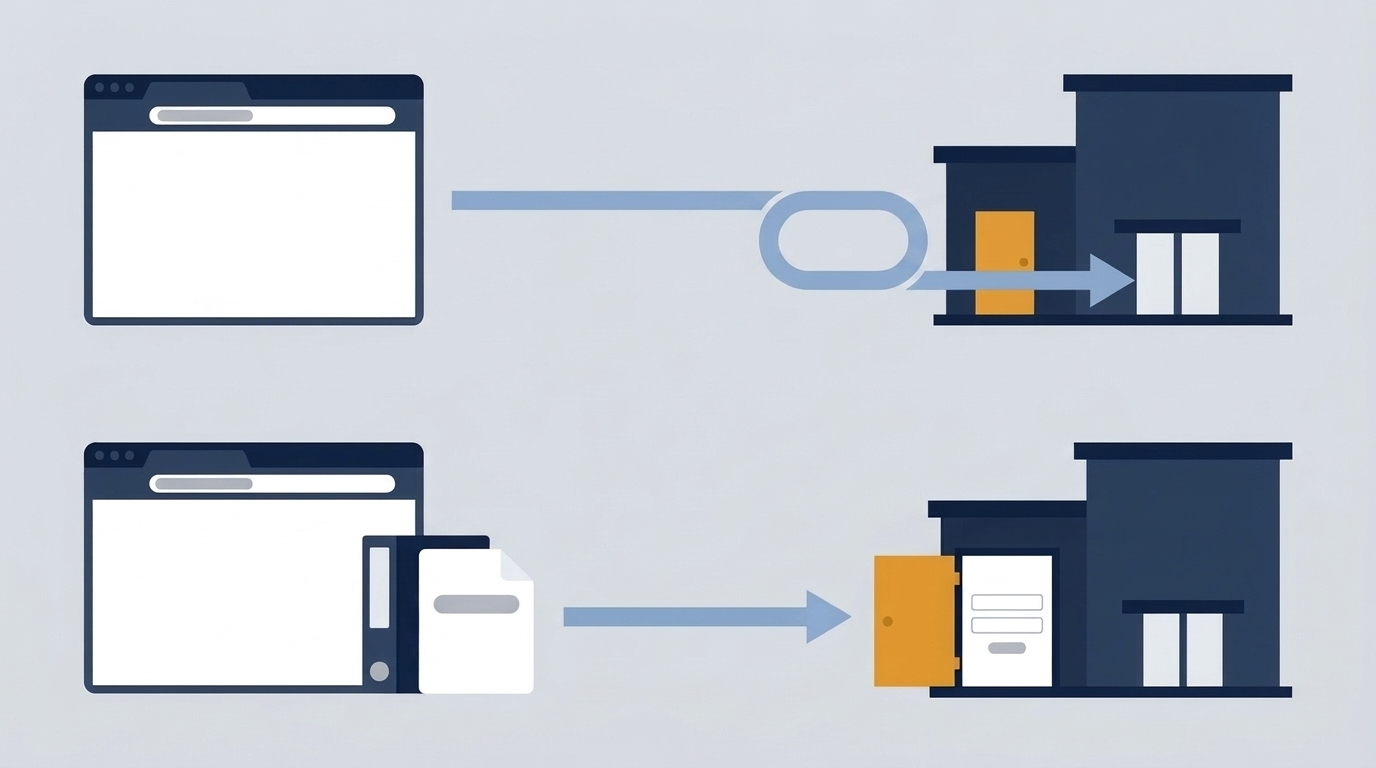
By default, the WordPress login screen is at “the URL where WordPress is installed/wp-login.php,” and the admin screen is at “the install URL/wp-admin/.” The starting point is where WordPress itself is installed, not the URL of the public site.
- If it is installed in the same location as the public site: https://www.example.co.jp/wp-login.php
- If it is installed in a subdirectory such as “wp”: https://www.example.co.jp/wp/wp-login.php
If adding the path to the public site’s URL doesn’t find the page, WordPress may be installed in a subdirectory. Check whether the handover documents say where WordPress is installed.
If adding the path to the install location still shows “Page not found” or sends you back to the homepage, the login URL may have been changed. Unauthorized login attempts are automated and target the default login page. So changing the location of the login page with a plugin such as SiteGuard WP Plugin is a common setting.
If the SiteGuard option “Do not redirect from the admin page to the login page” (管理ページからログインページへリダイレクトしない) is checked, opening /wp-admin/ while logged out takes you to the homepage instead of the new login page (SiteGuard WP Plugin “Rename Login”). The site may not be broken; it may be working exactly as configured.
Order of checks before you try anything
- Look at handover documents, documents provided at delivery, and the launch notice from your web agency
- Search your inbox for words such as “login,” “admin,” your site name, and “SiteGuard”
- Check browser bookmarks and the browsing history on any device you have logged in from before
- If you still can’t find it, decide whether to use SiteGuard’s rescue feature
Conditions for the rescue feature
SiteGuard has a rescue feature for when you forget the login URL. Add “/?siteguard_rescue=1” to the end of the site URL and open it. An input screen appears, where you enter an email address and complete an image CAPTCHA. The official documentation gives these two conditions (SiteGuard WP Plugin “Rename Login”):
- The login URL is sent only to email addresses registered in WordPress as an administrator. Entering the address of an account with another role, such as Editor, or an unregistered address, will not get you the email
- Using it 3 or more times in 1 hour triggers a lock
What follows is this article’s own recommendation. If you keep trying without knowing which address was registered, you will be locked out. Use it only once, when steps 1–3 haven’t found the URL and you are confident of the address registered as an administrator.
If the input screen doesn’t appear, the login URL may have been changed by something other than SiteGuard, and this feature can’t be used. In that case, ask for help.
Check the reset email and your permissions
The reset email goes only to the registered address
If you have forgotten your password, reset it from the login screen. The steps are as follows (WordPress official “Reset your password”).
- Click “Lost your password?” (パスワードをお忘れですか?) below the login screen
- Enter your username or the email address registered in that account’s profile, and submit the request
- Open the reset email sent to the registered address and click the link
- On the screen that opens, choose a new password and save it
- Return to the login screen and log in with the new password
The email goes to the address registered in the profile, so it won’t reach the address you use now unless that is the registered one.
If the email doesn’t arrive, check the following:
- Was the account registered with your predecessor’s personal address, or a shared address such as info@?
- Is it in your spam folder?
- Does your company email block automated emails from outside?
- Can the site send email at all? If notifications from the contact form aren’t arriving either, the server’s email sending needs to be checked (Why contact form emails don’t arrive and how to fix it)
If you request a reset many times, links in earlier emails may stop working, and you won’t know which email is valid. Request it once, then wait a while for it to arrive.
If there are few menu items, have someone check your permissions
If you can log in but menu items such as “Plugins,” “Settings,” and “Users” are missing, your account’s permission level (called a “role” in WordPress; 権限グループ in the Japanese interface) may not be Administrator. WordPress has five standard roles: Administrator, Editor, Author, Contributor, and Subscriber. An Editor can work with posts and pages but not with plugins or site settings.
This is not a fault. The web agency may have limited permissions on purpose to prevent mistakes. Ask someone who has an administrator account for the site (the web agency with a maintenance contract, the agency that built the site, or the person in your company who set it up) to check. Tell them your username and what you want to do. Decide with them whether your permissions should be raised.
What to do yourself and what to hand off
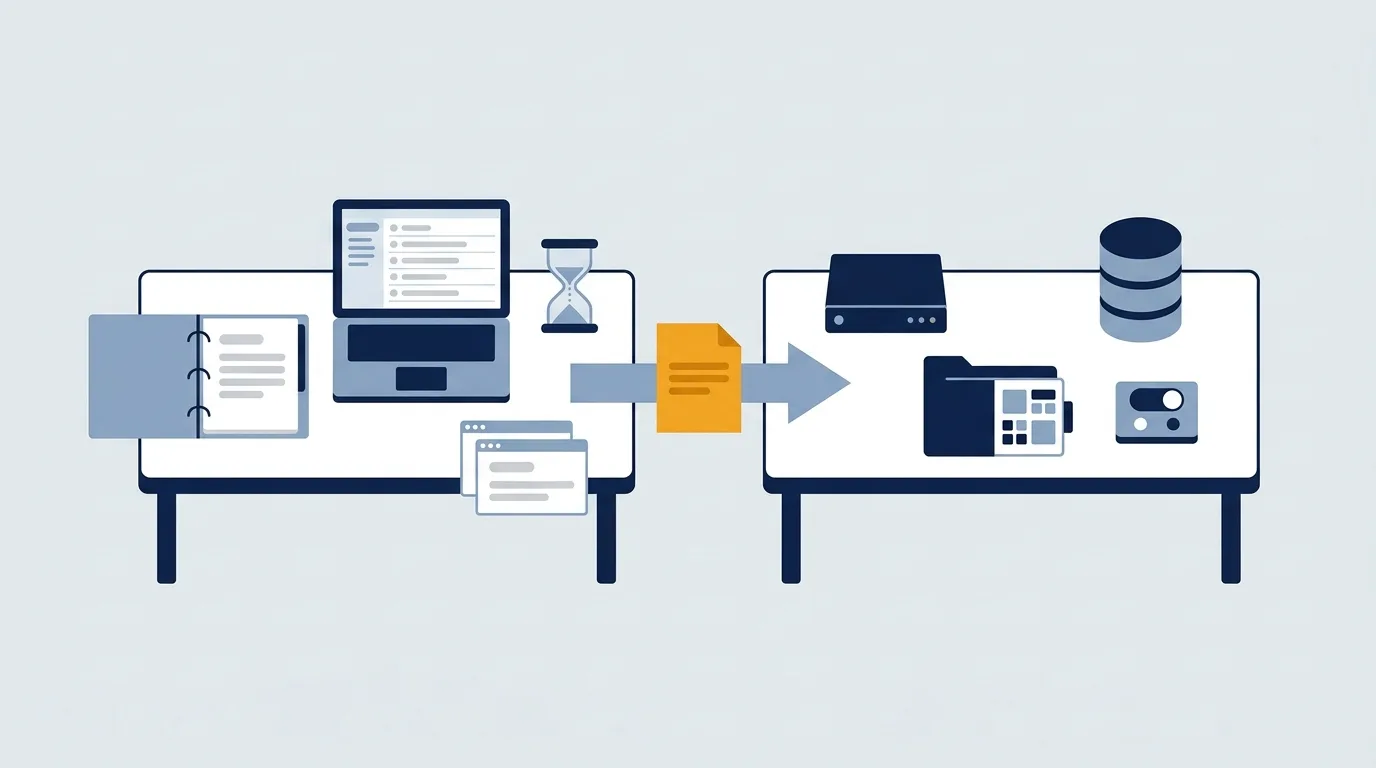
| Action | Do it yourself | Hand it off |
|---|---|---|
| Look for the login URL in handover documents, your inbox, and bookmarks | ✓ | |
| Reopen in a different browser or a private window | ✓ | |
| Use “Lost your password?” once | ✓ | |
| Wait if a lockout message appears | ✓ | |
| Use SiteGuard’s rescue feature | Once, if you know the address registered as an administrator | If you don’t know the address |
| Disable plugins (for example, by renaming folders) | ✓ | |
| Change passwords or URLs in the database | ✓ | |
| Switch access restrictions or the WAF in the server control panel | ✓ | |
| Raise your own account’s permissions | ✓ | |
| Delete an administrator account you don’t recognize | ✓ |
You can find instructions online for many of the actions in the “Hand it off” column. However, a mistake when editing the database can lose site data, and if you turn off protections and forget to turn them back on, the site stays more exposed to attacks. Settings changed without the knowledge of the server contract holder or web agency also make it hard to trace the cause of problems later.
Five items to include in your request
- Site URL
- Screen you saw: The exact wording shown. Attach a screenshot if you have one
- What you tried and how many times: What you tried, how many times, and roughly when
- The email address you think is registered: Include the username you use to log in. Do not include the password
- Who your contracts are with: Whichever you know of the web agency, maintenance contract, server company, and domain management company
Here is an example request.
Subject: Unable to log in to the WordPress admin screen ([Company name] website)
Site: https://www.example.co.jp/
Screen seen: Opening /wp-admin/ sends me back to the homepage. The handover documents don’t mention the login URL.
What I tried: Searched my inbox and checked in a different browser. I have not tried entering a password.
Email I think is registered: web@example.co.jp (username example-web)
Contracts: Site built by [Web agency], server is [Rental server company] (contract holder: General Affairs Department)
Please confirm the login URL and whether my account has the Administrator role.
Send it to the web agency you have a maintenance contract with. If there isn’t one, send it to the agency that built the site. If you don’t know that either, send it to the server contract holder. If you can’t reach your previous web agency, see Handover steps when you can’t reach your previous web agency. If you can’t find anyone to ask, you can also consider Website maintenance and operations as one place to consult.
A one-line note to prevent this happening again
Once you can log in, leave a one-line note somewhere easy to find in your company.
Login URL: https://www.example.co.jp/〇〇/ / Username: example-web / Registered email: web@example.co.jp / Role: Editor / Administrator: [Web agency] (maintenance contract in place)
What to include in the note and what to leave out
- Include: Login URL, username, registered email, your role, and who holds an administrator account
- Leave out: Passwords. Store them separately using the method your company has decided on (such as a password manager)
- When to review: When the person in charge transfers or leaves, or when your web agency or maintenance contractor changes
If the registered email is still someone’s personal address, password reset emails can no longer be received after that person transfers or leaves. When the person in charge changes, pass on this note and ask the administrator to change the registered email. The items to check when switching web agencies are covered in Handover when changing your web agency.