As the year-end approaches, you post a closure notice on your website, and you change your contact form’s auto-reply to something like “We are closed for the holidays and will reply in order from January 5.” You also update your hours on Google Maps. People usually remember these steps because a missing notice would cause trouble for customers, so someone tends to notice and take care of them.
The part people forget is after the break. On the first morning back at work, you are busy with phone calls and emails. Because of that, a “Year-End and New Year Closure Notice” can still be on your top page in mid-January. This article sorts the settings you changed for the closure into two kinds: the ones that revert if you set a date in advance, and the ones a person has to switch back. It then puts the manual tasks into a schedule.
With closure notices, mistakes happen on the day you take them down, not the day you put them up. Sort each setting into “reverts on a schedule,” “revert by hand,” or “needs checking.” For each setting you revert by hand, decide the date, the person responsible, and how to confirm the change after reverting it.
- Reverts on a schedule: Special hours in Google Business Profile (you register them for specific dates, so once those dates pass, your regular hours show again)
- Revert by hand: Temporary closure in Google Business Profile, the text of your form’s auto-reply, and notices written directly in your header or widgets
- Needs checking: Scheduling WordPress notices to be unpublished on a date (this requires a plugin, and when it actually runs depends on visits to your site), and how to register a closure of exactly 7 days in Google
A closure from 2026/12/29 to 2027/1/4 is exactly 7 days. Two of Google’s official help pages give different instructions for a closure of exactly 7 days.
Closure notices cause problems when people forget to switch them back
Forgetting to switch things back usually causes one of the following three problems.
The notice stays up
“We will be closed Dec 29–Jan 4” stays on your top page or news list into January. Anyone who reads the dates can tell the closure is over. However, a visitor in a hurry may wonder, “Are they closed right now?” and look for another business instead of calling.
The auto-reply still uses the closure text
People who contact you through your form keep receiving “We are closed for the holidays, so we will reply on or after January 5.” To someone who writes in mid-January, it reads as though you are still closed. You may seem slow to reply. And because the date in the message doesn’t match the date they sent it, your site can also look poorly maintained.
Google Maps keeps showing you as closed
If you selected “Temporarily closed” in Google Business Profile, Maps and search results will show your business as closed until you mark it as open again. People looking for a business on a map choose from the ones that are open, so you lose visits without realizing it.
In all three cases, the people affected are your customers. No one inside the business notices, so you need to put the “switch-back tasks” on the calendar for the first morning back at work.
Sorting table: reverts on a schedule, revert by hand, needs checking
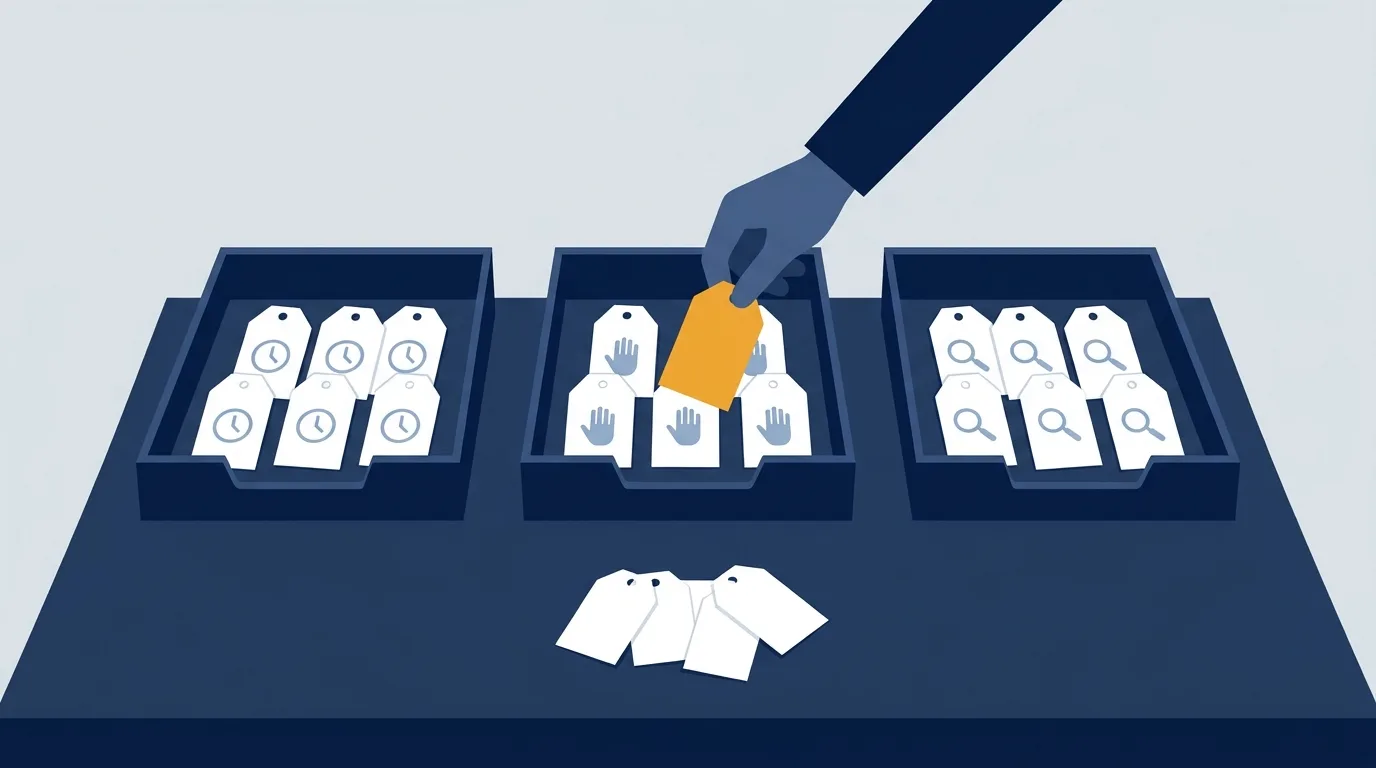
List the settings you change for the closure and sort them by how they revert. There are two criteria: “Can you enter the revert date in advance?” and “Can you be sure it will actually revert on the date you entered?“
| Setting | How it reverts | Reason |
|---|---|---|
| Special hours in Google Business Profile | Reverts on a schedule | You register them for specific dates. Special hours show only on the dates you registered |
| Temporary closure in Google Business Profile | Revert by hand | The official help does not describe any feature that automatically marks you as open again |
| Publishing a WordPress notice | Reverts on a schedule (built-in feature) | You can set a post’s publish date and time in the future |
| Unpublishing a WordPress notice | Needs checking | Not a built-in feature; a plugin is required. When it runs depends on site visits |
| Notices written directly in the header or widgets | Revert by hand | They are not posts, so post scheduling does not apply |
| Text of the form’s auto-reply | Revert by hand | This article could not confirm a setting that switches the text by date |
For anything in “needs checking,” set up the schedule, and also add a post-break check to your schedule, just as you would for manual tasks. That way, if the scheduled change doesn’t run, you can fix it by hand right away.
WordPress notices: publishing can be scheduled, unpublishing takes some extra work
Scheduled publishing is a built-in feature
In WordPress, if you set a post’s publish date and time in the future, the post is scheduled to publish at that time. For example, you can write the closure notice in mid-December and set it to publish on the morning of December 20.
Scheduled unpublishing requires a plugin
WordPress has no built-in feature to change a post back to private or draft at a set time. A plugin that does this is “PublishPress Future,” which is available on WordPress.org. Its plugin page (checked 2026-11-07, version 4.11.2, 100,000+ active installations) says it can move posts to draft, private, or trash at a set date and time, among other changes (PublishPress Future).
If no one visits, it runs late
Scheduled tasks don’t always run on time. WordPress’s scheduling system (WP-Cron) checks for pending tasks each time a page loads. The official developer documentation gives an example: a task scheduled for 2 p.m. won’t run until 5 p.m. if no page loads until 5 p.m. (WordPress Developer Resources: Cron).
The PublishPress Future plugin page also says that scheduled changes normally run through WP-Cron, so if they don’t run, you should check whether WP-Cron is working.
Even if you schedule the notice to be unpublished at midnight on the first day back, the notice may stay up until the first visitor arrives if no one opens the site before morning. On sites that save pages to display them faster (caching), the old page may still appear even after the notice has been unpublished.
So even if you use scheduled unpublishing, on the first morning back, open the news list and the top page while logged out and check that the notice is gone.

Notices in the header or widgets must be removed by hand
If you wrote the closure text directly in your theme’s announcement area or sidebar, it is not a post, so neither scheduled publishing nor scheduled unpublishing applies. As shown in the sorting table, put it under “revert by hand.”
Form auto-replies: assume you will switch the closure text back by hand
Where to change it
In Contact Form 7, you set up the auto-reply in the admin screen under Contact (お問い合わせ) → edit the form → the Mail (メール) tab → Mail (2) (メール (2)). During the closure, add the closure period and the date you will start replying to this message body.
Save the original text before changing it
The biggest problem when switching back is not knowing what the original text was. Before you change it, copy the subject and body of Mail (2) exactly as they are into a text file and save it with the date. When you switch back, you only need to paste it in again.
Can it be switched by date?
This article could not confirm a way to switch the auto-reply text by date in Contact Form 7’s settings. That is why the sorting table lists it under “revert by hand.” Even if you have added a separate mechanism that switches the text by date, keep a task in your schedule to send a message through the actual form after the break and check the text.
After switching back, send a test through the actual form
After switching back, send a message through the actual form from an outside email address, and check that no closure text remains in the auto-reply. If notifications or auto-replies aren’t arriving at all, you can work through the causes step by step in Why contact form emails aren’t arriving and how to fix it.
Google Business Profile: Google’s help pages differ on closures of exactly 7 days
Special hours are registered by date
Special hours is a feature for registering opening hours or closures for specific dates. The official help says that special hours are shown only on the dates you specify. Once the registered dates have passed, your regular hours show again.
Temporary closure must be switched back by hand
Temporary closure is a feature that marks the business listing itself as closed. The official help explains how to mark the business as open again, but it does not say the business will automatically show as open when a certain date arrives. If you use temporary closure, mark the business as open again yourself after the break.
Two pages treat exactly 7 days differently (checked 2026-11-07)
| Help page | When to use temporary closure | When to use special hours |
|---|---|---|
| Help 6303076 | “If you will be closed for 7 or more consecutive days, or closed for an undetermined period, always mark your business as temporarily closed” | “Set these for closures of up to 6 consecutive days” |
| Help 15300196 | “If you will be closed for 8 or more days, closed for an off-season, or closed indefinitely, use the [Temporarily closed] option” | “If you will be closed for 7 days or fewer, set special hours” |
The 2026/12/29–2027/1/4 closure covers the 29th, 30th, 31st, 1st, 2nd, 3rd, and 4th, which is 7 days. Under 6303076 it would be a temporary closure, and under 15300196 it would be special hours. It falls exactly where the two pages disagree.
How to check when you set it up
This article does not decide which one is correct. Help pages can be rewritten, so on the day you set it up, check in the following order.
- Open the two pages above again and see whether they still disagree
- Read the guidance text that appears in the management screen when you register the closure
- If it’s still unclear, contact Google Business Profile’s official support
- Write the method you chose and the date you checked in the notes column of your schedule
If you choose temporary closure, be sure to add a “Mark as open again” row to your schedule. If you choose special hours, still keep a row to check after the break that your regular hours are showing again.
How to divide roles between Google Business Profile and your website is covered in How brick-and-mortar businesses can connect Google Business Profile with their website.
Schedule and checklists for the manual tasks
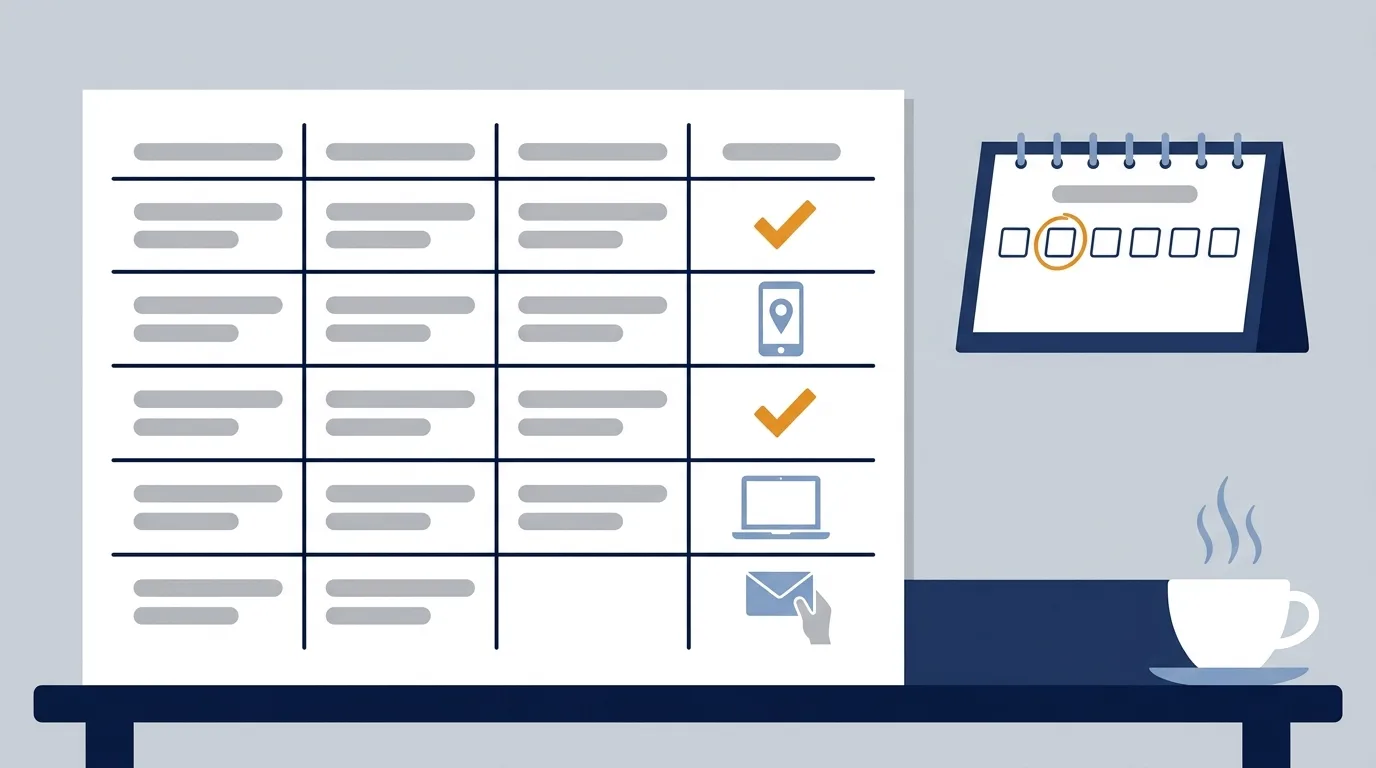
Schedule
This example assumes a closure from Dec 29 to Jan 4, with business resuming on Jan 5. Do these tasks on the morning business resumes, before you open.
| Task | Date | Person responsible | How to confirm after reverting |
|---|---|---|---|
| Unpublish the notice (including checking any scheduled unpublishing) | Jan 5, before opening | Website staff | Open the top page and the news list while logged out; the notice is gone |
| Remove the notice from the header and widgets | Jan 5, before opening | Website staff | Check the display on both a smartphone and a computer |
| Restore the form’s auto-reply to the original text | Jan 5, before opening | Website staff | Send a message through the actual form from an outside address; the auto-reply contains no closure text |
| Mark the business as open again on Google (if you used temporary closure) | Jan 5, before opening | Store manager | Search for the business name in Google Maps on a smartphone; it no longer shows as closed |
| Check how special hours are displayed on Google (if you used them) | Jan 5, before opening | Store manager | Today’s hours show as usual |
In the person-responsible column, write a name, not a role. If it just says “website staff,” no one will think it’s their job after the break. If the same person handles both putting things up at year-end and switching them back in the new year, the person who knows the original state does the checking, and fewer things get missed.
Checklist for putting notices up at year-end
- Saved the original auto-reply text in a text file with the date
- Turned every place where you put a closure notice (posts, header, widgets, form, Google) into a row in the schedule
- For posts using scheduled unpublishing, set the scheduled time to before opening on the first day back
- Wrote in the notes which one you used on Google, temporary closure or special hours, and the date you checked
- Added the post-break schedule to the responsible person’s calendar as an event on Jan 5
Checklist for switching back after the break
- Actually carried out “How to confirm after reverting” for every row in the schedule
- Recorded the result for each row with the date and a name
- Reverted by hand, the same day, any rows that had not switched back
If you’re looking for someone who can handle switching WordPress notices and form text, including the checks after the break, our maintenance and operations service may also be useful.