The maximum validity period of an SSL certificate becomes 100 days from March 15, 2027, and shrinks to 47 days in 2029. For sites that renew by hand, that means renewing close to four times a year. The first thing to do is find out whether your certificate is renewed automatically or depends on someone doing it manually.
You need to pay particular attention if your web agency has contacted you once a year saying “it’s time to renew” and you’ve paid a fee, or if someone on your staff has replaced the certificate manually every year. The SSL certificate behind the https padlock (strictly speaking, a TLS server certificate) is having its maximum validity period shortened in stages under an industry agreement.
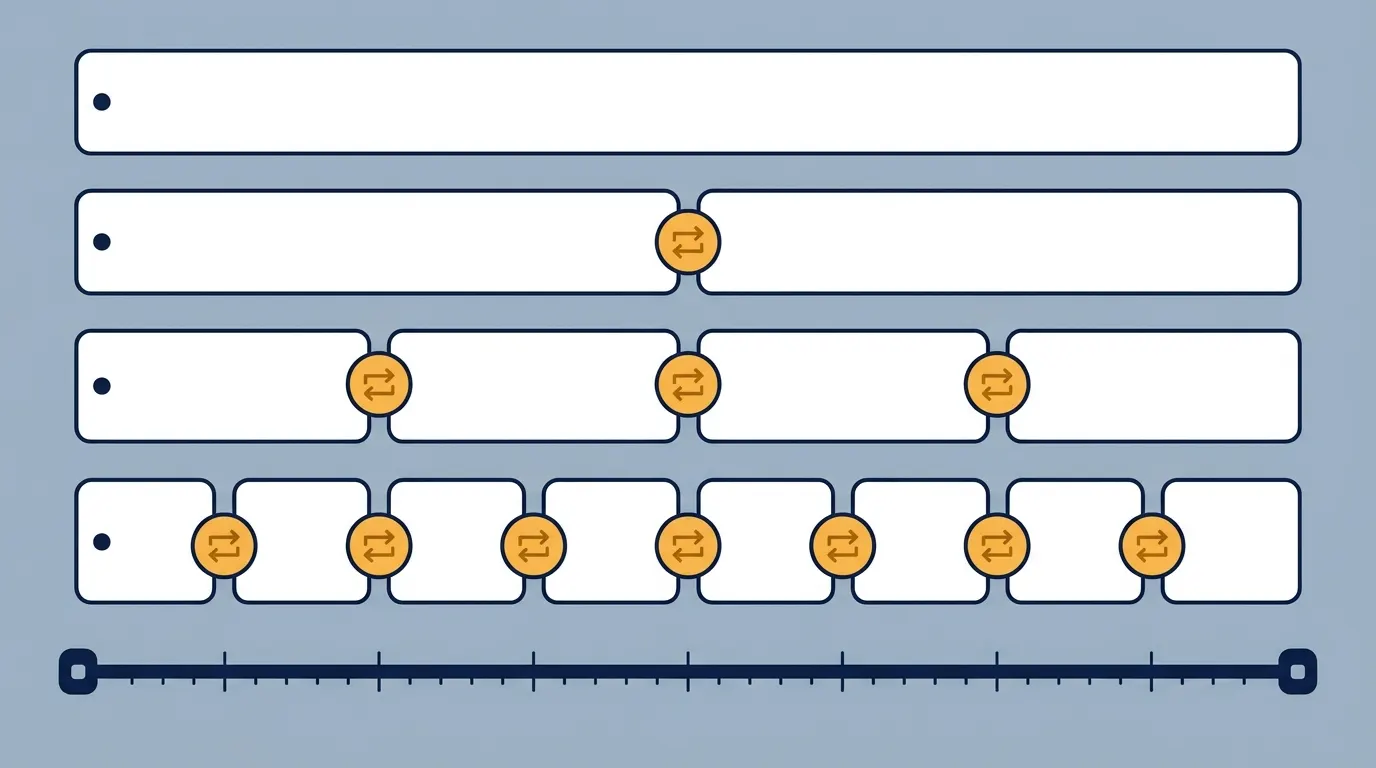
- The maximum certificate validity is 200 days for certificates issued on or after March 15, 2026, 100 days on or after March 15, 2027, and 47 days on or after March 15, 2029. At the 100-day stage you renew close to four times a year; at 47 days, eight or more times a year
- Many free SSL certificates provided by hosting companies are already renewed automatically. The case that needs attention is a paid SSL certificate renewed manually by your web agency or your own staff
- Checking the certificate’s issuer and expiry date in Chrome or Safari gives you a good idea of which type you have. Then send the questionnaire later in this article to your web agency or hosting company and confirm in writing who renews it, by what method, and who receives the expiry notices
What has been decided | The maximum validity shrinks in three stages
The CA/Browser Forum, an industry body made up of browser makers and the companies that issue certificates (certificate authorities), passed Ballot SC-081v3 in April 2025. Voting ran from April 4 to April 11. On the certificate authority side, 25 voted in favor, 0 against, and 5 abstained. On the browser side, all four members, Apple, Google, Microsoft, and Mozilla, voted in favor.
The schedule is as follows. The cutoffs are based on the date the certificate is issued.
| Certificate issued | Maximum validity | Typical renewals |
|---|---|---|
| Up to March 14, 2026 | 398 days | Once a year |
| From March 15, 2026 | 200 days | Twice a year |
| From March 15, 2027 | 100 days | 3 to 4 times a year |
| From March 15, 2029 | 47 days | 8 or more times a year |
The numbers of days in the table are upper limits: certificates must not be valid for longer than this. Some certificate authorities have shortened their periods early. DigiCert issues 199-day certificates for those issued on or after February 25, 2026 (Japan time), and GlobalSign has done so from March 14. Some certificates, such as those from JPRS, are issued for periods shorter than the limit. So if the period you see in your browser is shorter than the table, that is not a problem. Check the actual period of your certificate in announcements from the issuer or your hosting company.
Certificates that have already been issued will not have their expiry dates cut short. For example, a one-year certificate issued before March 2026 can be used until the expiry date written on it. However, the next time it is reissued, the new limit applies.
Before issuing a certificate, the certificate authority checks that the applicant really controls the domain. The period for which the result of this check can be reused is also shortened on the same schedule, down to 10 days in 2029. In other words, you will have to redo the domain check more often when you renew.
The check is done in one of several ways: responding to an email sent to a designated address, adding a specified value to DNS, placing a specified file on the server, and so on. With automatic renewal, this check is handled within the system. With manual renewal, who receives the verification email and who can edit DNS determines who has to do the work. Ask about the method and the person in charge in question 8 of the questionnaire later in this article.
Your contract may be for a year, but the certificate gets replaced partway through
Paid SSL certificates are still often sold on “one-year contracts.” What’s easy to confuse here is that the contract period and the certificate’s validity period are two different things.
In its announcement of February 5, 2026, Xserver explained that the validity period of its paid option SSL certificates would become 200 days or less, so there will be cases where the certificate expires partway through the contract period. To deal with this, the company will reissue certificates with extended expiry dates in turn. As a rule this is automatic and costs nothing extra. So even if you pay once a year, the certificate is replaced twice or more a year. If you replace it manually, you will need to do the work for each of those replacements.
Free SSL from hosting companies is often renewed automatically
Many of the free SSL certificates that come with shared hosting use certificates from Let’s Encrypt or similar issuers. Their validity is already short, around 90 days, and they are designed on the assumption that the hosting company renews them automatically.
Let’s Encrypt’s period will get even shorter. In its announcement of October 7, 2026, the organization said that from February 10, 2027 its standard validity period will be 64 days, and that it plans to move to 45 days in 2028. As long as renewal is automatic, this means no extra work for users. However, the period you see in your browser will be shorter than 90 days.
Xserver’s feature page states that its free SSL certificates are valid for 90 days and renewed automatically. The announcement mentioned above also says that because the company will continue to renew free SSL certificates automatically, users do not need to do anything.
Paid SSL, on the other hand, is handled differently depending on the hosting company and product. Here is what can be read from official announcements as of November 2026.
| Hosting company | Covers | Handling according to official announcements |
|---|---|---|
| Xserver | Free SSL | Automatic renewal continues, so no action is needed |
| Xserver | Paid (domain validation) | The company reissues certificates with extended expiry dates, automatically as a rule, at no cost. However, if a reissue fails, you are notified at that point and must complete the reissue procedure yourself |
| Xserver | Paid (organization validation / EV) | The company’s announcement says “customer action may be required.” A notification email is sent about 35 days before expiry; when it arrives, check the reissue procedure |
| NTT DOCOMO BUSINESS (formerly NTT Communications; Biz Mail & Web) | DigiCert and GeoTrust certificates | The validity period is shorter for certificates issued on or after February 25, 2026. Reissues to cover a one-year contract are carried out by the company, with no application or fee required (announcements of January 21, 2026: Part 1 and Part 2) |
| NTT DOCOMO BUSINESS (formerly NTT Communications; Biz Mail & Web) | JPRS certificates | Certificates issued on or after February 18, 2026 are valid for 5 months (about 150 days), and the company handles renewal applications (announcements of January 21, 2026: Part 1 and Part 2). An announcement of June 9, 2026 introduced a version that supports automatic renewal (ACME), available from June 30. An announcement of July 1, 2026 announced a price revision |
What the two companies have in common is that free SSL is renewed automatically, while paid SSL is handled differently depending on the type of certificate and the type of validation.
If you use a different hosting company, try filling in the same three columns for your own provider. Here’s how:
- Search your hosting company’s official website for announcements about “SSL” and “shortened validity period.” If an announcement is dated 2026 or later and names the type of certificate you use, that is the latest handling
- Check whether the description of the free SSL says it is “automatically renewed”
- For paid SSL, check whether handling differs between domain validation and organization validation / EV. In the table above, Xserver also handles them differently depending on the validation type
- If you can’t find an announcement, or your type of certificate isn’t mentioned, send the questionnaire later in this article to the hosting company’s support
Check your own certificate | Viewing the issuer and expiry in Chrome and Safari
On Chrome for desktop
- Open your website’s home page
- Click the icon at the left end of the address bar
- Select “Connection is secure” (この接続は保護されています), then select “Certificate is valid” (証明書は有効です)
- On the “General” tab of the window that opens, check Issued To, Issued By, and Validity Period
The menu wording may differ slightly depending on your version of Chrome. As long as you can get from the icon to the certificate window, small differences in the steps don’t matter.
On Safari for Mac
- Open your website
- From the “Safari” menu in the menu bar, select “Connection Security Details” (接続セキュリティの詳細)
- In the window that opens, select “Show Certificate” (証明書を表示)
- In the certificate window, check the issuer and expiry date
In versions earlier than Safari 18.4, a padlock icon appears in the address bar. In that case, you can also click the padlock icon and select “Show Certificate” to open the same window.
If you can’t find the certificate window either way, check in one of the following ways:
- If you can use Chrome on the same computer, follow the Chrome steps above (each site has one certificate, so the issuer and expiry date are the same whichever browser you use)
- Check the expiry shown under “SSL settings” (SSL設定) in your server’s control panel
How to read what you see
First, look at the issuer and subject fields.
| Where to look | If it shows | What it likely means |
|---|---|---|
| Issuer organization | Let’s Encrypt | Probably renewed automatically. Usually the hosting company’s free SSL, though sometimes the web agency has set it up itself |
| Issuer organization | DigiCert, GlobalSign, Sectigo, JPRS, etc. | Probably paid SSL. Find out who renews it |
| Issuer organization | A name not listed in the two rows above | Don’t decide on the issuer alone. Judge from the validity period below and your server’s control panel |
| Issued To (subject) | A company name appears in addition to the domain name | Organization validation or EV. May not be covered by the hosting company’s automatic reissue |
Next, look at the length of time from the issue date to the expiry date.
- About 90 days or less (64 days for Let’s Encrypt certificates issued on or after February 10, 2027): probably renewed automatically
- Around 100 days (certificates issued on or after March 15, 2027): probably paid SSL issued at the new 100-day limit or slightly shorter
- About 150 to 200 days, or around one year: probably paid SSL
- However, for certificates issued on or after March 15, 2029, paid SSL will also be 47 days or less, so you can’t tell them apart by validity period. Judge by the issuer and what your control panel shows
For certificates issued up to March 14, 2029, if the issuer and the validity period point to different answers, give priority to the validity period. But when the difference is small, as with 90 days versus 100 days, don’t decide on the period alone; look at the issuer too. For certificates issued on or after March 15, 2029, judge by the issuer, as described above. If you still can’t tell, also check “SSL settings” in your server’s control panel. It shows whether the certificate is free or paid and whether there is a renew button or an expiry date. If you can’t log in to the control panel, the quickest route is to ask using the questionnaire in the next section.
What happens if your paid SSL is renewed manually
The number of renewals goes up
If your web agency has been replacing the certificate manually once a year, certificates issued on or after March 15, 2027 will last at most 100 days. Since you replace them with time to spare rather than at the last minute, in practice that means close to four times a year. Once it reaches 47 days in 2029, it’s eight times a year even if you use every certificate right up to expiry. With the same safety margin, it will be more.
Note that certificates issued on or after March 15, 2026 are already at the 200-day stage, so they are replaced twice a year.
Which stage your next renewal falls into is determined not by the expiry date but by the date the next certificate is issued. Renewal normally happens before expiry, so take the expiry date you saw in your browser and subtract “how many days before expiry renewal happens,” which you will ask about in question 3 of the questionnaire. That gives you a rough next issue date.
- Next issue date on or before March 14, 2027: you are at the 200-day stage. When that certificate expires, the following renewal will be at the 100-day stage
- Next issue date on or after March 15, 2027: you are at the 100-day stage from that certificate onward
For example, even if your certificate expires at the end of March 2027, renewing two weeks early puts the issue date before March 15, so you are at the 200-day stage.
Either way, use the questionnaire later in this article to confirm the renewal method before the first renewal issued at 100 days. If your next issue date comes by spring 2027, use that date as your cue to start the discussion.
Each renewal involves domain validation, receiving the certificate, installing it on the server, and checking that the site displays correctly. If your contract charges a fee for each job, costs rise in proportion to the number of renewals. In companies with few staff, the risk of a missed renewal also rises when holidays or resignations coincide with an expiry date.
Expiry notices don’t reach anyone
Expiry notices from the certificate authority or hosting company go to the email address of whoever applied. If the staff member who applied several years ago has left, or the application was made using the personal address of someone at the web agency, no one reads the notices. Once a year, someone in the company might remember; four times a year, it’s hard to keep track.
Work out the costs and the scope to check
If your contract charges a fee per job, you can estimate the annual cost as “fee per renewal × number of renewals.” A job fee that used to be paid once a year becomes roughly four times as much at the 100-day stage, and eight or more times as much at the 47-day stage.
For example, if a contract charged ¥10,000 per job, it would look like this (the amount is just an example for the calculation, not a market rate):
- 398-day stage (once a year): ¥10,000 a year
- 100-day stage (close to four times a year): about ¥40,000 a year
- 47-day stage (eight or more times a year): ¥80,000 or more a year
The amount per renewal depends on your contract, so confirm it with question 4 of the questionnaire and plug it into this formula.
To keep costs down, you can also switch to free SSL or automatic renewal. Before switching, however, check whether business partners or industry rules require an organization validation or EV certificate. If they do, it may not be covered by the hosting company’s automatic reissue.
It’s not only the certificate for your home page that needs renewing. Also list the following:
- The domain without “www” (for example, example.co.jp and www.example.co.jp)
- Subdomains (recruitment sites, campaign pages, and so on)
- Separate domains hosting booking or contact forms
- The mail server’s certificate
Here’s how to list them:
- For domains, subdomains, and form pages, open each in your browser and check the issuer and expiry using the steps above. If the issuer or expiry differs from your home page, it is a separate certificate that needs its own renewal
- If you don’t know which subdomains exist, look at the list of domains under “SSL settings” in your server’s control panel
- If your recruitment site or forms are on another service, those domains won’t appear in your own control panel. Issued certificates are recorded in public logs (Certificate Transparency logs), so you can view a list of certificates on search sites such as crt.sh. See “How to read the crt.sh list” below
- You can’t check the mail server’s certificate with the browser steps. Ask about the mail server as well in question 1 of the questionnaire
How to read the crt.sh list
The crt.sh list also includes old, expired certificates. To pick out only the certificates still in use, go through it in this order:
- In the search box, enter your domain name with “%.” in front (for example, %.example.co.jp). “%” means “anything,” so subdomains are included too
- Look at the expiry date column (Not After) and skip any rows dated before today. Those are old, expired certificates
- In the remaining rows, look at the domain name columns (Common Name and Matching Identities) and note down any names different from your home page
- You may see two rows with the same domain name and the same issue date (Not Before) and expiry date. These are two records left by the issuing process, and count as one certificate
- Open the domain names you noted in your browser and check the issuer and expiry using the steps above. If a name doesn’t appear in your control panel, ask who manages it in question 1 of the questionnaire
Work out who renews it
Apply what you’ve found so far to the decision tree below.
However, the browser and crt.sh can’t tell you whether a paid SSL certificate was “ordered through the hosting company’s control panel” or “bought directly from a certificate authority.” Tell them apart by who bills you.
- Look in your accounting records for SSL invoices or direct debits. If the biller is the hosting company, it was ordered through the control panel; if it’s a certificate authority, it was bought directly; if it’s the web agency, the agency probably buys it on your behalf
- If you can’t find a bill, search company email for “SSL” and “certificate” and check who sent the renewal or billing notices
- If you still can’t tell, treat it as the third case and ask using the questionnaire in the next section

- Issuer is Let’s Encrypt and the period is shorter than 100 days → probably renewed automatically. Next, check whether your shared hosting control panel has a free SSL item
- There is an item and your domain is listed → the hosting company renews it automatically. Confirming against the hosting company’s official description is enough
- There is no item, you can’t log in to the control panel, or you use a VPS or cloud service → the web agency has probably set up automatic renewal itself. The agency is responsible for renewal, so send the questionnaire in the next section (especially questions 2, 3, 5, and 6) to the agency
- Paid SSL, ordered through the hosting company’s control panel → as in the earlier table, the hosting company may reissue automatically. Check the validation type
- Paid SSL, bought directly from a certificate authority by the web agency or your staff → probably manual. Discuss automating it or switching to free SSL before the 100-day stage arrives
In that discussion, compare these two options:
- Keep paid SSL but make renewal automatic: ask whether there are products where the hosting company reissues automatically, or versions that support automatic renewal. Xserver’s paid (domain validation) certificates and NTT DOCOMO BUSINESS’s JPRS certificates in the earlier table are examples. You keep the company name display, but the cost may change
- Switch to free SSL: renewal work and certificate costs go down. On the other hand, free SSL is issued after a domain check only, so unlike organization validation or EV, your company name will no longer appear in the Issued To field
If business partners or industry rules require organization validation or EV, choose the former. If not, decide by weighing these two points:
- Cost: line up, side by side, the annual cost of the current method (from the answer to question 4), and from the answer to question 7, the annual cost of keeping paid SSL with automatic renewal, plus the work fee for switching to free SSL and the annual cost after switching. Think of the difference in annual cost as what you pay for the company name display described next, and decide whether it’s worth it
- Company name display: in current versions of Chrome and Safari, the company name does not appear in the address bar. It’s only visible if a visitor opens the certificate window, so ordinary visitors almost never see it. With that in mind, check whether you use the company name in the Issued To field when explaining things to business partners or as backing for your company’s credibility. If you don’t, switching to free SSL will rarely cause problems
Whichever you choose, start by confirming in writing who currently handles renewal and how.
Questionnaire for your web agency or hosting company
The text below is ready to send as is. If your web agency handles renewal, send it to the agency; if you hold the hosting contract yourself, send it to the hosting company’s support.
If you’re not sure which, check in this order:
- Look in your accounting records for server or SSL invoices or direct debits. If the biller is the hosting company, the contract is yours; if it’s the web agency, the agency probably holds the contract on your behalf
- Check whether your contract or maintenance agreement with the web agency includes items for the server or SSL
- Search company email for “SSL,” “certificate,” and “server,” and check who sent the renewal or billing notices
- If you still can’t tell, send it first to the web agency that built your site. If the agency doesn’t hold the contract, ask for the hosting company’s name in its reply
Subject: Request for confirmation of how our website’s SSL certificate is renewed
Thank you for your continued support. We have heard that the validity period of SSL certificates is being shortened in stages. Regarding our website (https://○○○), please tell us the following:
1. The type of certificate used (the hosting company’s free SSL or a paid SSL certificate; if paid, the product name and validation type). If subdomains or the mail server use separate certificates, please include those as well
2. The name in which the certificate is contracted or applied for (our company, your company, or an individual)
3. The renewal method (automatic or manual), who carries out renewal, and when renewal is carried out (how many days before expiry)
4. The number of renewals, and how costs will change, after the maximum becomes 100 days from March 15, 2027
5. The email address to which expiry reminders are sent
6. If a renewal fails, who notices and how. Whether a monitoring service that checks certificate expiry externally is used
7. Whether switching to automatic renewal or free SSL is possible. If so, the scope of the work and the following three amounts: the annual cost of keeping paid SSL with automatic renewal, the work fee for switching to free SSL, and the annual cost after switching
8. The method of domain validation before issuance (email, DNS, placing a file, etc.) and who carries out that work
When you get the reply, interpret it using the table below.
| Question | Replies that need attention | What to ask for next |
|---|---|---|
| 1. Certificate type | Subdomains or the mail server have separate certificates, or it’s paid with organization validation / EV | If there are separate certificates, ask for answers to questions 2 to 8 for each one. If it’s organization validation / EV, it may not be covered by the hosting company’s automatic reissue, so check the renewal method in question 3 in particular detail |
| 2. Name on the contract | Your company (the web agency), or an individual | If you change contracts or the person leaves, your company won’t be able to handle the procedures. Transfer the contract to your company’s name, or get permission for your company to access the control panel too |
| 3. Renewal method | Manual, or only an individual’s name is given as the person in charge | Discuss the two options from the previous section (automation or switching to free SSL) before the 100-day stage arrives |
| 4. How costs change | A work fee is charged per renewal, increasing with the number of renewals | Calculate the annual cost with the formula above and ask for a quote comparing it with the cost of automation |
| 5. Notification address | The address of a former employee or an individual | Have it changed to an address managed by the company |
| 6. How failures are noticed | Only “we’ll notice from the reminder email,” no monitoring service, or nothing decided | Have them decide who checks before expiry and how they’ll contact your company. If there is no monitoring, monitor it yourself using the steps below |
| 7. Whether switching is possible and the cost | Not possible, no explanation of why, or no amounts given | Get the reason it isn’t possible (validation type, business partner requirements, etc.) in writing. If no amounts are given, ask for the three amounts as a quote |
| 8. Domain validation | Manual, with the verification email address or DNS administrator being a former employee or an individual | Change the address to one managed by the company, and have them decide who can edit DNS |
While you wait for the answer to question 6, you can still keep an eye on the expiry yourself.
- Add the expiry date you saw in your browser to a shared company calendar (not a personal calendar)
- Set a review date 35 days before expiry and record it together with the person who will check on that day. This is the same timing Xserver uses for its organization validation / EV reminder emails, and leaves enough days between requesting the renewal and having it completed
- On the review date, check the expiry using the Chrome or Safari steps above. If it has changed to a new expiry date, update the calendar
- If the expiry hasn’t changed, that’s not necessarily a problem. Automatic renewal may happen after the review date. Add the date from “when renewal is carried out,” which you asked about in question 3, to the calendar as a recheck date
- If the expiry still hasn’t changed on the recheck date, contact the person responsible for renewal that you confirmed through the questionnaire. If you haven’t yet heard when renewal is carried out, ask the person in charge about the timing on the review date
These steps suit certificates with longer validity periods, such as paid SSL. For a 64-day Let’s Encrypt certificate, 35 days before expiry is day 29 after issuance. Automatic renewal normally happens later than that, so every time you’d find “the expiry hasn’t changed” and move on to a recheck. For short-lived certificates, or those renewed more than four times a year, updating the calendar by hand isn’t sustainable.
The alternative is a monitoring service that regularly checks your site’s certificate expiry from the outside and alerts you when it’s getting close. Whether your web agency or hosting company uses one will be clear from the answer to question 6.
If they don’t, set one up yourself. Searching for terms like “SSL certificate expiry monitoring” or “SSL expiration alert” will turn up candidates. Website uptime monitoring services sometimes include certificate expiry checks, so if you already use a monitoring service, check its feature list as well. Pricing varies by service and number of domains monitored, so decide on the four points below before comparing quotes.
The four things to decide before signing up:
- List of domains to monitor: include not just the home page but everything you listed in the previous section: with and without www, subdomains, and separate domains for forms
- Notification address: use an address managed by the company. If you use a staff member’s personal address, notices will once again go unread when that person leaves
- How many days before expiry to alert: set it after “when renewal is carried out” (from question 3) and before the expiry date. If automatic renewal goes as planned, no alert arrives; you only need to contact the person responsible for renewal when one does
- Cost and the name on the contract: check whether the price changes with the number of domains monitored. As with the certificate, put the contract in your company’s name
How to prevent notices from going astray when staff change is covered in “When Your Website Manager Leaves: Handover Guide.”
The warning screen you see after expiry, and who to contact first
What the warning screen means
When a certificate expires, Chrome shows a “Your connection is not private” (この接続ではプライバシーが保護されません) screen. If NET::ERR_CERT_DATE_INVALID appears near the bottom, it means the certificate is outside its valid date range.
However, this error also appears when the date and time on the visitor’s own computer or smartphone are wrong. From this screen alone, you can’t tell whether the site’s certificate has expired or the device’s clock is off. Google’s help page explains how to troubleshoot connection errors in general.
What to check first
- Open the site on another device. Try both a company computer and a smartphone with Wi-Fi turned off
- If the warning appears on both, suspect that the site’s certificate has expired. Browsers other than Chrome, such as Safari on iPhone, show a screen with different wording. Rather than checking whether the wording matches, judge by whether the site won’t open because of a warning that the connection isn’t secure. If only one device shows it, correct that device’s date and time settings
- If expiry seems likely, immediately contact the person responsible for renewal that you confirmed through the questionnaire. If you don’t know who that is, contact the hosting company’s support in the name of the server contract holder
How to inform staff and customers
The warning screen also offers a way to open the details and proceed anyway. But don’t tell customers or staff “it’s fine to proceed.” Doing so would leave them unable to tell your site apart from a fake one. Until the problem is fixed, switch to taking inquiries by phone and email.
You can’t post a notice on the site itself, so let customers know outside the site.
- Internally: tell staff who handle inquiries about the warning screen and that inquiries have moved to phone and email
- Company social media: post the message below
- Phone: when you receive an inquiry, explain the same thing verbally
- Customers in the middle of a booking or business discussion: let them know individually by email
Sample message:
Our website is currently showing a warning that the connection is not secure, such as “Your connection is not private,” when opened (the wording varies by browser). We are working to fix this, so please do not proceed past the warning screen. We are accepting inquiries and bookings by phone (○○-○○○○-○○○○) or email (○○@our-domain). We apologize for the inconvenience and will let you know once the problem is resolved.
The full response for when your site won’t display or has been tampered with is covered in “Emergency Response When Your Website Won’t Load or Has Been Hacked.” How https itself works is explained in “What Is an SSL Certificate (https)?.”
Sample clauses to add to your maintenance contract
Don’t stop at receiving the questionnaire answers by email. Record them in your maintenance contract or a written scope of work, so they remain clear even when the people in charge change. Here are some sample clauses:
- “The Contractor shall renew the SSL certificate for the Client’s website before its expiry date. The Contractor shall notify the Client in writing of the renewal method (automatic or manual) and the person in charge.”
- “If the maximum certificate validity period is shortened by industry agreement, any change in fees on the grounds of an increased number of renewals shall be discussed in writing in advance.”
- “Expiry notifications shall also be configured to reach a company-managed email address designated by the Client (○○@our-domain).”
- “If a renewal fails, the Contractor shall notify the Client within ○ hours of becoming aware of it and shall install a valid certificate again within ○ hours. Until the problem is resolved, the Contractor shall inform the Client of the cause and the expected time of resolution.”
Decide the “○ hours” figures in discussion with your web agency. Without numbers, it’s unclear what you can demand if a renewal is missed.
When discussing them, thinking about the following two points makes it easier to judge whether the proposed numbers are reasonable:
- Time until notification: whether it counts business hours only, or includes nights and holidays. Check whether a contract that waits until Monday when the problem is noticed on the weekend is acceptable to you
- Time until a valid certificate is reinstalled: work backward from how many hours you can manage with phone and email inquiries while website inquiries and bookings are stopped. The more inquiries your company receives through the site, the shorter it should be
For an overview of what to check in a contract, see “7 Things to Check in a Website Development Contract,” and for a breakdown of maintenance costs, see “Website Maintenance and Operation Costs.” If you’re looking for someone to manage your site after launch, including certificate renewals, take a look at our maintenance and operation service.