The person in charge has changed, or you have switched web agencies. You open Google Tag Manager (GTM) and find a list of tags whose purpose you can’t tell from their names. The theme header and plugins also contain code that nobody can account for. You can no longer ask your predecessor. You’d like to remove the clutter, but you can’t afford to break booking or ad conversion tracking. This article is for anyone who has stopped at that point.
It explains how to count every tag, how to check tags with GTM Preview, and how to pause and verify a tag before deleting it.
- A tag not appearing in the developer tools list is not proof that it is unused
- Check at three separate points: “when the page opens,” “after consent,” and “after interacting with booking or forms.” For GTM tags, use Preview to check whether each tag fired and what its trigger is
- Reconcile the requests you observe against the GTM, theme, and plugin settings using a reconciliation sheet. Then decide whether to keep, pause, or delete each tag
- Before deleting, pause the tag and confirm that bookings, inquiries, analytics, and ad conversions still come through. Don’t delete tags of unknown purpose or tags involved in the payment page yourself; check with your web agency or payment service provider
Conclusion: Tags Can Be Running Even If They Don’t Appear in the List
Three reasons a tag may not appear in the list
The developer tools network list (Network panel) shows only the requests that actually happened while it was open (per Chrome’s official documentation). The following tags won’t appear just by opening a page:
- Tags that run only after consent: Ad and social media tags that are held back until the visitor clicks “Accept” on the cookie consent banner
- Tags that run only after an action: Conversion tracking tags that fire on a booking button click or on form submission
- Tags that run only on specific pages: Tags placed only on the booking confirmation page or the payment page
Put “pause” before “delete”
If you suddenly delete tags that didn’t appear in the list, you may not notice the missing conversions until you see next month’s ad report. Before deleting, insert a “pause” step that you can always reverse.
A Common Situation: Tags With Unknown History Remain
Three places where tags tend to linger
| Location | Example of how tags remain |
|---|---|
| GTM | Still named “New Tag” or “Test.” The account of the person who created it no longer exists |
| Theme header | Code pasted directly into an external file (header.php) or a theme settings field |
| Plugins | Analytics or chat plugins automatically output their own tags |
If your previous web agency also managed your advertising, the tags often remain even after the contract ends. A full checklist for handovers is in What to Check When Changing Web Agencies.
An example where a neglected tag became an entry point
On October 26, 2026, the security company Sansec published a report on an incident. At Convertr, which operates online stores and payments for dozens of Brazilian fashion brands, the delivery script for a web analytics tool running on its own server (a self-hosted version of Plausible) was tampered with. The injected code read card numbers, expiration dates, and other details from the payment form and sent them to an external destination. Sansec detected it on October 24, and Convertr reported its removal on October 27 (dates are in UTC as given in the report). According to the report, the version installed in 2025 had never been updated since, and a weakness that had been fixed in May appears to have been exploited. Even a simple analytics tag, if it runs on the payment page, is in a position to reach card information.
Count in Three Stages: The Tags You Can See Change at Each Stage
Design example: eight tags on a fictional site
Consider a fictional site with booking and an inquiry form that has eight tags installed. All destinations are fictional names.
| Condition for running | Tags (fictional) | How they work |
|---|---|---|
| Runs on page load | Analytics A, Heatmap B, Chat C, Old Analytics D | A makes multiple requests for loading and sending. D has been canceled and keeps returning errors |
| After consent | Ad E, Social Ad F | Held back until “Accept” is clicked on the consent banner |
| After an action | Booking Tracking G, Form Tracking H | Fire on a booking button click and on form submission |
How to record
- Open a new Incognito window in Chrome, and open the developer tools Network panel first
- Check “Preserve log” and “Disable cache.” This keeps the log when you move between pages and loads the site the same way a first-time visitor would
- Open the page → accept on the consent banner → click the booking button and submit the form. Export the list at each stage
- For each stage, count the number of tags, the number of requests, and the number of destination domains separately. Include requests that show an error code such as 404 in the Status column, and mark them
To look for a specific tag, enter the destination domain (e.g., ad-e.example) in the Filter field at the top of the Network panel, and only requests to that domain will remain.
Check with GTM Preview
You can also check GTM tags with Preview (Tag Assistant).
- Click “Preview” at the top right of the GTM screen, enter your site’s URL, and connect
- When you consent, click, and perform other actions on the opened site, those events are listed in order on the Tag Assistant screen
- For each event, tags that fired and tags that did not fire are shown separately. Select a tag to see its trigger (the condition for running)
Because you can see the triggers, you can tell which action fires a tag without actually completing a booking. Preview works only in your own browser and does not change the site for visitors.
What this example shows
If you judge from the list at page load, you will miss four of the eight tags (the two after consent and the two after actions). Also, because a single service like Analytics A makes multiple requests, confusing the number of requests with the number of tags will make your counts not add up. A canceled tag like Old Analytics D keeps returning errors, but that doesn’t make it harmless. If someone else re-registers the destination domain, the code served from there will run on your site as is.

Reconciliation: Match Observed Requests Against the Settings
Where to look
- GTM: The tag list and each tag’s trigger (condition for running). The “Versions” history records when and by whom each version was published
- Theme: The theme header and fields in the theme settings such as “code to add to head”
- Plugins: The list of installed plugins. Analytics, advertising, chat, and booking plugins may output their own tags
Sample reconciliation sheet
| Tag name | Destination | Where installed | Installed by | Under contract? | Condition for running | Work affected if removed |
|---|---|---|---|---|---|---|
| Analytics A | a-analytics.example | GTM | Previous staff member (from version history) | Using free plan | All pages | Monthly traffic report |
| Old Analytics D | old-d.example | Theme header | Unknown | Canceled (confirmed with accounting) | All pages | None |
| Ad E | ad-e.example | GTM | Previous web agency | To be confirmed | After consent | Adjusting ad delivery targets |
| Booking Tracking G | g-track.example | Booking plugin | Unknown | Included in booking system contract | Booking completion | Booking conversion reports |
The “Installed by” and “Under contract?” columns can’t be filled in from the screens alone. Check the GTM version history, accounting payment records, and the contract with the previous web agency. Leave any cell you can’t fill in blank, and put any row that still has blank cells on the “send for confirmation” side of the decision table below. The list of tags that send information externally is also useful when reviewing your disclosure under the external transmission rules.

Decision Table: Keep, Pause, or Delete
| Status in the reconciliation sheet | Decision | Next step |
|---|---|---|
| Under contract, and removal would affect some work | Keep | Rename it so its purpose is clear, and record it in the reconciliation sheet |
| Canceled, or the destination returns errors | Pause, then delete | Pause it, confirm there are no problems, then delete |
| Under contract, but nobody uses it | Pause | Confirm nobody in the company uses it, and consider canceling the contract |
| Neither the installer nor the purpose is known | Don’t delete it yourself | Ask the previous web agency or your current maintenance provider about its purpose |
| Runs on the payment page or purchase completion page | Don’t delete it yourself | Check with your web agency and payment service provider |
Tags on the payment page may include tracking or fraud detection scripts required by the payment service provider. Even if they look similar to other tags, removing them could stop payments themselves.
Removal Steps: Pause and Verify Before Deleting
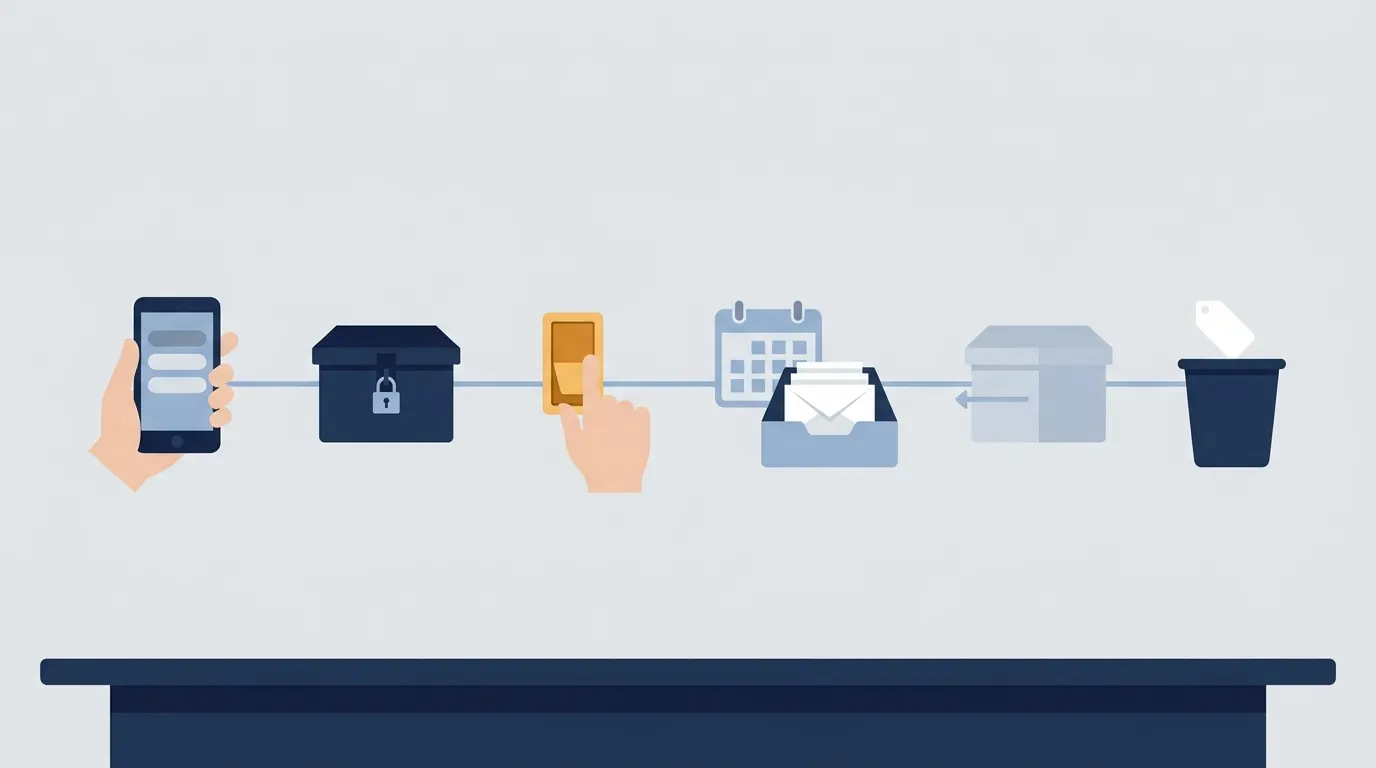
Six stages
- Check with the people responsible: Ask the people or departments named in the “Installed by” and “Work affected if removed” columns of the reconciliation sheet whether the tag can be removed
- Make it reversible: Save the current state in GTM as a version. Also go to “Admin” → “Export Container” and save the JSON file locally. Even if you lose access to the GTM account, you can restore by importing this file. Also back up the theme files and the entire site (How to Back Up)
- Pause: Assign one person to make the changes. That person checks the relevant tag in the GTM tag list, clicks “Pause,” and then publishes. If multiple people make changes at the same time, it becomes impossible to tell what caused a problem
- Confirm conversions still come through: Compare bookings, inquiries, analytics figures, and ad conversions with the period before the pause. As a guideline, if you get a few bookings or inquiries per week, wait at least two weeks. In businesses that receive bookings only about once a month, wait even longer. For ad conversions, wait according to the ad platform’s measurement period
- Roll back if there’s a problem: Republish the saved version
- Delete: If there are no problems, delete the tag, and record the date and the person responsible in the reconciliation sheet
You can check whether inquiry conversions are being counted correctly with How to Count Inquiries in GA4.
Sample request message
Subject: Request to confirm the purpose of tags on our site, and to pause them
- Site URL:
- Target tags: (paste the rows from the reconciliation sheet as is)
- Conditions observed: On page load / After consent / After booking or form actions
- What we'd like to ask: The purpose of installation, whether there is a contract, and what work would be affected if removed
- What we'd like you to do: After saving a GTM version, exporting the container, and taking a backup, pause the target tags
- Verification period and items: __ weeks; bookings, inquiries, analytics, and ad conversions
- Contact in case of problems:
If you’re looking for someone to handle tag cleanup or pausing, see also our maintenance and operations services.
Points to Note for Sites That Accept Card Payments
Who the guidelines cover and whom to ask
In March 2026, the Credit Transaction Security Council (secretariat: Japan Consumer Credit Association) published the “Credit Card Security Guidelines [Version 6.1].” Their scope includes e-commerce merchants that accept card payments online. “Vulnerability countermeasures” for e-commerce merchants’ systems and websites were added in the previous Version 6.0 (March 2025). Version 6.1 is described as a revision intended to ensure measures are implemented reliably, rather than adding new measures.
What is required of your site depends on your payment method. Materials from the association and the Ministry of Economy, Trade and Industry explain separately the method in which the card number input fields are on your own site’s pages (JavaScript type) and the method in which the customer is redirected to the payment service provider’s page (link type). Check with your contracted payment service provider about which applies to you and what measures you need to take.
Tag cleanup and guideline compliance are separate matters
Cleaning up tags alone does not mean you have complied with the guidelines. What cleanup tells you is which tags are running on the payment page. Hand over the payment page rows of your reconciliation sheet as material when consulting your payment service provider.