You deleted the page for a discontinued service, or your prices from before an increase, and it still shows in search. This is not a Google bug. Google simply hasn’t updated the information it holds yet.
If you remove the page the wrong way, it can backfire. A page hidden with Search Console can come back after about six months, and blocking it with robots.txt can actually keep the URL in search (this follows Google’s official help as of November 2026).
- If you never want the page to appear again, delete it and return a 404 or 410. If a successor page exists, redirect with a 301.
- If you need to hide it right away, use Search Console’s temporary removal. It lasts about six months, so always combine it with a permanent fix.
- If the information remains on someone else’s site, first ask the site that published it. Once it’s gone there, you can ask Google to update the search results with the Refresh Outdated Content tool.
- A page you deleted remains because Google hasn’t re-read it yet. If the old URL returns a 404, 410, or 301, and the old URL no longer appears in your sitemap, internal links, or robots.txt, it will disappear if you wait. For details, see “How to tell why a page stays in search even after you wait” in section 7.
1. Why Deleted Pages Stay in Search Results
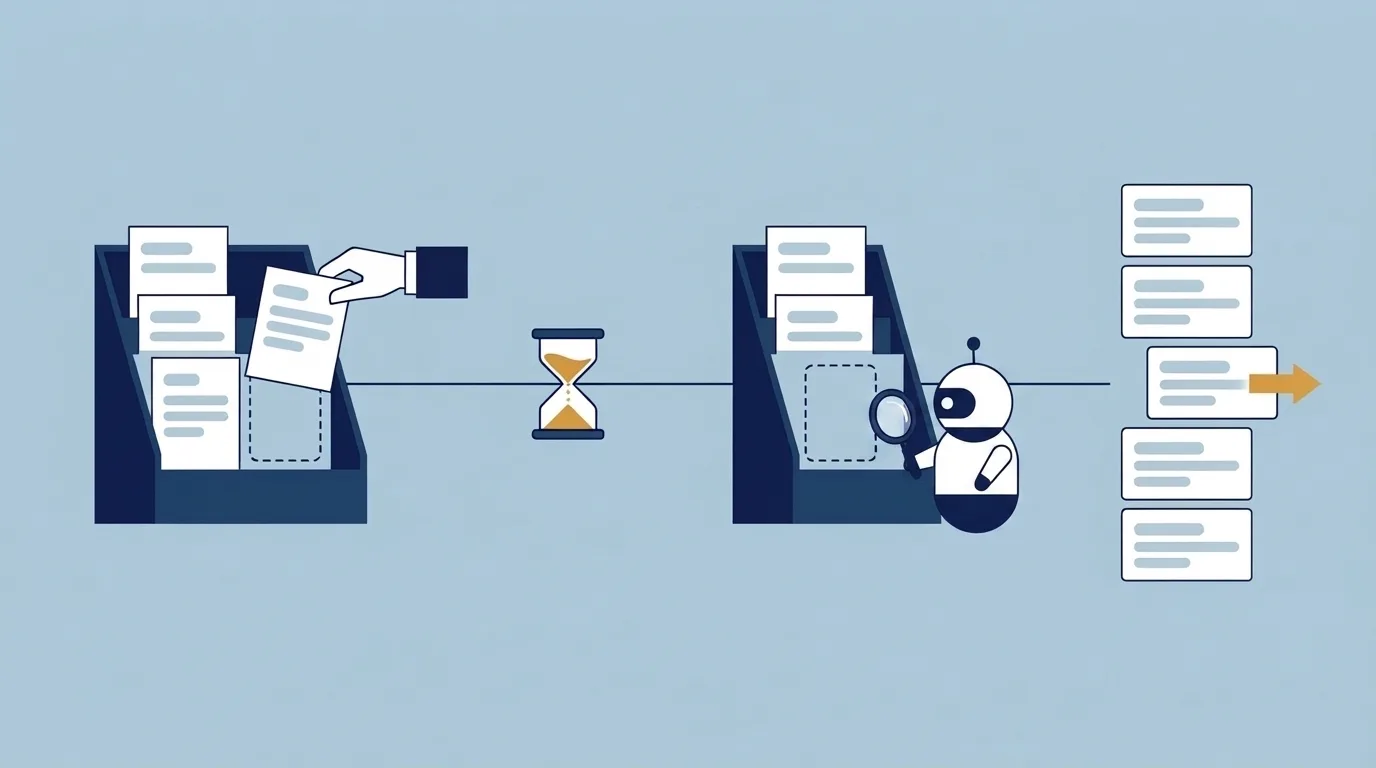
Google’s search results are not built by viewing live websites at the moment of the search. They are shown from a registry (the index) that Google built from content Googlebot read earlier. Even after you delete a page from your server, the registry stays out of date until Google next comes to read that URL.
A page disappears from search in this order:
- The site deletes the page or stops publishing it
- Googlebot comes to read the URL and gets a response saying “this page does not exist”
- Google removes the page from its index
- The page no longer appears in search results
Step 2 is what takes time. According to Google, when a previously indexed URL returns a 4xx error such as 404, it is removed from the index. Google also crawls that URL less and less often over time (How HTTP status codes are handled). However, when Google next comes to read a URL varies by page, and your site can’t decide it. Old pages with little traffic tend to be put off.
Another common case is a page you think you deleted but didn’t. If you replace it with a notice page saying “This service has ended,” the server responds “displayed successfully (200).” Google may treat this as an “empty page” (a soft 404), and it recommends returning the correct status code (How HTTP status codes are handled).
If you want to show an end-of-service notice, you can keep the notice text on screen and change only the status to 404 or 410. Ask your web vendor to return the page with the text “This service has ended. Information on its successor is here” and a link, using 404 or 410 instead of 200. Visitors see the notice, and Google is told “this page does not exist.”
2. Decision Table by Goal | First Decide What You Want
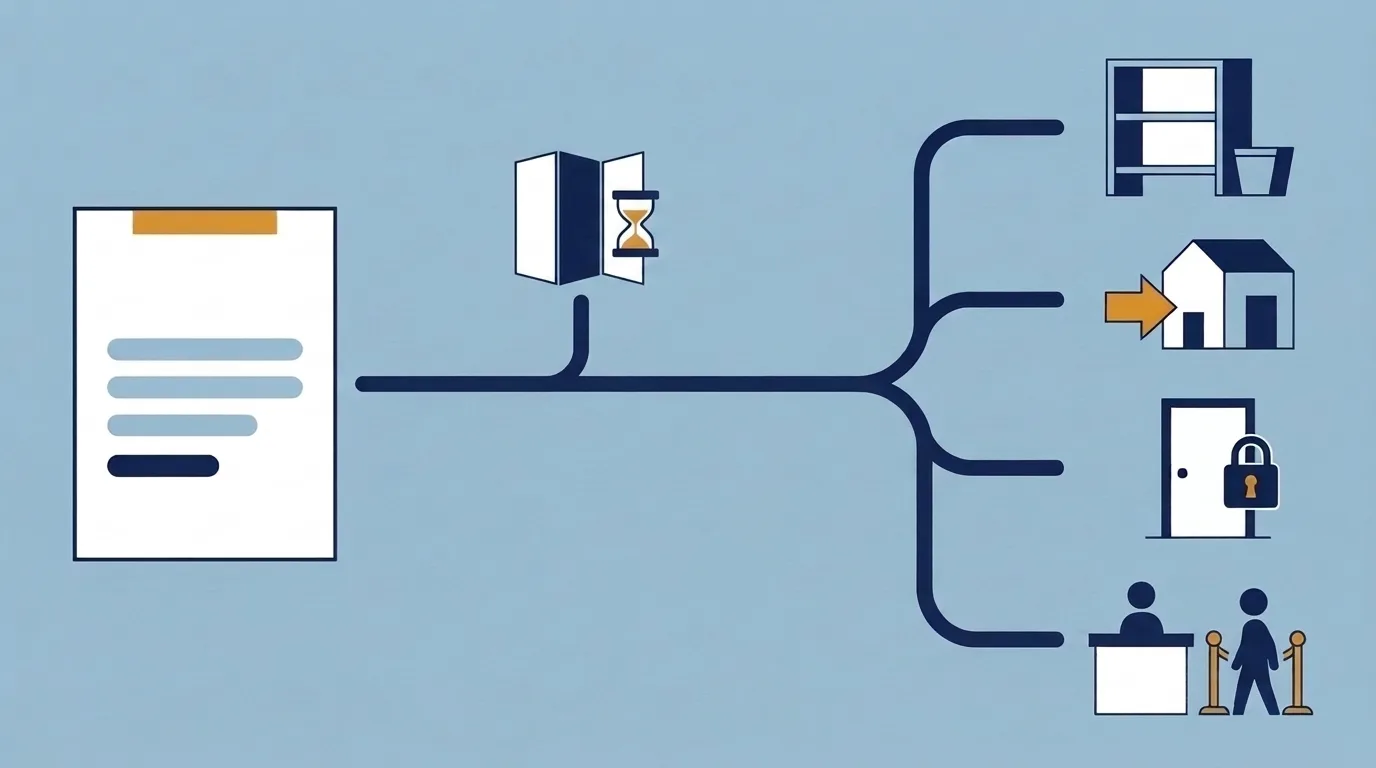
The right removal method depends on what you want to happen to the page from now on. If you choose only by speed, the page may show up in search again six months later.
| Goal | Method to choose | Time until it leaves search | Things to watch |
|---|---|---|---|
| You don’t need the page and never want it to appear | Delete the page and return a 404 or 410 | After Google next comes to read it | Don’t return a “This service has ended” page with a 200 |
| A successor service or new pricing page exists | Redirect to the successor page with a 301 | After reading, it is replaced by the destination | Don’t redirect everything to an unrelated home page |
| Existing customers should still see it, but it shouldn’t appear in search | noindex | After reading | People who know the URL can still view it. Some search engines don’t follow noindex |
| Only staff or related parties need to view it | Password protection | After reading | Googlebot can’t read it either, so it drops out of search |
| The URL stays the same and you only fixed the prices | Fix the content and request a recrawl with URL Inspection | After it is re-read | Check that old prices don’t remain in images or PDFs (how to find them is below the table) |
| You need to hide it by today or tomorrow, no matter what | Search Console temporary removal (used together with one of the above) | Usually within one day | The effect expires after about six months |
| Outdated information remains on someone else’s site | Ask the site that published it, then use the Refresh Outdated Content tool | After approval | Can’t be used for your own site |
Whether to ask for a 404 or a 410: A 404 signals “not found,” and a 410 signals “permanently gone.” However, according to Google, both are treated the same way for removal from the index (How HTTP status codes are handled). Whichever is easier for your vendor to set up is fine. If the service has definitely ended, you can specify 410.
How to find old prices left in images and PDFs: Even after you fix the page text, pricing table images and PDF documents are separate files, so their contents stay old. For PDFs, search with “site:your-domain filetype:pdf” plus a pricing term or the old service name, such as site:example.co.jp filetype:pdf 料金, to find them more easily. For images, open the pages that showed prices and check them by eye.
Each PDF you find is a URL in its own right. Choose your goal again from the table above and treat it the same way as a page. If you don’t need it, delete it and return a 404 or 410. If a PDF with the new prices exists, redirect with a 301. If you’re replacing it at the same URL, request a recrawl with URL Inspection.
Each image file is also its own URL. There are two ways to replace one:
- Overwrite it with the same file name: The URL doesn’t change, so the new image replaces the old one the next time Google reads it
- Upload it again with a new file name: If the image file with the old prices remains on the server, it may keep appearing in image search. Delete the old file and have it return a 404 or 410
Specify which one you want in your request to your web vendor.
Google lists three ways to remove a page permanently: “remove or update,” “password protection,” and “noindex.” Of these, it names removal as the safest way to keep the page out of other search engines too. When it disappears from other search engines depends on when each one crawls it (Remove information from Google Search).
Blocking crawling with robots.txt is not suited to this goal. If you stop crawling, Google can no longer see the 404 or the noindex. As a result, the URL alone may remain in search. Google’s documentation also warns against blocking with robots.txt (Remove information from Google Search).
3. If a Successor Page Exists, Redirect Instead of Deleting
You renamed a service, reorganized your plans, or rebuilt your pricing page at a new URL. In these cases, redirect the old URL to the new page with a 301 instead of making it a 404. Both people coming to the old page and Google go straight to the new page. Google treats a 301 as a strong signal meaning “please look at the destination.”
Decide whether to redirect based on whether the content carries over.
- Redirect: When someone looking for the old page can get what they need at the destination, such as a renamed successor service, a new pricing page, or the plan it was merged into
- Don’t redirect: When you’ve ended the service completely and there’s no replacement. Redirecting to the home page won’t give people what they need. Google may treat it as an empty page (soft 404)
How to build a URL mapping table and carry out redirects is covered in URL migration that helps you avoid losing search rankings during a site renewal.
4. When to Use Search Console’s Temporary Removal, and Cautions
Search Console’s “Removals” (削除) feature (called the “Removals tool” in the help pages) lets you temporarily hide URLs on your own site from search results. Processing usually finishes within one day. However, a request isn’t always approved (Removals and SafeSearch reports tool).
Submit a request in this order:
- In Search Console’s left menu, open “Removals” (削除) and click “New request” (新しいリクエスト)
- Under “Temporary removals” (一時的な非表示), choose “Temporarily remove URL” (URL を一時的に非表示にする) (the other option is “Clear cached URL” (検索結果のスニペットを消去する))
- Enter the target URL, choose either “Remove this URL only” (このURLのみ削除) or “Remove all URLs with this prefix” (このプレフィックスで始まるURLを削除), and submit
Before you start, keep these four points in mind:
- The effect lasts about six months: If a permanent fix isn’t in place by then, the page may return to search results. Think of this period as a grace period for preparing a permanent fix (Official blog post on the Removals report)
- Crawling doesn’t stop: The page is only hidden from search results. The page on your site stays as it is
- Only Google Search is affected: It doesn’t work for other search engines. For those, the basic approach is to finish a permanent fix such as deletion or a redirect and wait for each engine to crawl it. If you’re in a hurry, check that search engine’s management tool (Bing Webmaster Tools for Bing) for its removal procedure
- URLs must match exactly: If search shows URLs that differ in uppercase and lowercase, or in what comes after the
?, submit a request for each one. You can also specify a prefix to cover them all at once, such as/old-service/
It suits things that can’t wait six months, such as internal documents published by mistake, or a pricing table your legal team wants taken down immediately. It can’t be used for site moves or for consolidating duplicate URLs into one. It may remove even the URL you want to keep from search.
If the URL stays the same and you only fixed the prices, you can also choose “Clear cached URL” (検索結果のスニペットを消去する). The description in the search results disappears until Google next reads the page. Use this when the old price appears only in the description.
5. When It Remains on Someone Else’s Site or in Old Listings
Old prices and service names also remain outside your own site: a partner’s introduction page, an industry association’s member list, a portal site’s listing, and so on.
First, ask the site that published it to correct or delete it. Google’s tools can only change what search results show. They can’t delete the page itself. Once the publisher’s page has been deleted or rewritten, you can ask Google to update the search results with its “Refresh Outdated Content tool.” You can use it even if you don’t own the site.
| State of the publisher’s page | What the tool can do | What to enter |
|---|---|---|
| The page is gone | Remove that page from search results | The URL exactly as it appears in search results |
| The page remains, but its content has changed significantly | Clear the old snippet and update it at the next crawl | The URL, plus one or two words that appear in the snippet but not on the page |
| It still has the old content | Can’t be used (won’t be approved) | ― |
Get the URL by right-clicking the link in the search results and choosing “Copy link address” (リンクのアドレスをコピー). Request status is shown as pending, approved, denied, or expired, and it can take a few days. An approved request changes to “expired” 180 days after approval. Submit URLs on your own site through Search Console as described in the previous section, not with this tool. Removing reviews or personal posts goes through a different channel, so this article doesn’t cover it.
6. Sample Request to Your Web Vendor
When you make the request, include your goal, the list of URLs, and whether a successor page exists. First, here is an example for removing pages by redirecting and deleting them. Replace the parts in square brackets with your own details.
We’d like to remove the pages for the discontinued [service name] and our old prices from search results, and we’d like your help.
The target URLs are listed in the attached sheet. We’ve noted in the list whether each URL has a successor page.
・For URLs with a successor page, please redirect them to the successor page with a 301
・For URLs with no successor, please delete the page and make it return a 404 or 410. Please don’t set it up as a “This service has ended” notice page displayed with a 200
・Please also remove the target URLs from the sitemap and internal links
・We need them hidden from search by [date], so please also submit a temporary removal in Search Console (or we’ll submit it ourselves, so please tell us when your work is complete)
・We’ve also included images and PDFs that show the old prices in the list. Please handle the PDFs the same way as above. For images, please overwrite them with the new-price versions using the same file names. If you change the file names, please delete the old image files
After the work is done, please send us the results of checking the status code each URL returns.
If the attached list has one URL per line with columns like the following, your vendor can work from it as is.
| Old URL | Type | Successor URL | Chosen method | Temporary removal |
|---|---|---|---|---|
| https://example.co.jp/old-service/ | Page | https://example.co.jp/new-service/ | 301 redirect | Request |
| https://example.co.jp/old-service/plan/ | Page | None | Delete and return 410 | Request |
| https://example.co.jp/files/price-old.pdf | https://example.co.jp/files/price.pdf | 301 redirect | Don’t request | |
| https://example.co.jp/images/price.png | Image | ― | Overwrite with the same file name | Don’t request |
In “Chosen method,” write the method you chose from the decision table in section 2. How to list the URLs is covered in step 4 of section 7.
If you chose a different method from the decision table, replace the first two bullet points of the example above (301 redirect, return a 404 or 410) with whichever one of the following applies.
・(For noindex) Please keep the page and set noindex so it doesn’t appear in search. Please don’t block crawling with robots.txt
・(For password protection) Please keep the page and make it viewable only by people who know the password
・(For fixing prices only) Please keep the URL unchanged and update the text and the pricing table images and PDFs to the new prices. After updating, please request a recrawl with URL Inspection in Search Console (or we’ll request it ourselves, so please tell us when your work is complete)
If your vendor will work in Search Console, don’t give them your login details. Invite them as a user instead. Choose “Full” (フル) permission. “Restricted” (制限付き) allows viewing only, and they won’t be able to submit temporary removal requests (Search Console permissions). The steps are in How to invite your web vendor without giving them your password or owner permissions.
7. How to Confirm the Changes Took Effect
After making your request, check in this order:
- The page’s response: Open the target URL in your browser and check that it shows “not found” if deleted, or switches to the successor page if redirected. You can check the exact status code in Chrome. If you open a redirected URL and then reload, the page that gets re-read is the destination, so it shows 200. Use the following steps and start recording before you open the old URL
- Open a new tab, right-click, choose “Inspect” (検証), and open the “Network” (ネットワーク) tab
- Check “Preserve log” (ログを保持)
- Enter the old URL in the address bar and open it
- Look at the “Status” (ステータス) column of the first row in the list (the old URL). It’s fine if it shows 404 or 410 for a deletion, or 301 for a redirect. For a redirect, the next row shows the destination URL with a 200
- URL Inspection: Enter the target URL in Search Console’s URL Inspection to see the last crawl date, whether noindex is present, and the indexing status (URL Inspection tool). Click “Test live URL” (公開URLをテスト) to check the page’s current state. For a page where you only fixed the prices, submit “Request indexing” (インデックス登録をリクエスト) here. It usually takes about a day to take effect, and as long as one to two weeks
- Removals report: If you submitted a temporary removal, check whether it was approved and when it expires. Put a reminder in your calendar for the month before it expires to check whether the permanent fix is in place
- Search results: Search for your company name, the service name, and the old price figures, and note any URLs that remain. If the old service’s pages sit together in one folder, searching with “site:your-domain/old-service-path,” such as
site:example.co.jp/old-service/, lets you list the remaining URLs all at once. Add the URLs you find to the list in the format from section 6
How to tell why a page stays in search even after you wait
As explained in section 1, your site can’t decide when Google will next come to read a page. So no one can say “it will disappear in X days.” When you find a URL that remains, check for gaps in this order before you wait:
- Is the response correct?: Using the steps in item 1, check whether the old URL returns a 404, 410, or 301. If it returns a 200, the page was only replaced with a notice page. Have your vendor fix the setting
- Has Google re-read it?: Check whether the last crawl date in URL Inspection is after the date you made the fix. If it is later and the page is still indexed, Google may not be seeing the noindex or the status setting. Check the current state with “Test live URL” (公開URLをテスト)
- Are you calling it back yourself?: Check whether the old URL remains in your sitemap or internal links. Check whether robots.txt blocks crawling of the old URL
- No problems so far: Your fix is correct, so wait for Google to come and crawl it. If you have reasons you can’t wait, add a temporary removal as described in section 4
For the basics of reading Search Console, see How to use Google Search Console. If you’re looking for someone to handle how your site appears in search as a whole, see our SEO services as well.