“We haven’t updated it once since our contract with the web agency ended.”
“The dashboard shows update notices, but I’m afraid the site will break if I click them.”
“I don’t even know which version we’re running.”
We often hear this from people running WordPress sites built several years ago. In fact, sites still running on versions more than five years old are not unusual. As long as the site displays, it is hard to feel any urgency.
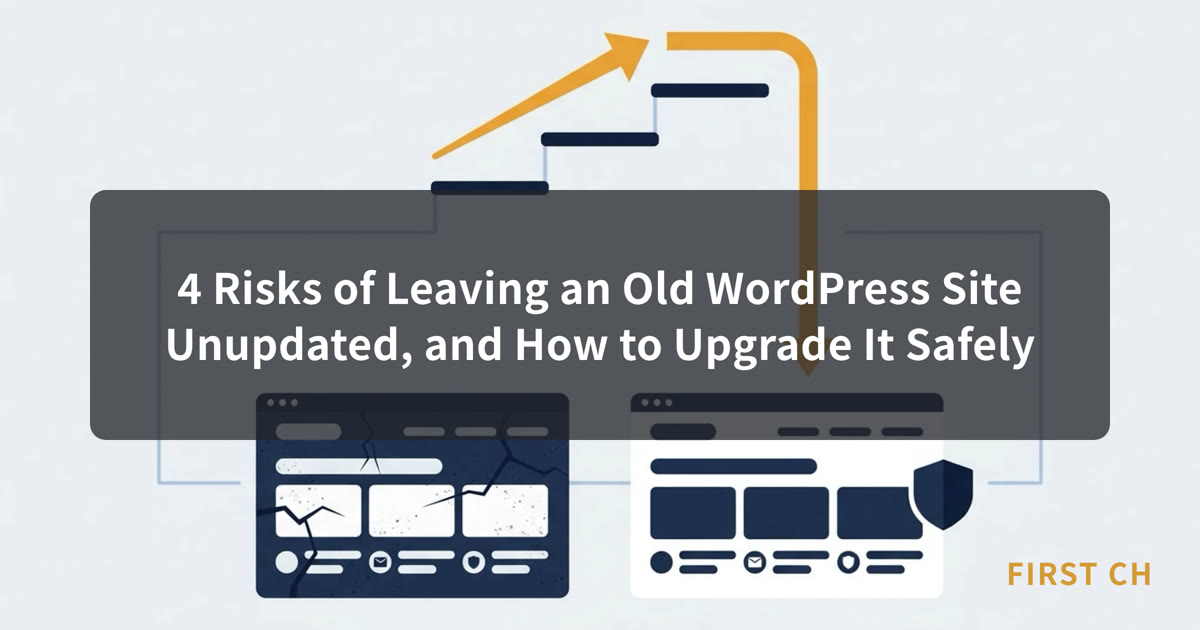
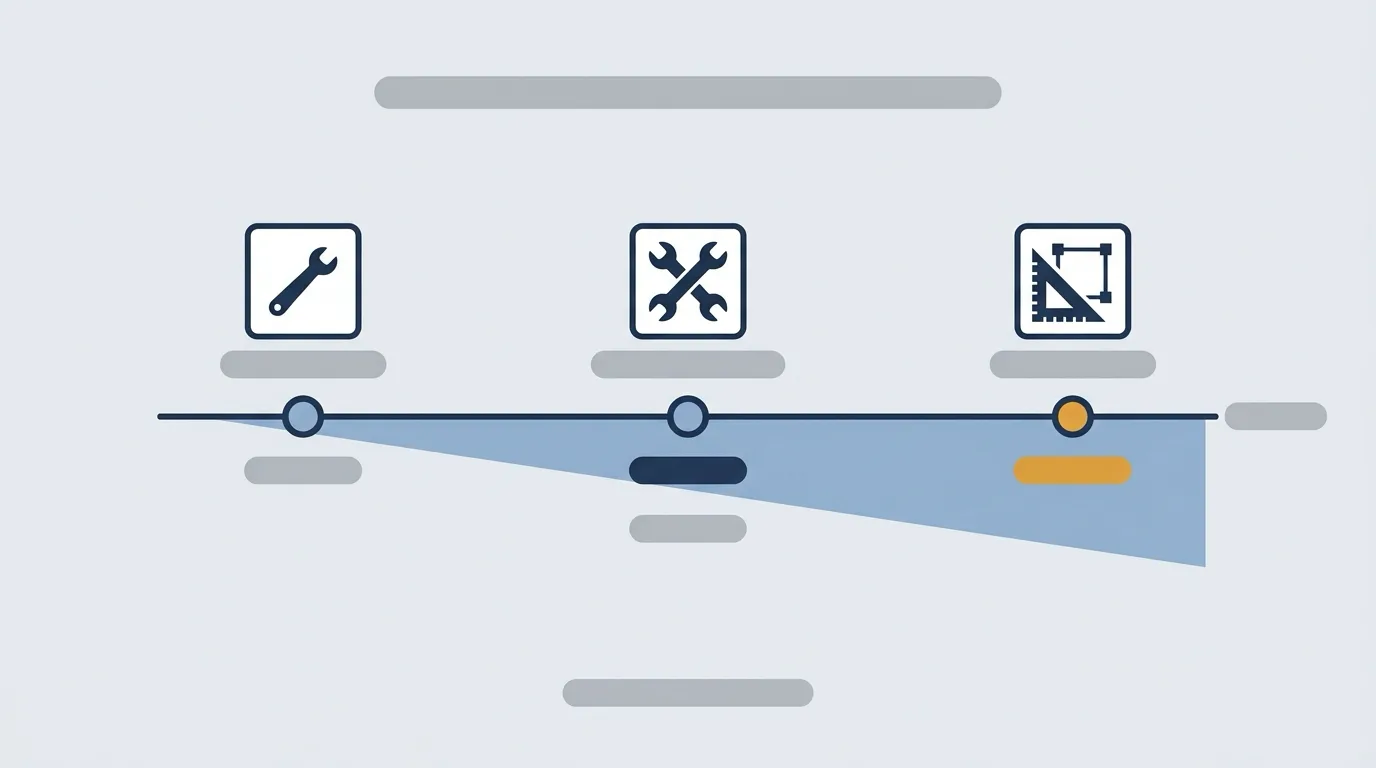
The real problem with an old WordPress site is not that it stops working, but that it gets taken over while it keeps working. Tampering often does not show on the surface, and you only notice once your site is being abused in search results or as a sender of email. However, updates will not break your site if you do them in the right order. The one thing that matters is to follow this order: backup → staging environment → PHP → core → themes and plugins.
This article starts with how to check the state of your own site, then covers what happens when updates are neglected, how to update without breaking anything, and how to decide whether to do it yourself or hire someone.
First, Check Your Site’s Version
Before deciding whether to update, get a clear picture of where things stand in actual numbers. Even if you cannot log in to the dashboard, there are ways to check from the outside.
Log in to the WordPress dashboard and open “Dashboard” → “Updates” (ダッシュボード → 更新) in the left menu. The current versions of the core, themes, and plugins, along with the number of available updates, are shown together.
Open the site, right-click, select “View Page Source,” and search for the string generator. If you find a line like <meta name="generator" content="WordPress 5.4.2" />, that is the core version. It will not appear on sites that hide it as a security measure.
If your hosting provider’s control panel has an item such as “WordPress Easy Install” (WordPress簡単インストール), the installed versions will be listed there.
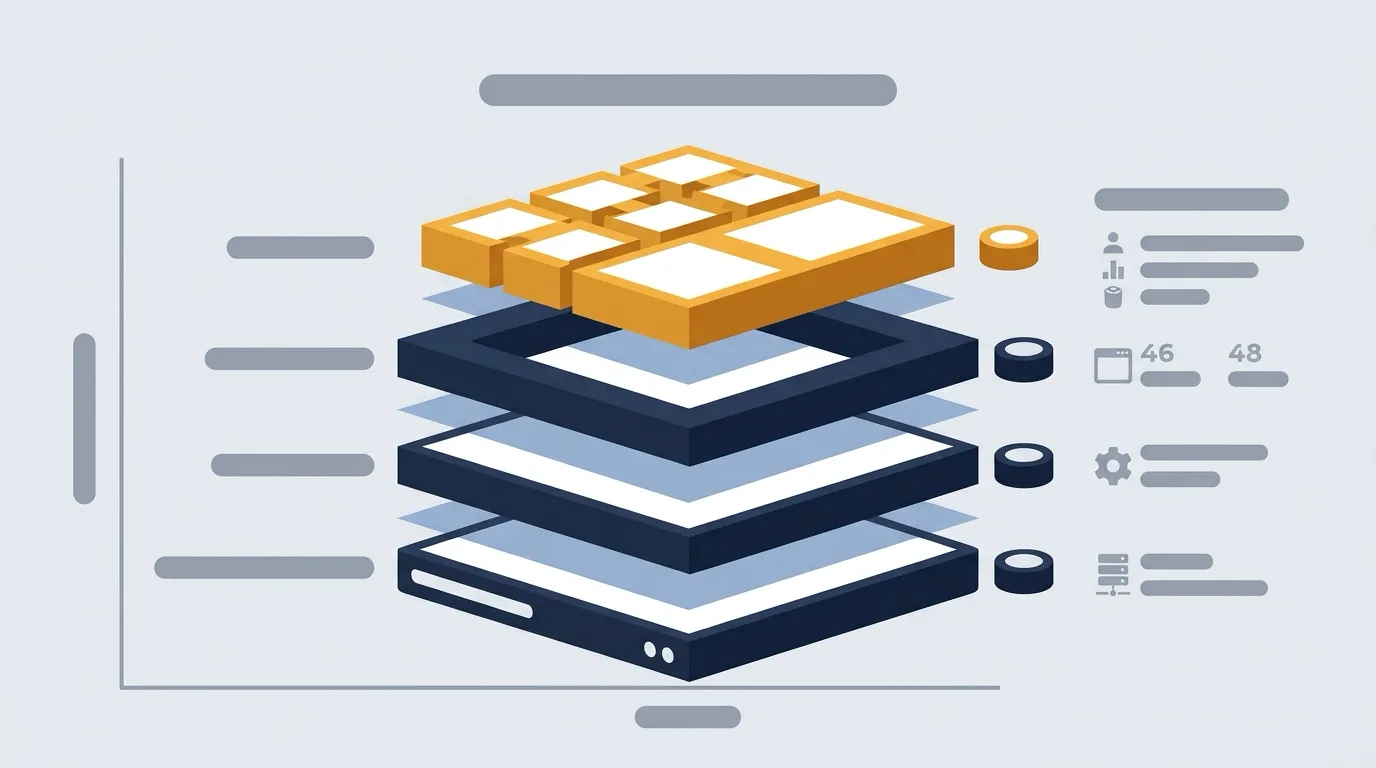
A site is only “up to date” when all four are current: the core, the theme, the plugins, and PHP. PHP in particular is a server-side setting, and you can check its current version under “Site Health” → “Server” (サイトヘルス → サーバー) in the dashboard.
4 Things That Happen If You Leave It Alone
1. Vulnerabilities Become Public Information
WordPress updates include not only new features but also fixes for vulnerabilities. And the details of those fixes are made public. In other words, as soon as an update is released, information that “versions before this one have this weakness” is shared around the world.
Attacks are not mostly carried out by people targeting specific sites. Most come from programs that automatically scan for old versions. The size or profile of your site does not matter. The idea that a small company’s site won’t be targeted does not hold.
Also note that most reported vulnerabilities come not from the core but from plugins and themes. In practice, the important point is that updating only the core does not mean you are safe.
2. Tampering Doesn’t Show on the Surface
When people hear “tampering,” they tend to picture a defaced home page, but in reality the common forms look like this:
- Showing different content only to search engines, so normal visitors don’t notice
- Being used to send spam, damaging the reputation of your company’s domain
- Redirecting visitors to another site, triggered only under certain conditions
- Being used as a stepping stone for attacks, making you the attacker against other sites
In all of these cases, you cannot spot anything wrong just by looking at the site. What usually tips people off is a browser warning, a notice from Google Search Console, or a business partner telling you, “Your emails are going to our spam folder.”
If your site is compromised, you will need to identify the cause, remove the malicious files, change all passwords, and request a review from search engines. Compared with updating in advance, both the cost and the downtime are greater.
3. A Server PHP Upgrade Takes Your Site Down
WordPress runs on a programming language called PHP. PHP versions also have support end dates, and hosting providers gradually shut down versions that have reached end of support.
When that happens, an old WordPress site will not run on the new PHP. Because the server is forcibly switched over on the provider’s side, the site can suddenly go blank one day. This is not an attack. It happens because the site’s updates were neglected.
4. You Can No Longer Fix It, Even If You Want To
The longer updates are neglected, the harder it becomes to work on the site later.
| Time without updates | What happens |
|---|---|
| About 1 year | Regular updates can catch you up |
| About 3 years | Some plugins are no longer maintained, and you need to find replacements |
| 5 years or more | The theme does not work with current WordPress, and the design may need to be rebuilt |
If you put it off because “we’ll redesign it eventually,” the migration work gets added on top of the redesign quote.
How to Update Without Breaking Anything
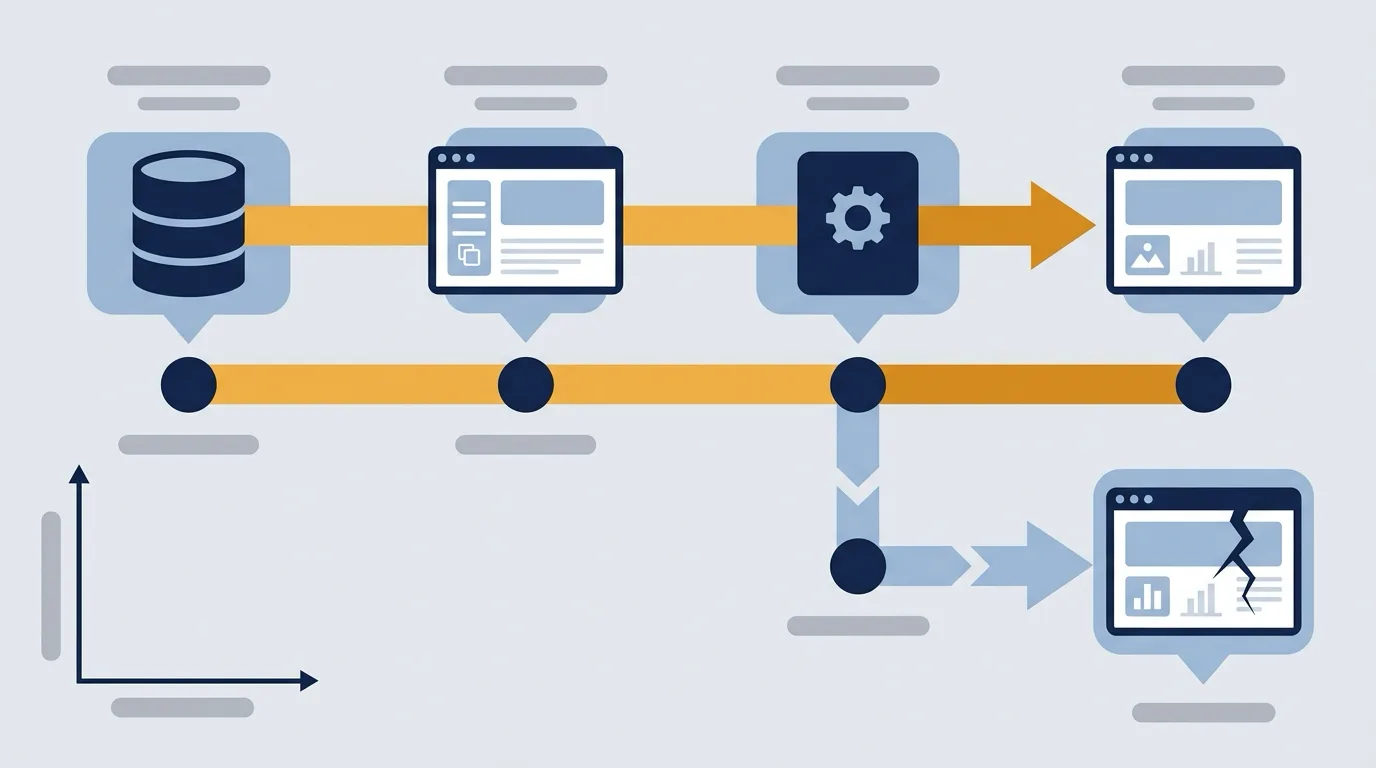
When an update breaks a site, the cause is almost always skipping steps in the order or skipping testing. Proceed in the following order.
Back up both the full set of files and the database. You cannot restore the site with only one of them. Save the backup on your own computer as well, not just on the server. See How to Back Up WordPress for details.
Create a non-public environment with a copy of the same content as your live site. Test the updates here and identify where problems occur. Not updating the live site directly is the most important part of this whole process.
Even if you update WordPress core, it will not be supported if PHP is still old. In most cases you can switch PHP versions in the server’s control panel. After switching, confirm in the staging environment that the site works correctly.
Update in the staging environment and check that both the dashboard and the public-facing site work without problems. You may see messages such as “Attempt Block Recovery,” but in most cases the content is preserved.
If you update everything at once, you will not be able to tell which one caused a problem. Check the display after each update. If you find a plugin that is no longer maintained, find a replacement or achieve that function another way.
Update the live site only after confirming there are no problems in testing. Check four things: the display, contact form submission, SSL, and the dashboard. Forms can break during updates without anyone noticing, so always send a test submission.
Do update work outside business hours, and set aside time to check the site right afterward.
Do It Yourself or Hire Someone?
The deciding factor is not technical skill, but whether you can restore the site if it breaks.
- The site was updated within the past year, so there is little to catch up on
- You have tried taking and restoring a backup yourself
- You use 10 or fewer plugins, and all of them are still maintained
- Your business would not be affected even if the site were down for a few days
- You don’t know how many years it has been since the last update
- Inquiries through the site lead to orders
- The site includes custom features built by the web agency (a custom theme or custom plugins)
- The site has features such as booking, payments, or memberships, where downtime causes direct losses
If the first list applies to you, you can proceed on your own after taking a backup. If even one item in the second list applies, hiring someone who can set up a staging environment will end up costing less.
Typical Costs If You Outsource the Work
These amounts are our typical estimates. They vary with the size of the site, how long updates have been neglected, and whether there are custom features.
| Work | Typical cost |
|---|---|
| Core and plugin updates only (recent updates, with testing) | ¥30,000–¥80,000 |
| Several years of updates + PHP switch + fixing layout issues | ¥100,000–¥250,000 |
| When the theme doesn’t work and the design must be rebuilt | From ¥300,000 |
| Ongoing update service (monthly maintenance) | From ¥5,000/month |
Even if you fix it once, updates keep coming every month. To avoid ending up in the same situation again, you need to decide who will handle updates. For how to think about maintenance, see Typical Costs of Website Maintenance and Operation. For server-side operating costs, see Typical Costs of Server Maintenance.
Frequently Asked Questions
- The dashboard says “Please update.” Is it OK to just click the button?
-
If the site has been updated regularly and there is little to catch up on, it almost always completes without problems. But take a backup before you click. If you click without a backup and the site breaks, your options for recovery are limited.
- We haven’t updated in years. Can we jump straight to the latest version?
-
Technically, it is possible to upgrade the core straight to the latest version. The problem is themes and plugins: if some of them changed how they work in intermediate versions, you won’t be able to isolate the cause after upgrading all at once. That is why we check step by step in a staging environment.
- Our web agency told us the site is more stable if we don’t update it.
-
The idea of “not touching something that works” is understandable, but since updates include vulnerability fixes, choosing not to update only increases the risk over time. If there is a reason you can’t update (for example, a specific plugin doesn’t support the new version), ask for that reason and an alternative in concrete terms.
- Can I tell for myself whether my site has been compromised?
-
It is hard to determine for certain, but there are simple ways to check. If your site is registered with Google Search Console, a notice will appear under “Security issues.” You can also search for
site:自社ドメイン(with your company’s domain in place of 自社ドメイン) in a search engine and see whether any pages you don’t recognize show up. If you find anything abnormal, recovery comes before updating. - Will updating change how my website looks?
-
Updating the core does not normally change the look. If anything changes it, it would be a theme update, and in that case too you can check it first in a staging environment. Conversely, the longer a site goes without updates, the bigger the changes become, so not letting too much time pass between updates is what ultimately protects your site’s look.
- Are updates enough for security?
-
Updates are the most effective measure, but they are not enough on their own. For the full picture, including dashboard passwords, login restrictions, SSL, and regular backups, see Website Security Measures.
Summary
With an old WordPress site, the risk of being abused without noticing is a bigger problem than the risk of the site going down. And the update work itself is not difficult as long as you follow the right order.
- Check the core, theme, plugins, and PHP separately
- Before updating, take a backup, then set up a staging environment
- Update themes and plugins one at a time so you can isolate the cause of any problem
- Don’t just fix it once; decide who will handle the next updates
If you just want to know where things stand right now, send us your site’s URL and we will check the versions and update status within the scope of publicly available information and let you know. You can then decide whether work is needed and get a rough estimate.