“GA4 says we had 30 inquiries last month, but we only received 12 emails.” “Or the opposite: emails are coming in, but GA4 still shows zero.” We often hear this from companies that set up GA4 to count inquiries from their website. If the numbers don’t match, you can’t tell whether your improvements are working.
In most cases, the numbers drift because what is counted as one inquiry differs from what an actual inquiry is. Are you counting how many times the submit button was pressed, or how many times a submission succeeded? Is the same tracking running twice? If you check these points one by one, the numbers will get closer to reality.
This article covers why inquiry counts drift, how to set things up so that only successful submissions are counted, how to register the event as a key event, and how to check when the numbers don’t match. For the basics of reading GA4 reports, see “How to Read Google Analytics (GA4).”
To bring GA4’s inquiry count closer to reality, start by counting only when a submission succeeds, not when the submit button is pressed. With Contact Form 7 on WordPress, use Google Tag Manager to catch wpcf7mailsent, which fires when a submission succeeds, send an event to GA4, and register that event as a key event. When the numbers don’t match, put three numbers for the same period side by side: the event count, the number of users who triggered that event, and the number of notification emails you actually received. Then check for duplicate tracking installations and for modification rules in the admin screen. However, GA4’s numbers may not match the actual count for reasons such as ad blockers and whether visitors gave consent. A realistic goal is being able to explain why the numbers differ.
Why GA4’s Inquiry Count Doesn’t Match the Actual Number
First, let’s go over the common ways the numbers drift and why. Where you should look depends on which direction your numbers are off.
When GA4 shows more
- Submissions with input errors are also counted: If someone presses the submit button with a required field left blank, gets an error, and re-enters their details, there were two submit actions. If your setup counts the submit action itself, one inquiry is counted as two or more
- Other forms are also counted: Submissions from forms other than the inquiry form, such as site search, document requests, or newsletter sign-ups, may be counted under the same event
- Tracking is installed twice: If GA4 tags are sent from both Tag Manager and the theme (or a plugin), events such as
page_viewmay be recorded twice (whether the inquiry event is also duplicated depends on how that event is sent) - Your own test submissions are included: Test submissions after fixing the form or trial submissions within the company are counted as one inquiry each unless you exclude them
When GA4 shows fewer
- Successful submissions aren’t being picked up: The tracking setup may have stopped working because the form’s mechanism was changed or a plugin was replaced
- The tracking data never arrives: For example, because of ad blockers or a visitor choosing “Reject” on a consent banner (details below)
- The key event was registered later: For the period before the event was registered as a key event, no numbers appear in the key event reports
“The Submit Button Was Pressed” Is Not the Same as “The Submission Succeeded”
GA4 has an “enhanced measurement” feature that automatically counts some interactions without any extra setup. If you turn on “Form interactions” within it, form submissions are recorded as an event called form_submit. Because it’s so easy to use, many companies treat it as their inquiry count as is.
However, form_submit counts that a form submit action took place in the browser, and it may not be able to distinguish whether the submission succeeded and the email was delivered. Depending on how the form is built, it may also count submissions that ended in input errors, or forms other than inquiries such as site search (submit test entries yourself to see how they’re recorded). That makes it too rough to use as an inquiry count.
What you can rely on as an inquiry count is an event recorded at the moment the form’s program determines that the submission succeeded. There are two main ways to do this.
| Method | How it works | Points to note |
|---|---|---|
| Catch the submission success event | Tag Manager catches the signal the form’s program sends when a submission succeeds, and sends an event to GA4 | The name of the signal differs by form type |
| Count views of the thank-you page | After submission, the visitor is sent to a “Thank you for your message” page, and views of that page are counted | Also counts reloads and direct visits from bookmarks |
If the form can send a success signal, we recommend catching that signal. For how to build a form and choose a form type, see “How to Create a Contact Form.”
Setting Up Contact Form 7 to Count Only Successful Submissions
Using Contact Form 7, which is widely used on WordPress, as an example, here is the flow of the setup. This assumes Google Tag Manager (GTM) is already installed on your site.
Catch the success signal “wpcf7mailsent”
Contact Form 7 sends a signal (a DOM event) on the page depending on the result of the submission: wpcf7invalid for input errors, wpcf7spam when the submission is judged to be spam, wpcf7mailfailed when sending the email fails, and wpcf7mailsent when the submission succeeds and the email sending process has completed. Only wpcf7mailsent should be counted as an inquiry. In GTM, you set up a tag that catches this signal and writes it to the data layer (a container for passing data to GTM). To illustrate the idea, the code looks like this:
<script>
document.addEventListener('wpcf7mailsent', function (event) {
  window.dataLayer = window.dataLayer || [];
  window.dataLayer.push({
    event: 'inquiry_sent',
    form_id: event.detail.contactFormId
  });
});
</script>
Run this code on every page as a “Custom HTML” tag, then create a GA4 event tag triggered by a “Custom Event” named inquiry_sent. For the event name sent to GA4, use either generate_lead (an event name recommended by Google that represents acquiring a lead) or a name that’s clear within your company, such as inquiry_sent.
If you have multiple forms, tell them apart
If you have several Contact Form 7 forms, such as an inquiry form and a document request form, send the form ID along as a parameter, as in the code above, and use GTM trigger conditions to narrow it down to the inquiry form’s ID only. That way, adding forms later won’t mix them into your inquiry count.
Note that for forms other than Contact Form 7 (other plugins or forms from external services), the name of the success signal, or whether one exists at all, differs. Check the official documentation for the form you use to confirm what happens when a submission succeeds before setting it up.

Registering the Event as a Key Event
Once the event is reaching GA4, register it as a “key event.” Key events are what GA4 previously called “conversions”; the name changed in 2024. Where older guides or screen descriptions say “conversion,” that corresponds to a key event in today’s GA4.
To register it, go to the list of “Events” under “Data display” in the GA4 admin screen and “Mark as key event” for the target event. If the event hasn’t arrived even once yet, you can set it up in advance by creating the event from Admin (管理) → Data display (データの表示) → Events (イベント) and turning on “Mark as key event” (キーイベントとしてマークを付ける).
After registering, make sure to check the counting method. Key events can be counted “Once per event” or “Once per session,” which changes how two submissions within the same visit are handled. “Once per event” is closer to reality for an inquiry count, while “Once per session” is an option if you’re concerned about duplicates from the same person. If you don’t share within the company which method you use, people will read the numbers differently.
How to Check When the Numbers Don’t Match
Even after the setup is done, GA4’s count can still differ from the actual count. When it does, check in the following order.
1. Put three numbers for the same period side by side
First, line up the following three numbers for the same period.
| Number to look at | Where to find it | What it tells you |
|---|---|---|
| Event count | The count for the target event in GA4’s “Events” report | How many successful submissions were recorded |
| Users for that event | “Total users” in the same report | How many people submitted |
| Actual count | Notification emails received, or the form’s submission history | How many inquiries really arrived |
If the event count is much higher than the number of users, suspect either the same person submitting multiple times, or double recording. If the event count and number of users are about the same but higher than the actual count, suspect that test submissions or other forms are mixed in.
If you rely only on notification emails for the actual count, you’ll miss inquiries whose emails never arrived. With Contact Form 7, using it together with a plugin that saves submissions in the admin screen lets you check the count separately from emails. For problems with notification emails not arriving, see “Why Contact Form Emails Don’t Arrive and How to Fix It.”
2. Check whether the measurement ID is installed twice
A common case is installing GA4 through GTM while also entering the same measurement ID (an ID starting with “G-“) in a theme settings field or a plugin. In this case, page_view may be sent twice every time a page is viewed once. Whether the inquiry event is also duplicated depends on where that event is sent from, so check that as well.
To check, compare the counts of page_view and session_start in GA4’s “Events” report and see whether page_view is unnaturally high compared with what you’d expect for your site. If opening a page once records two page_view events, you can assume a duplicate installation.
3. “Modify event” and “Create event” rules in the admin screen
The GA4 admin screen has a “Modify event” feature that rewrites incoming events based on conditions such as name or parameters, and a “Create event” feature that creates a different event from events matching certain conditions. A previous person in charge or a web production company may have added a rule, for example, “create an inquiry event from page_view on the thank-you page,” which together with the GTM setup ends up counting inquiries twice. Especially if the person in charge has changed, check once whether any such rules remain.
4. Actually submit the form using DebugView and Preview
Finally, check by actually submitting the form. Open your site in GTM’s “Preview” mode and submit the form to see which tags fired and how many times. If you also open “DebugView” in the GA4 admin screen at the same time, you’ll see which events reached GA4 from that submission in near real time.
Check these three points:
- When you submit with input errors, the inquiry event is not sent
- When you submit correctly, the inquiry event is sent only once
- When you submit a form other than the inquiry form, the inquiry event is not sent

Why GA4’s Numbers Don’t Match the Actual Count
Even after all these checks, some differences may remain for reasons such as the following.
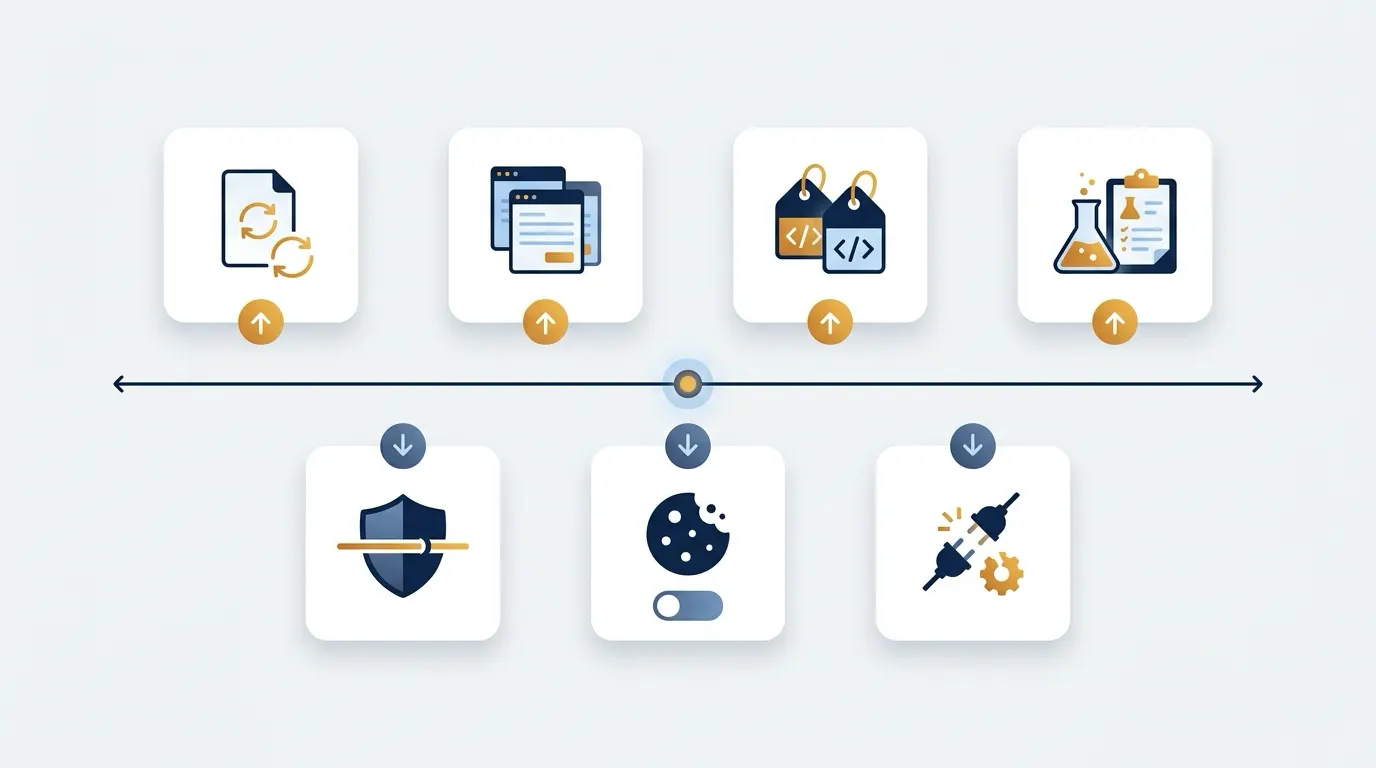
- Ad blockers and tracking prevention: The GA4 tag itself isn’t loaded, so submissions aren’t recorded
- Cookie consent: Submissions from people who declined tracking on a consent banner are either not sent to GA4 or are treated as estimates
- Resubmission by the same person: Some people submit twice because they’re unsure whether the first one went through. Two emails arrive and GA4 records two events, but it’s one inquiry
- Your own test submissions: The count goes up every time you test the form. If you set up exclusion of your company’s IP addresses or keep a record of when you sent test submissions, you can subtract them later
What matters is not making the numbers match exactly, but being able to explain why they differ. For example, if you know that “GA4 is a little lower than the actual count every month, but the gap hasn’t changed much,” you can use increases and decreases in GA4’s numbers to judge your improvements.
Counting Sales Pitches and Solicitations Separately
Besides genuine inquiries, inquiry forms also receive sales and solicitation messages. If these are all counted together, you may get the wrong picture, such as “inquiries went up but they aren’t leading to orders.”
To count them separately, you can add an “Inquiry type” selection field to the form and have people choose from options such as “Consultation about services,” “Request for a quote,” and “Other / Proposals.” In Contact Form 7, the success signal includes the submitted content, so you can read the selected value and either send each type as a different event name or send the type along as a parameter. If you send it as a parameter, registering it in GA4’s “Custom definitions” lets you see counts by type in reports.
Because this depends on people making a selection, it won’t separate them perfectly, but it’s useful enough for seeing the trend in genuine inquiries.
Just because you can read the submitted content, you must not send names, email addresses, phone numbers, or similar data as GA4 parameters. Google’s terms prohibit sending personally identifiable information to GA4. Only send information that doesn’t identify individuals, such as the inquiry type or the form ID.
Once you can count inquiries accurately, the next step is improving to increase that number. For how to review your site’s paths to the form and the form itself, see “Why Your Website Isn’t Getting Inquiries and How to Improve It.”
Frequently Asked Questions
- Should I turn off “Form interactions” in enhanced measurement?
-
You don’t necessarily need to turn it off. However, avoid treating
form_submitas your inquiry count or registering it as a key event. If both it and the submission success event are key events, the same inquiry may be counted twice when you look at the total of all key events. - Can I correct the numbers for the period before I changed the setup?
-
GA4’s past data can’t be corrected afterward. Record within your company the date you changed the setup, and don’t compare numbers before and after that date as if they measured the same thing.
Summary
GA4’s inquiry count becomes a number you can use for decisions once you decide what counts as one inquiry and check the reasons for any differences.
- Count successful submissions, not how many times the submit button was pressed (with Contact Form 7, catch
wpcf7mailsentand narrow it down by form ID) - Register the event as a key event, and share the counting method (per event or per session) within the company
- When the numbers don’t match, line up the event count, the number of users, and the actual count, and check for duplicate installations and admin screen rules
- Don’t aim for an exact match; aim to be able to explain the differences
- Count sales pitches and solicitations separately using an inquiry type selection field
If you’d like to review your GA4 setup or set up inquiry tracking at the same time, you can also consult us through our website maintenance and operations support. If you want to make improvements while watching your traffic numbers, please also see our SEO and marketing support.