Your shop’s map has gone gray and shows “This page can’t load Google Maps correctly” (「このページではGoogleマップが正しく読み込まれませんでした」). Or you are about to end your contract with a web agency and worry the map might stop. This guide is for the person on the client side in either situation. It explains how to narrow down the cause and who to ask.
When a map stops, the cause is more often in the contract or account ownership than in a site bug. In 2026, there were also reports of keys published on websites being used for Google’s AI, Gemini, which led to large bills.
- This error appears on maps built with the Maps JavaScript API, one of the ways to build maps that use a key (API key). The most common reason a map stops is that the billing account is in the name of the web agency or a former employee personally, and payment stops when the contract ends or the card expires. After a domain change, the allowed sites registered on the key may also no longer match
- An iframe created with Google Maps’ “Embed a map” (with a URL starting
google.com/maps/embed?pb=) uses no key and no billing, so this error does not appear. If a single pin showing your shop’s location is enough, switching to an iframe is the cheapest fix - If you keep using a key, transfer the billing account and key to your company’s name and restrict the key to the map APIs only. Do not reuse the same key for Gemini
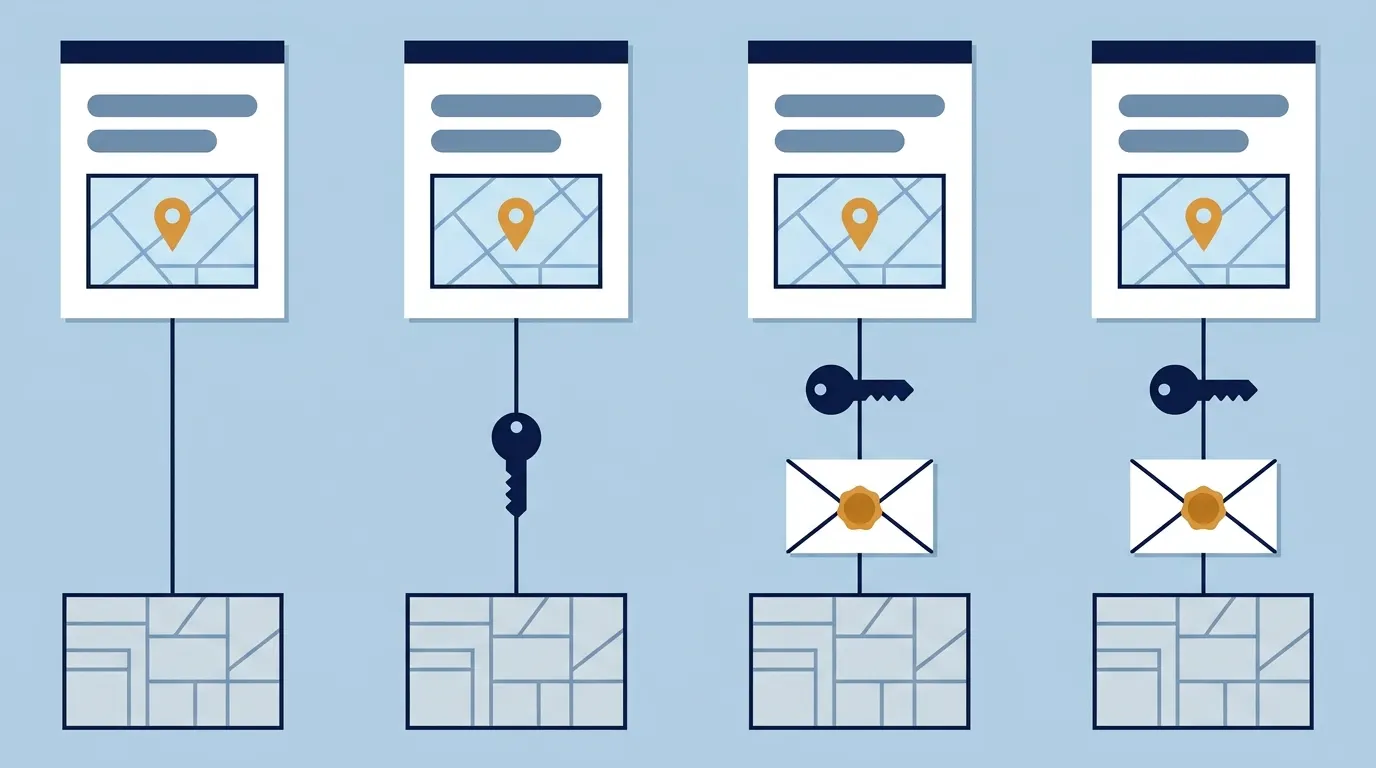
There are two ways to embed a map | They differ in whether a key is used
There are two main ways to put a map on a website.
The first is to open a location in Google Maps, choose “Embed a map” from the “Share or embed map” menu (「地図を共有または埋め込む」→「地図を埋め込む」), click “Copy HTML” (「HTMLをコピー」), and paste it. What gets pasted is a frame called an <iframe>, and the URL inside takes the form https://www.google.com/maps/embed?pb=…. This method uses neither a key nor a billing account.
The second uses a key created in Google Cloud to call Google Maps Platform features. It is used for customized maps, such as placing pins for multiple stores or changing the map’s colors. The error at the top of this article appears on maps built with the Maps JavaScript API under this second method.
What you need to check depends on whether a key is used. Use the next section to find out which kind your map is.
Find out how your map is embedded
Open the page source and look for the URL
In Chrome on a computer, open your access/location page, right-click on an empty area, and choose “View page source” (「ページのソースを表示」). In the window that opens, press Ctrl+F (Command+F on a Mac) and search for maps. Compare the URL you find with the table below.
| URL pattern | Embedding method | Key | Cost |
|---|---|---|---|
google.com/maps/embed?pb= | iframe from “Embed a map” | Not needed | None |
google.com/maps/embed/v1/ | Maps Embed API | Required (the URL includes key=) | Officially free (assumes a project with billing enabled) |
maps.googleapis.com/maps/api/js | Maps JavaScript API | Required | Charged above the monthly free usage for each type (SKU) (check the counts in the official pricing table) |
maps.googleapis.com/maps/api/staticmap | Static Maps (map images) | Required | Charged above the free usage |
The official documentation says the Maps Embed API is available at no charge, but every request must include a key. The official steps for getting a key also assume you create a Google Cloud project with billing enabled. Even if no fees are incurred, whose name the billing account is under is something to check. If the key is deleted or its restrictions stop matching, the map will stop showing even though it is free. With the Maps JavaScript API, each map load is counted as billable, and billing must be enabled on each project. On March 1, 2025, Google Maps Platform changed its pricing model, ending the US$200 monthly credit and introducing a monthly free usage cap for each SKU.
The number of free calls is set per SKU and may be revised, so check the latest figures in Google Maps Platform’s official pricing table. You can see how many times your map loads each month in the Google Cloud console under “Google Maps Platform” → “Metrics” (「指標」). Comparing this count with the free usage in the pricing table gives you an idea of whether you will be billed. Page views for your access page (from your analytics) also serve as a rough guide.
If the URL does not appear in the source
When a map is placed with a WordPress plugin or page builder, the map loads after the page opens, so the URL may not appear in the source.
In that case, inspect the page after it has rendered. From the menu at the top right of Chrome, open “More tools” → “Developer tools” (「その他のツール」→「デベロッパー ツール」) and select the “Elements” tab. Press Ctrl+F (Command+F on a Mac), search for maps, and compare the URL you find with the table above. If you still cannot find it, use the inquiry template later in this article to ask your web agency or administrator.
Maps stop because of account ownership and key restrictions | Error names and who to ask
Check the error name
The Maps JavaScript API reports why it stopped in the browser’s “Console” in the form Google Maps JavaScript API error: error name. In Chrome, open “More tools” → “Developer tools” from the menu at the top right and look at the “Console” tab. If the name appears in the table below, you can tell almost exactly who to ask.
If a name not in the table appears, search for the name as it is and check its meaning on Google Maps Platform’s official “Error messages” page. If it is a key-related error, such as MissingKeyMapError when the key is missing, the person to ask is the same as in the table: whoever manages the key.
If nothing appears in the Console, look again at the URL pattern you found in the previous section. If the URL starts with google.com/maps/embed/v1/ and includes key=, it is the Maps Embed API. The Embed API also displays in an iframe, but it uses a key. The map may have stopped because the key was deleted or its restrictions were changed, so ask whoever manages the key (usually the web agency). If the URL is in the google.com/maps/embed?pb= form, it is a keyless iframe, so suspect a cause other than the key, such as a plugin problem. In every case, sending a screenshot of the Console and of the map frame to your web agency or administrator will speed things up.
Official errors and the typical situations on the client side
| Error name | Official meaning | Common situation on the client side | Who to ask |
|---|---|---|---|
| BillingNotEnabledMapError | Billing is not enabled on the project | Contract with the web agency ended. Former employee left. Registered card expired | Owner of the billing account (web agency, former employee, in-house accounting) |
| RefererNotAllowedMapError | The URL that loaded the map is not on the key’s allowed list | Domain changed. Switched to https. Changed whether www is used. Moved to a new URL in a redesign | Whoever manages the key (usually the web agency) |
| InvalidKeyMapError | The key used to load the map cannot be found | When the contract ended, the web agency cleaned up its projects and deleted the key | Someone who can create a new key (if the key is not yours, it must be recreated) |
| ApiTargetBlockedMapError | The key’s restrictions do not allow this API | Someone changed the key’s restrictions and the map API was removed | Whoever manages the key |
| ApiNotActivatedMapError | The map API is not enabled on the project | A key was recreated in a new project, but the API was not enabled | Whoever recreated the key |
The official troubleshooting guide says that a map that turns dark with a “for development purposes only” watermark also often indicates a key or billing problem. It tells you to check for expired credit cards, so an expired card is one of the causes the guide names explicitly.
What happens when the account is not in your company’s name
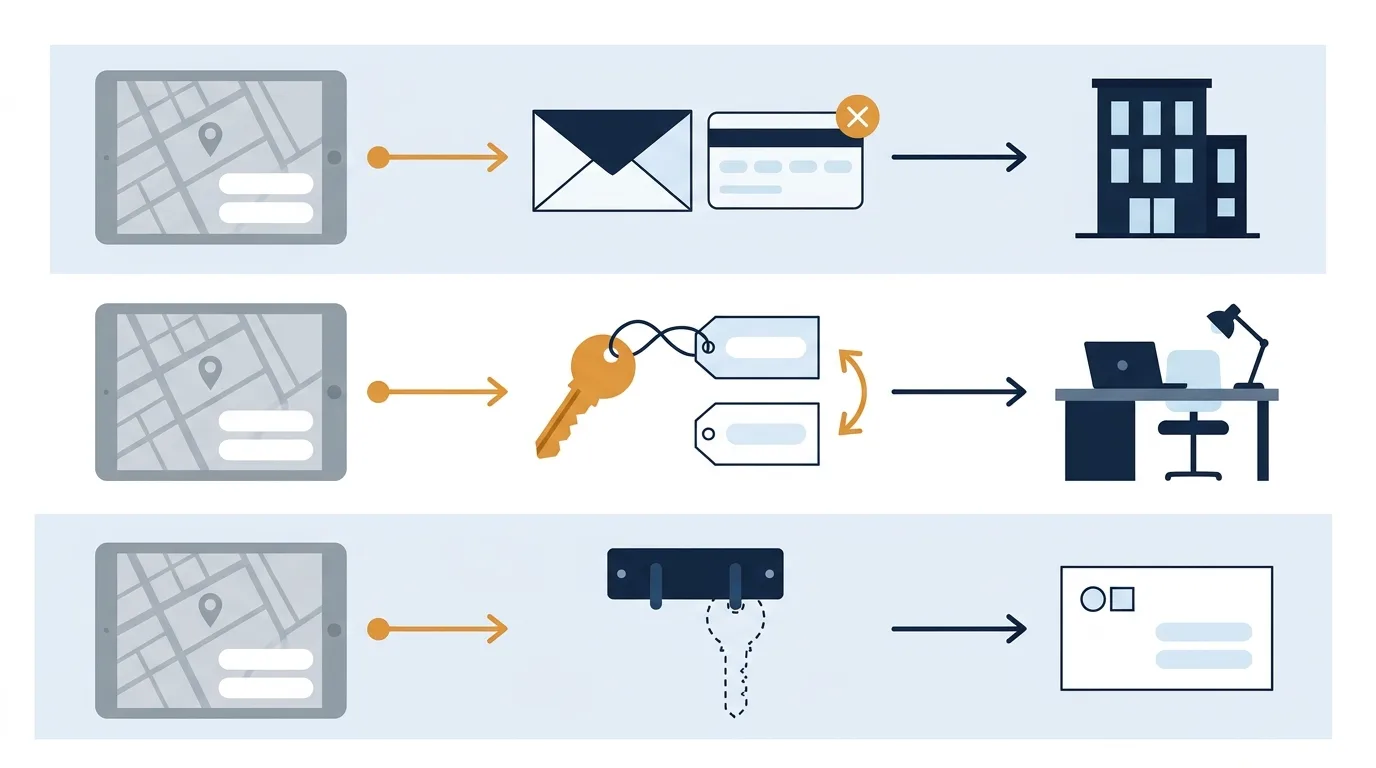
If the billing account or the project where the key was created is in the web agency’s name, the agency has no reason to keep your map running once the contract ends. Even without any ill intent, cleaning up projects or cancelling a payment method will stop the map. The same applies if it was registered with a former employee’s personal card. As with servers and domains, whose name an account is under matters later (the reasoning is explained in “Whose name should the server and domain be under?”).
The cheapest fix: switch to an iframe if one pin is enough
When switching is enough
If all of the following apply, switching to an iframe is faster than fixing the key, and it also removes future billing and management work.
- The map shows only one location, your shop or office
- You have not changed the map’s colors or pin shapes
- You do not use features such as a multi-store list, distance from the current location, or filtered search
How to request it
If you do it yourself, open your location in Google Maps, copy the HTML from “Embed a map,” and replace the old map code with it. In WordPress, pasting it into a Custom HTML block is common. If the map is displayed by entering a key in a theme or plugin settings field, how to remove that setting depends on how the site was built, so leave it to your web agency or administrator.
After switching, check that the map appears on both a smartphone and a computer, and that the pin matches your entrance. Once you no longer use a key, ask its owner to delete any remaining keys. An unused key left publicly exposed can still be misused for another purpose later.
What to check if you keep using a key
If your map needs more than an iframe can do, such as a multi-store map, check the following four points.
1. Whose name the billing account is under
Check whether the billing account is in the name of your company, the web agency, or an individual.
If your company can log in, open “Billing” (「お支払い」) from the menu at the top left of the Google Cloud console. The name of the billing account linked to the project is shown. Open “Payment method” (「お支払い方法」) to see the registered card and the name on the payment. If your company does not have login access, ask the web agency to send you screenshots of these two screens.
If it is not in your company’s name, you have two options.
- Keep the current project and switch only the billing account to your company’s billing account. The key does not change, so the site settings do not need to be replaced. The switch is made from the “Billing” screen, but the person doing it needs both permission to change the billing account on the project side and permission to use your company’s billing account. So the usual approach is for the web agency to grant your company’s account permissions on the project and for your staff to make the switch. However, the project itself remains under the web agency’s control
- Have the key recreated in your company’s own project. The site’s key must be replaced, but both the project and the billing account come under your company’s control. If you are ending the contract, this option leaves nothing to worry about afterward (steps and a request template are in “Request to transfer ownership” later in this article)
The Google account used to log in should also be an address your company manages, not a personal one.
2. Key restrictions
The official security guidance recommends always applying one type of application restriction to a key, and using API restrictions to limit it to the APIs you actually use.
You can see the current restrictions in the Google Cloud console under “APIs & Services” → “Credentials” (「APIとサービス」→「認証情報」). Open the name of the key used for the map from the “API keys” list, and the “Application restrictions” and “API restrictions” fields appear. If either says “None,” the key is unrestricted. If your company does not have login access, ask for a screenshot of this screen.
For a website map, choose HTTP referrers (a setting that allows loading only from your domain) as the application restriction. Under API restrictions, allow only the map APIs you use. Note that referrers can be forged in requests sent from outside a browser, so we recommend never relying on referrer restrictions alone and always combining them with API restrictions.
3. Budget alerts do not stop billing
The official cost management page states clearly that setting a budget does not automatically stop usage or spending. Alerts only notify you by email. To cap usage, lower the API’s daily quota. The quota also caps the amount billed for that API. In exchange, the map stops showing on days the cap is reached.
To change the quota, select the map API you use under “APIs & Services” in the Google Cloud console and go to “Quotas & System Limits” (「割り当てとシステム上限」). To decide the value, first check your usual daily load count under “Google Maps Platform” → “Metrics.” Then set it with a margin so it exceeds your busiest days and days boosted by campaigns. If you set it too close to your usual count, the map will stop on high-traffic days.
You can see the list of budget alerts in the console under “Billing” → “Budgets & alerts” (「予算とアラート」). Open a budget’s name to see its notification recipients. Check here that notifications are not going to a former employee’s address. You change recipients on the same screen. If your company does not have login access, ask the web agency to send you a screenshot of this screen.
If there are no budgets in the list, create one from “Create budget” (「予算を作成」) on the same screen. Select the map project as the scope. Set the budget amount by comparing the monthly load count you checked earlier with the free usage in the official pricing table. If you expect to stay within the free usage, setting a small amount lets you notice as soon as an unexpected charge appears. If you expect to exceed it, use the estimated monthly amount from the pricing table as the baseline. For the notification recipient, enter a company-managed address that will not cause problems when someone leaves.
4. Plans to change your domain or SSL
If a domain change or switch to https is coming up, have the new URL added to the key’s allowed list in advance. This prevents RefererNotAllowedMapError on the day of the switch (for the switch to https, see “What is an SSL certificate (https)?”).
Write entries in the allowed list with / after the domain, as in https://example.com/. If the site opens both with and without www, also list https://www.example.com/*. Check that the settings the web agency sends you include every URL form people actually use to open the site.
The 2026 Gemini issue in chronological order
In 2026, problems involving map keys used through the generative AI Gemini were reported.
Timeline
| Period | Event |
|---|---|
| February | US-based Truffle Security reported that 2,863 keys published on websites for maps and other uses passed Gemini authentication. When the Gemini API (Generative Language API) was enabled in the same project, existing unrestricted keys could be used to call Gemini |
| April 23 | @IT reported a warning from G-gen, a company that supports cloud adoption. It said there had been multiple incidents in which leaked keys were used to send large volumes of requests to Gemini, generating excessive usage fees, with charges exceeding several million yen in some cases. It also pointed out that keys for maps and Firebase are meant to be public and are therefore easy to repurpose |
| June 19 | Gemini began rejecting requests from unrestricted standard keys (Truffle Security follow-up report) |
| June 29 | In a follow-up, Truffle Security reported that standard keys were scheduled to be migrated to new Gemini-specific credentials by September (Truffle Security follow-up report) |
As of November 2026, when this article was written, we have not been able to confirm any primary source showing that the September migration was carried out as planned. For that reason, the cautions below are limited to points that apply whether or not the migration happened.

DoiT, a cloud consulting company, also recommends keeping keys for maps separate from keys for AI. To check whether your company still has unrestricted keys, open each key one by one on the “APIs & Services” → “Credentials” screen introduced in the previous section.
Cautions that still apply
Countermeasures began on the Gemini side in June. Whether or not the September migration has been completed, two cautions remain for the client side.
- Do not share a key between maps and AI. If your company starts using AI internally in the same project, how the map key is handled becomes subject to the needs of the AI work
- Restricting a shared key to one side can stop the map. If the key is restricted to Gemini only as an AI countermeasure, the map stops with ApiTargetBlockedMapError. Conversely, if it is restricted to the map APIs only, internal tools that used that key for AI will stop
If the person in charge of AI adoption and the person in charge of the website are different people, have them confirm once whether they are using the same Google Cloud project. Open the project that holds the map key, and if “Generative Language API” appears in the “APIs & Services” → “Enabled APIs & services” (「有効なAPIとサービス」) list, the Gemini API is enabled in that project. Having the two people compare this list with the “API restrictions” field of the map key will speed things up.
If you find the key is shared, separate it in the following order so that neither side stops.
- Create a separate key for AI. If possible, create it in a project separate from the map, and allow only the Gemini API
- Replace the key in the settings of your internal AI tools with the new key
- Have the AI owner confirm that the internal tools work with the new key
- Restrict the map key’s “API restrictions” to only the map APIs you use
- Open the access page on a smartphone and a computer and confirm that the map appears
If you reverse the order and restrict the map key first, internal tools will stop until the replacement is done. If you do not know where else the map key is used besides the site, ask both the web agency and the AI owner before step 4.
Inquiry template for your web agency and request to transfer ownership
Inquiry template to check the current setup
Subject: Request for confirmation of the map settings on our website
Thank you for your continued support. Regarding the Google Map displayed on the access page of our website, please let us know the following.
1. How the map is embedded (an iframe from Google Maps’ “Embed a map,” or a method using an API key; if a plugin is used, its name)
2. If an API key is used, the Google Cloud project where the key was created and whose name the billing account is under (our company, your company, or an individual)
3. The restrictions applied to the key (allowed APIs and domains)
4. The notification recipients for budget alerts and the daily quota settings
5. Whether the same project or key is used for anything other than the map (such as Gemini)
Request to transfer ownership
If you keep using a key, there is work your company must finish before sending the request. A billing account requires a registered payment method, so the web agency cannot create one on your company’s behalf.
- Log in to Google Cloud with a company-managed Google account, create a billing account, and register a payment method such as a company card
- Create a project and link it to that billing account
- Grant the Google account of the web agency’s staff member permission to work in that project
For step 3, open “IAM & Admin” → “IAM” (「IAMと管理」→「IAM」) from the menu at the top left of the console, enter the staff member’s address under “Grant access” (「アクセス権を付与」), and choose a role. The web agency needs to create and restrict keys, enable map APIs, and change quotas. Choosing the “Editor” role is common. Do not grant the project “Owner” role or any permissions on the billing account side. With those, the web agency could even change the billing account or add permissions. When the work is done, remove the staff member’s permissions on the same screen.
Subject: Request to transfer the Google Maps billing account and API key
With the end of our contract, we would like to move the map settings under our company’s management. Could you please take care of the following?
1. If a single pin on the map is sufficient, please switch to an iframe from Google Maps’ “Embed a map” and delete the current API key
2. If an API key is necessary, we have granted your staff member permissions on a project created with our Google account (xx@our-domain), with the billing account already set up in our company’s name. Please recreate the key in this project and replace it in the site settings
3. Please restrict the new key to only the map APIs in use, and limit loading to our domain (including https and with/without www)
4. After the replacement, please confirm that the map displays, then delete the old key
5. Please inform us in writing of the work performed (project name, restriction details, and quota values)
How to proceed if you cannot reach your web agency is covered in “Can’t reach your previous web agency,” and the items to check across a full switch are in “Want to change web agencies? 7 things to check during handover.” If you are looking for someone to handle post-launch management, including checking keys and billing accounts, see our maintenance and operations service as well.