When people tell us they aren’t getting any messages through their website’s contact form, two very different situations are usually mixed together.
In the first, the site simply has few visitors. In the second, forms are being submitted, but the emails never reach the inbox. From the outside, the second situation looks exactly like the first. You might think inquiries have just dropped off lately while you’re actually missing one after another.
The most common reason form emails don’t arrive is setting the sender address (From) to the visitor’s email address. To the receiving side, this looks like someone sending mail while pretending to be someone else, so the email is either marked as spam or not delivered at all. The correct setup is to use an address on your own domain as the sender and put the visitor’s address in the reply-to field (Reply-To).
This article starts with how to find where the problem is. It then explains five causes of missing emails, permanent fixes, and what to do about inquiries you may have already missed.
First, Check Three Places
Before looking for the cause, find out where the email is getting stuck. If you skip this step, you may end up changing unrelated settings and making things worse.
Use the live form to send one message to your own address. Also try an address other than the one you normally use, such as a mobile carrier email address. The cause differs depending on whether only certain recipients miss the email or nobody gets it.
Even if the email isn’t in the inbox, it may be in the spam folder. If it’s there, the email was sent but rejected on the receiving side. The cause lies in sender domain authentication, covered below.
If it isn’t in the spam folder either, the form may be failing to send. On WordPress, a plugin that logs outgoing email will show you whether a send was attempted.
| What You Find | Situation | Main Causes |
|---|---|---|
| It’s in the spam folder | Sent, but not trusted | Sender settings, sender domain authentication |
| It’s nowhere, and there’s no log entry | The sending process itself isn’t running | Plugin malfunction, PHP settings |
| Only certain recipients don’t get it | Rejected on the receiving side | Recipient-side filters, carrier restrictions |
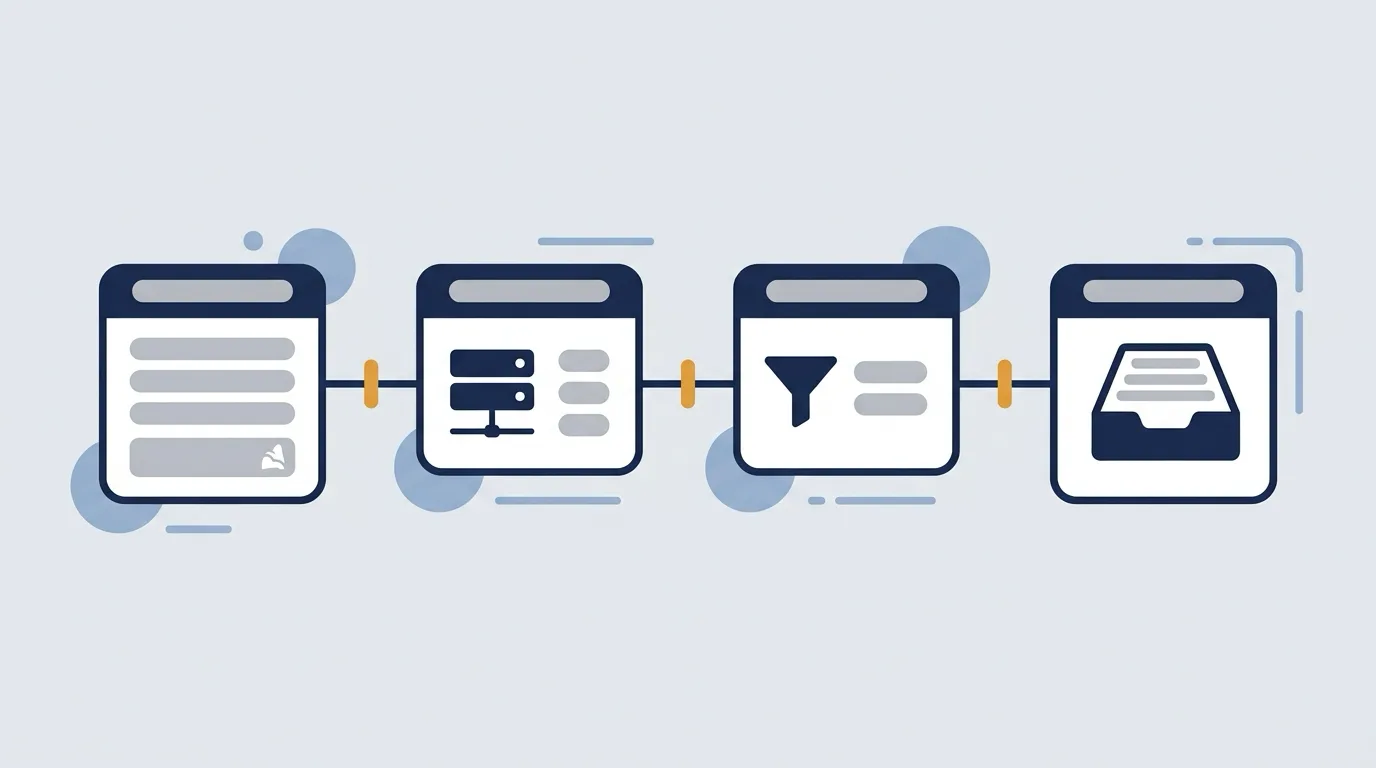
The Causes Fall into Five Groups
1. The Visitor’s Address Is Set as the Sender Address
This is the most common cause. Some forms are set up to use “the address the visitor entered” as the sender (From). It looks like a convenient way to make replying easy, but to the receiving server, it looks like an email sent from a completely unrelated server pretending to be that person.
Today’s major email services are very likely to reject this kind of email or treat it as spam.
Set the sender (From) to a real address on your own domain, such as info@your-company-domain. If you put the visitor’s address in the reply-to field (Reply-To), you can still reply directly from the email you receive. Fixing this one point is often enough to solve the problem.
2. Sender Domain Authentication Isn’t Set Up
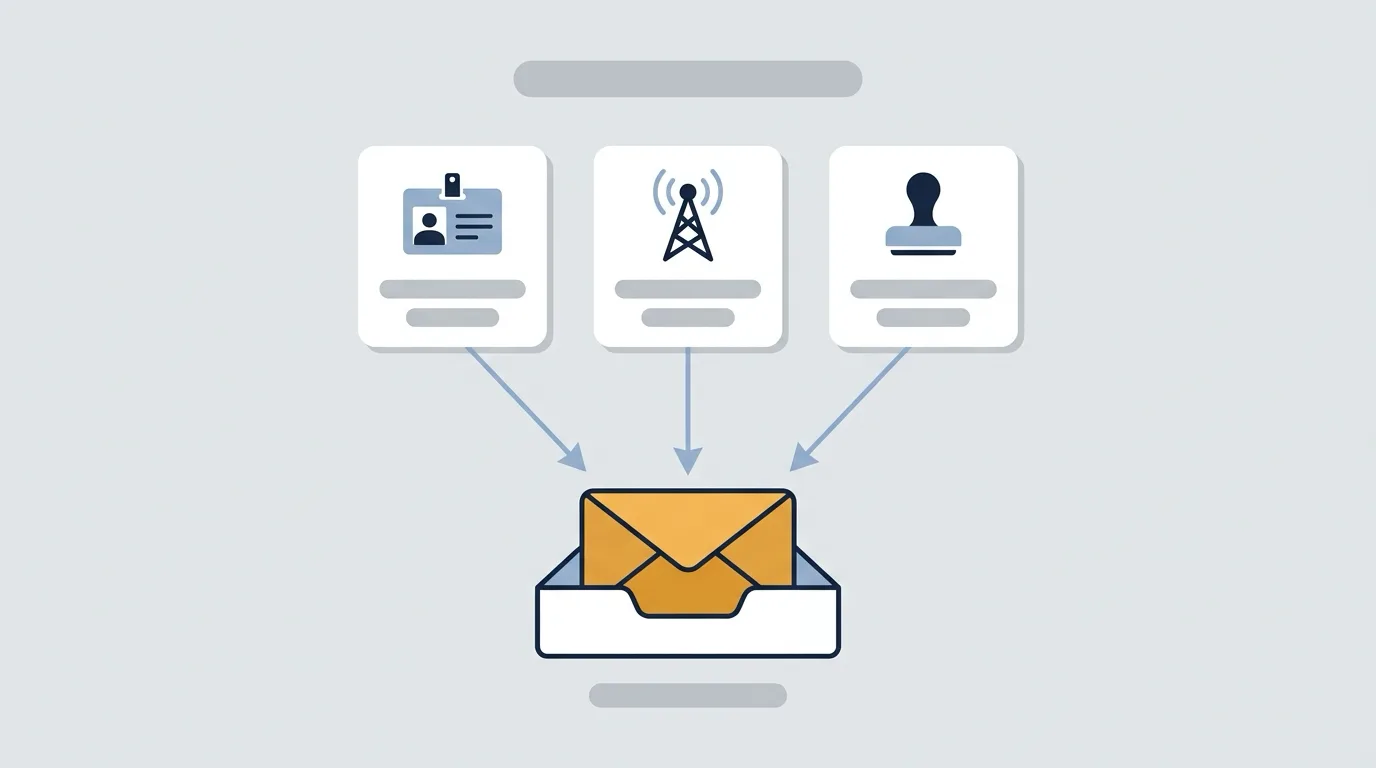
Email has mechanisms that declare, “These servers are allowed to send email for this domain.” The three main ones are SPF, DKIM, and DMARC.
| Mechanism | Role |
|---|---|
| SPF | Declares which servers are allowed to send |
| DKIM | Adds a digital signature when sending, showing the email wasn’t altered on the way |
| DMARC | Specifies how to handle email that doesn’t match SPF or DKIM |
Since February 2024, Google has required everyone sending to Gmail to set up SPF or DKIM, and it sets stricter requirements, including DMARC, for bulk senders. Many cases where email that used to arrive suddenly stopped arriving at some point trace back to this change.
Even if you haven’t changed anything on the sending side, emails can stop arriving because the receiving side’s standards change. Nothing on your own site will signal that it’s time to review your settings.
3. Email Sent Directly from the Server Isn’t Trusted
By default, WordPress sends email directly from a program on the server. This is easy, but it often becomes a route that isn’t authenticated as a sender, so the receiving side gives the email low trust.
On shared rental servers, you can also be affected by other users on the same server. The permanent fix is to switch to sending through an email service (SMTP sending).
4. The Email Is Blocked by Recipient-Side Filters
Mobile carrier email addresses sometimes still have a default setting that rejects email from computers. With company email, too, security products sometimes quarantine inquiry emails.
The sending side can’t see problems on the receiving side. For that reason, it’s safer to send inquiry notifications to several addresses instead of just one.
5. Plugin or Form Settings Are Broken
Forms that stop working after a WordPress update are a common problem. Form-related plugins are updated often, and the way their settings work can change.
- Did you send a test through the form after updating WordPress core or plugins?
- Is the destination address one that belongs to someone who has left the company?
- Is an anti-spam feature (such as reCAPTCHA) also blocking legitimate submissions?
- Were the email settings carried over after moving servers?
We also give an overview of update-related problems in The Risks of Leaving WordPress Outdated and How to Update.
Permanent Fixes
Once you know the cause, set things up so the problem doesn’t come back. Work in this order:
In the form settings, set the sender (From) to a real address on your own domain, and move the visitor’s address to the reply-to field (Reply-To). This costs nothing and is the most effective fix.
Configure the site to send through an email service instead of directly from the server. On WordPress, you can set this up with a plugin, and whether each send succeeded will be recorded in a log.
Add these to your domain’s settings (DNS records). Some rental servers let you set them up from their control panel. This is a domain setting, not a site setting, so you need admin access to the server or domain.
Don’t rely on email alone for inquiry contents. Have them saved in the admin dashboard too. Then, even if an email doesn’t arrive, the inquiry itself isn’t lost.
Once a month is enough. Nobody notices when a form breaks, so build checking that it works into your routine.
Domain setting changes can take several hours to take effect.
What to Do About Inquiries You’ve Missed
If there was a period when emails weren’t arriving, you generally can’t recover the inquiries from that time. However, you can recover some of them in these ways:
- Check whether form submissions are saved in the admin dashboard. If saving is turned on, the inquiries that never arrived by email are stored there
- Check page views of the submission confirmation page in your analytics. This gives you a rough count of submissions so you can gauge the impact
- Check the server’s mail logs. If sending records remain, they show the recipients and the dates and times
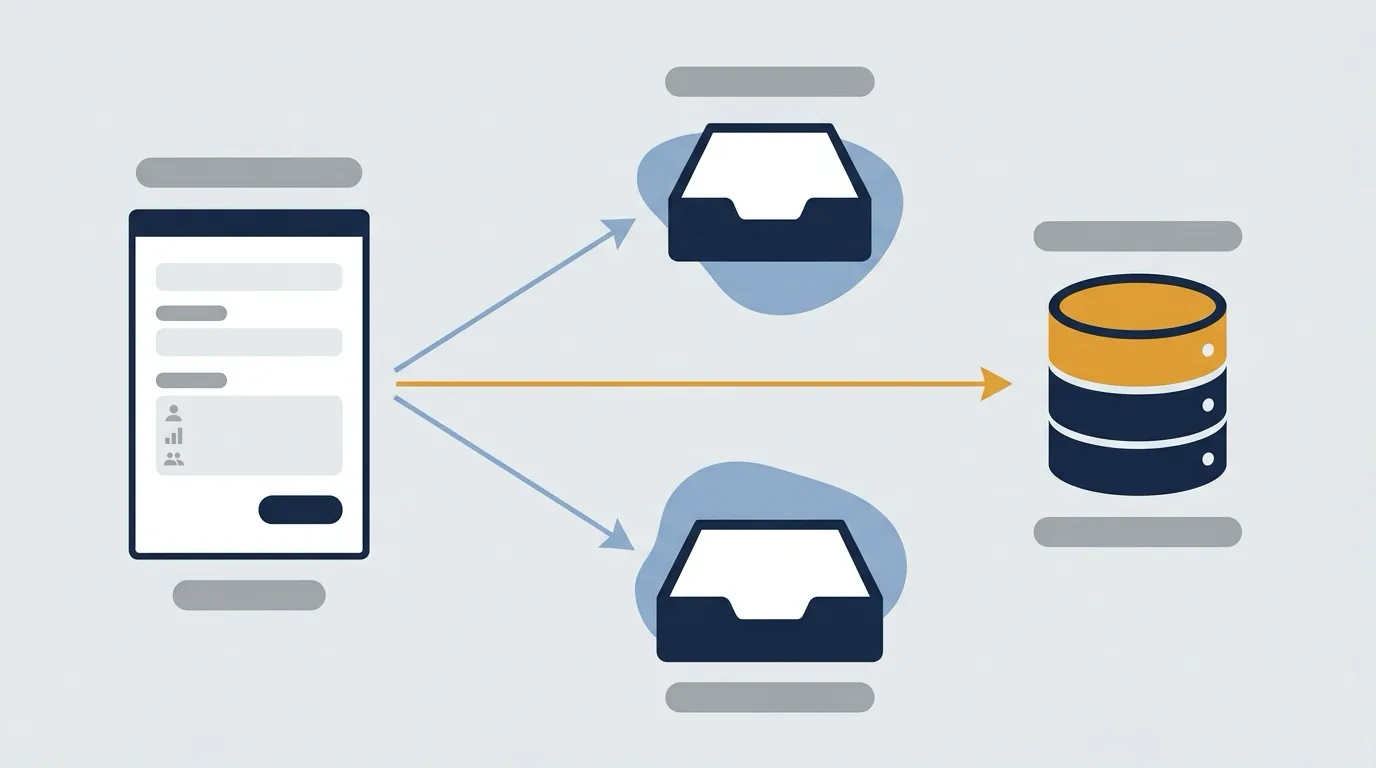
To avoid missing inquiries in the future, always have somewhere other than email where inquiries are recorded. Email passes through many steps, and too many of them are outside your control. For an overview of what to check right after launch, see What to Do After Your Website Is Built.
Frequently Asked Questions
- When I send a test myself, it arrives. Is there still a problem?
-
Yes. Whether an email reaches your own inbox is a separate question from whether other companies’ mail servers accept it. In particular, using the visitor’s address as the sender tends to show up as emails that arrive fine inside your company but don’t reach people outside it. Test with addresses from several different services.
- Can I set up SPF and DKIM myself?
-
If your rental server’s control panel has email settings, you may be able to set them up there. However, a mistake in the records can stop all of your email from arriving, so write down your current settings before you start. We explain how domains and servers relate to each other in The Basics of Domains and Servers.
- Will switching the form to another service (such as an external booking system) solve the problem?
-
Because the sending method changes, things may improve, but problems with the sender setting and sender domain authentication will remain. If you use an external service and send from your own domain, you still need the same settings.
- Can’t we just have the recipients mark the emails as not spam?
-
That works for emails to your own staff. But if the form sends automatic replies to visitors, delivery then depends on the visitors’ own settings. Having to call a customer because they never got the automatic reply damages their trust in you, so the proper solution is to fix the settings on the sending side.
- Have inquiries dropped because emails aren’t arriving, or because there are fewer visitors?
-
You can tell by checking visitor numbers in your analytics. If visits haven’t changed but inquiries have dropped, it’s likely the emails aren’t arriving. If visits themselves have dropped, see Why Your Website Isn’t Attracting Customers and How to Fix It.
- Can we ask you to investigate only?
-
Yes. We check your form settings, sending method, and domain authentication settings, and report where the emails are getting stuck. You can then decide whether to go ahead with fixes and review a rough cost estimate.
Summary
Missing form emails are not hard to fix once you’ve found where the problem is.
- Start with a test send, then check two places: the spam folder and the sending log
- Set the sender (From) to an address on your own domain. This is the most common cause
- Prevent the problem from coming back by switching to SMTP sending and setting up SPF, DKIM, and DMARC
- Keep inquiry contents somewhere other than email, and send a test once a month as part of your routine
Inquiries that came in without you noticing cost you more than inquiries that never came. Checking that your form works is a higher priority than checking how your site looks. For what a maintenance plan should cover, see Typical Costs of Website Maintenance and Operations.