“It looks like our staff have started using ChatGPT on their own. Is that okay?” “We want people to use it, but we don’t know what we need to decide.” When companies try to bring AI into their work, many get stuck at exactly this stage.
Unlike large corporations, most small businesses don’t have a dedicated department. The person drafting the rules is usually the owner or someone in general affairs or administration. You can find long guideline templates online, but if you paste one in as is, nobody in the company will read it. This article narrows down the minimum you need to decide to four points and walks through the steps to fit them on a single sheet of A4 paper.
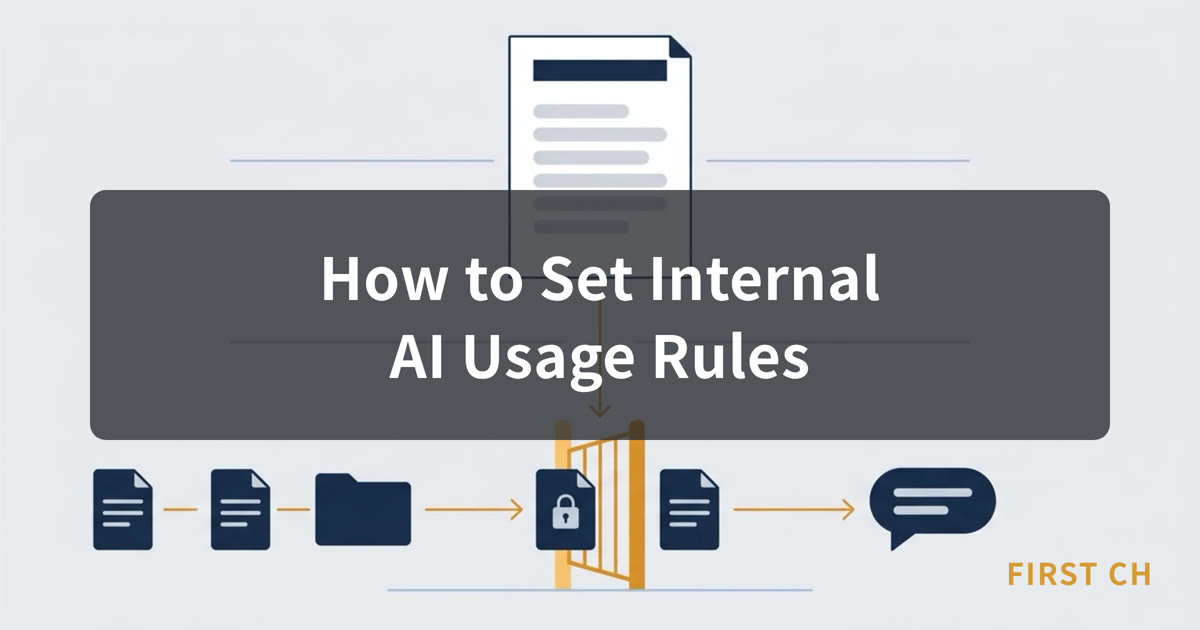
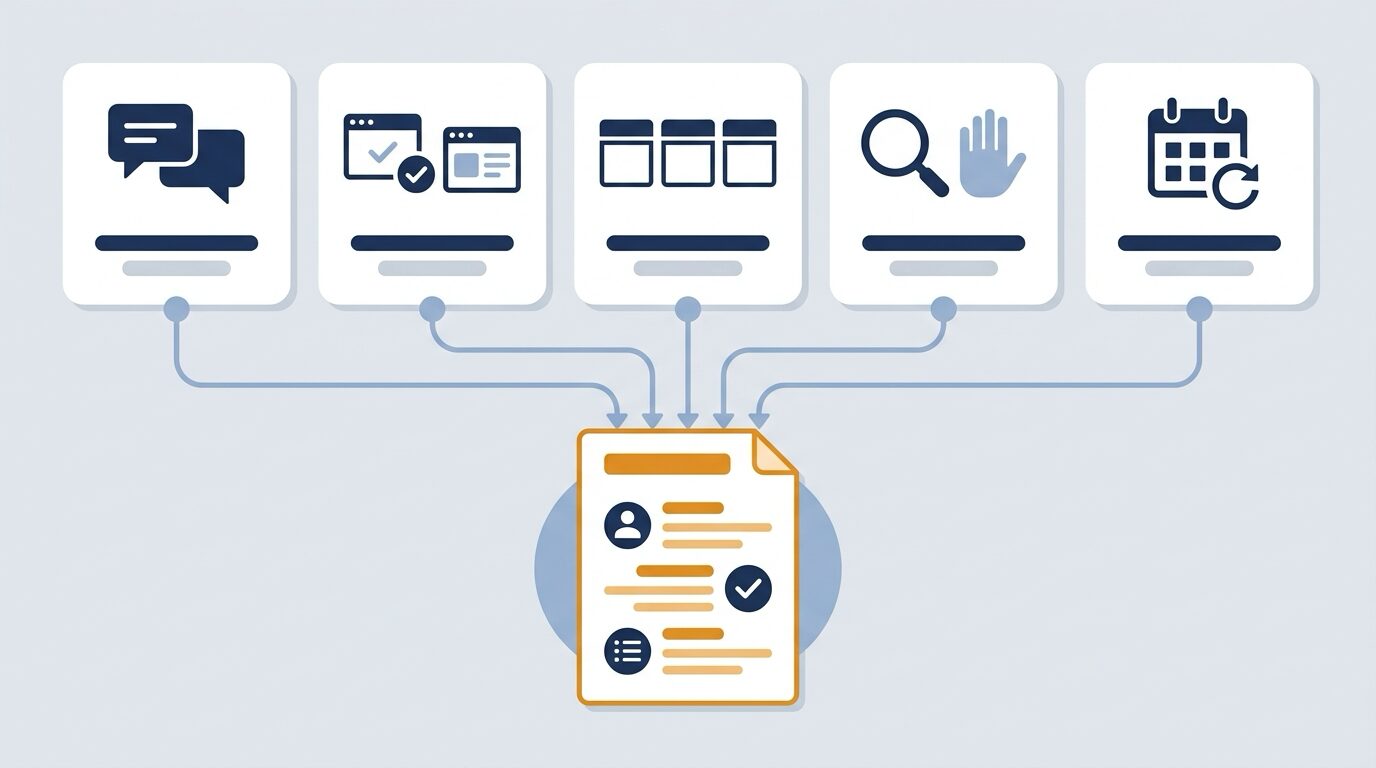
Your internal AI usage rules need to settle four things: (1) where to draw the line on information that must not be entered, (2) checking the settings that keep data out of training, (3) who checks the output, and (4) whom to ask when in doubt. Fit these on one sheet of A4 paper, and write “what AI may be used for” on the same sheet. Rules that only list prohibitions end up either unused or used in secret. A realistic approach is to start with what people can actually follow, run it for about three months, and then review it.
Why Rules That Only Prohibit Fail
The most common mistake in writing rules is listing every concern you can think of and filling the page with “you must not…” The person who wrote it feels reassured, but the employees who read it come away thinking, “So what am I actually allowed to use it for?”
Two things happen as a result.
- Nobody uses it: People decide it’s safer not to use AI than to get in trouble, and introducing it becomes pointless
- It gets used secretly on personal accounts: People who know how convenient it is keep using it, just somewhere the company can’t see
The second outcome is the bigger problem. With personal accounts the company doesn’t know about, there’s no way to confirm whether training has been turned off or who entered what. You end up with a reversal: the stronger the prohibitions, the more usage you can’t manage.
The purpose of the rules is not to stop people from using AI but to have them use it within safe limits. That’s why you need to give concrete examples of situations where use is allowed, with the same weight as the prohibitions. For example:
| How it’s written | How employees read it |
|---|---|
| “Use AI for work with caution.” | They don’t know what “caution” means, so they don’t use it |
| “You may use it to rework the wording of emails, summarize internal documents, and brainstorm ideas. However, hide customer names.” | They know where it’s allowed and what to follow, and can try it right away |
First, Draw the Line on “Information Not to Enter”
The core of the rules is the line between information you may enter into AI and information you may not. What you enter into an AI service doesn’t stay on your company’s computer; it is sent to the servers of the company providing the service. Depending on the settings and contract, it may be stored or used to improve the service.
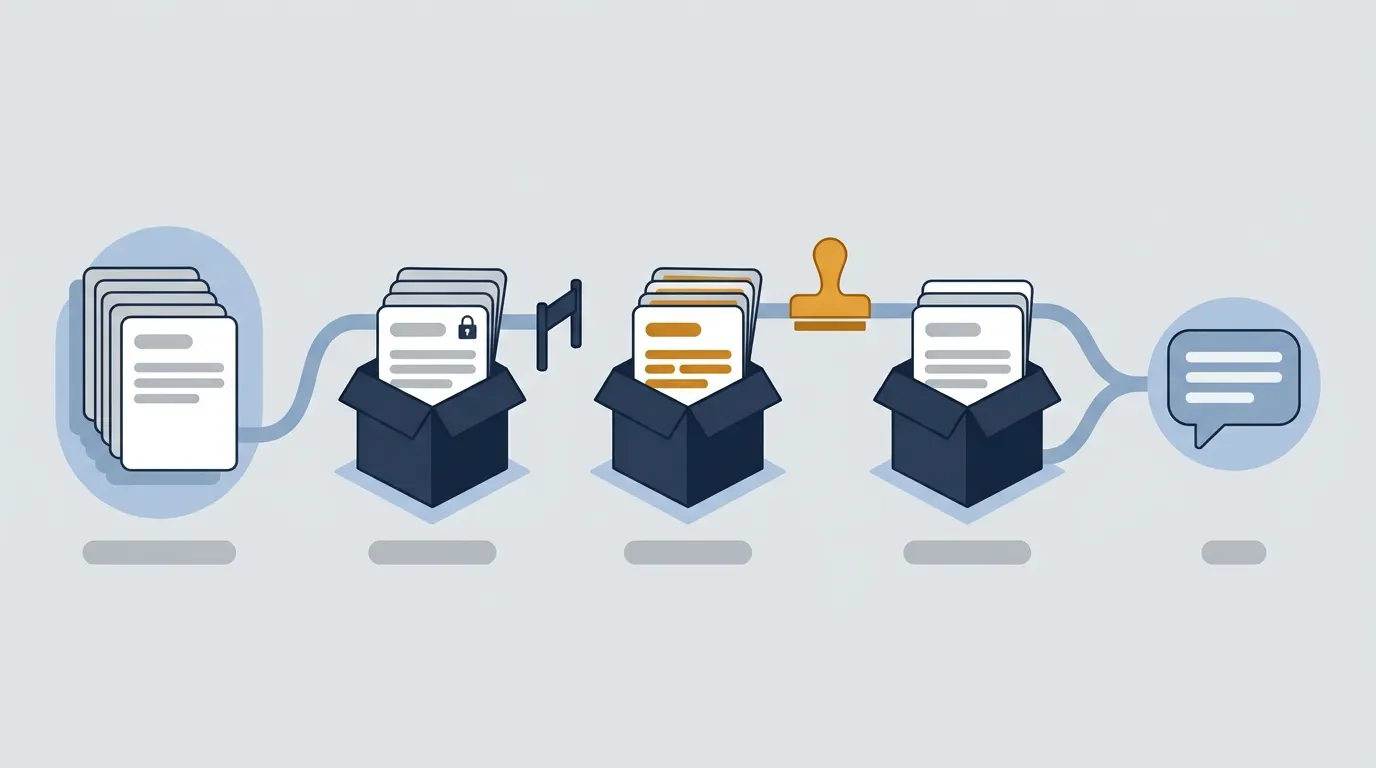
Trying to classify things in detail means you’ll never finish, so in practice it works best to think in three categories.
| Category | Examples | Handling |
|---|---|---|
| Do not enter | Customers’ names, contact details, and addresses; employees’ personal information; materials entrusted to you by business partners; contract amounts; unannounced new products and financial results; passwords and login credentials | Do not enter under any setting or on any service |
| May enter after editing | The text of exchanges with customers, internal meeting minutes, the structure of quotations | Mask proper nouns, amounts, and dates, or replace them with something like “Company A,” before entering |
| May enter | Information already published on your website, general phrasing of text, questions about general industry knowledge | May enter as is |
When in doubt, the test is: “If this content got out, would we need to explain or apologize to anyone?” If so, put it in “Do not enter” or “May enter after editing.”
Another point that’s easy to overlook is your commitments to business partners. For materials from partners you’ve signed a non-disclosure agreement (NDA) with, whether you may enter them into an outside service depends on the terms of the contract, even if training is turned off. If you can’t tell, don’t enter it, or check with the partner.
If you only define the “Do not enter” category, almost no work information can be entered, and in the end nobody uses AI. Create a middle category, you may use it if you mask names and amounts, and add examples of how to replace them (such as “XX Co., Ltd.” → “Company A”), and employees will be able to judge for themselves.
Check the “Not Used for Training” Settings
Alongside drawing the line, you’ll want to check whether the content you enter is set to be used for AI training. The major services let users change this setting. Below is what each company’s official help pages (English versions) say as of October 2026. Setting names are shown as they appear in the English interface.
| Service | Setting on personal plans | Business plans |
|---|---|---|
| ChatGPT (OpenAI) | Turning off “Improve the model for everyone” under Data Controls in Settings means later conversations are not used for training | Data on business plans is not used for training by default |
| Claude (Anthropic) | Turning off the model improvement option under Privacy in Settings means later conversations are not used for training | Inputs and outputs on business offerings (Claude for Work and the API) are not used for training by default |
| Gemini (Google) | Turning off “Keep Activity” means later conversations are not used for training (except when you send feedback) | For Google Workspace (work or school accounts), Google states that data is not used to train models outside your organization without permission and is not reviewed by humans |
The names of on-screen settings can change when services are updated. Rather than copying the setting names onto your rules sheet, writing “The person in charge confirms at rollout that training has been turned off” will keep the sheet usable longer.
What you should keep in mind here is that “not used for training” and “not kept anywhere” are different things. For example, Gemini’s official help states that some conversations are reviewed by humans, and includes the warning “Please don’t enter confidential information that you wouldn’t want a reviewer to see.” In Gemini’s case, it says conversations are kept for 72 hours even when training is turned off. It is common for other services to also keep data for a certain period for purposes such as safety checks. Having checked the settings does not mean you can enter anything. The line drawn in the previous section and this settings check only mean something when both are in place.
Also, settings apply per account. While each employee uses their own personal account, the company has no way to verify everyone’s settings. If more than a few people use AI, consider consolidating them onto accounts the company has contracted for, so an administrator can check the settings.
Don’t Use Output As Is: Responsibility for Checking Lies with People
The third thing to decide is who checks the answers AI produces before they are used. AI sometimes writes things that are factually wrong in very plausible-sounding text. Numbers, dates, explanations of laws and systems, and proper nouns need particular care.
What to write in the rules is simple, a single sentence: “Responsibility for any work product that uses AI output lies with the person who used it.” “The AI wrote it that way” won’t hold up with business partners or customers.
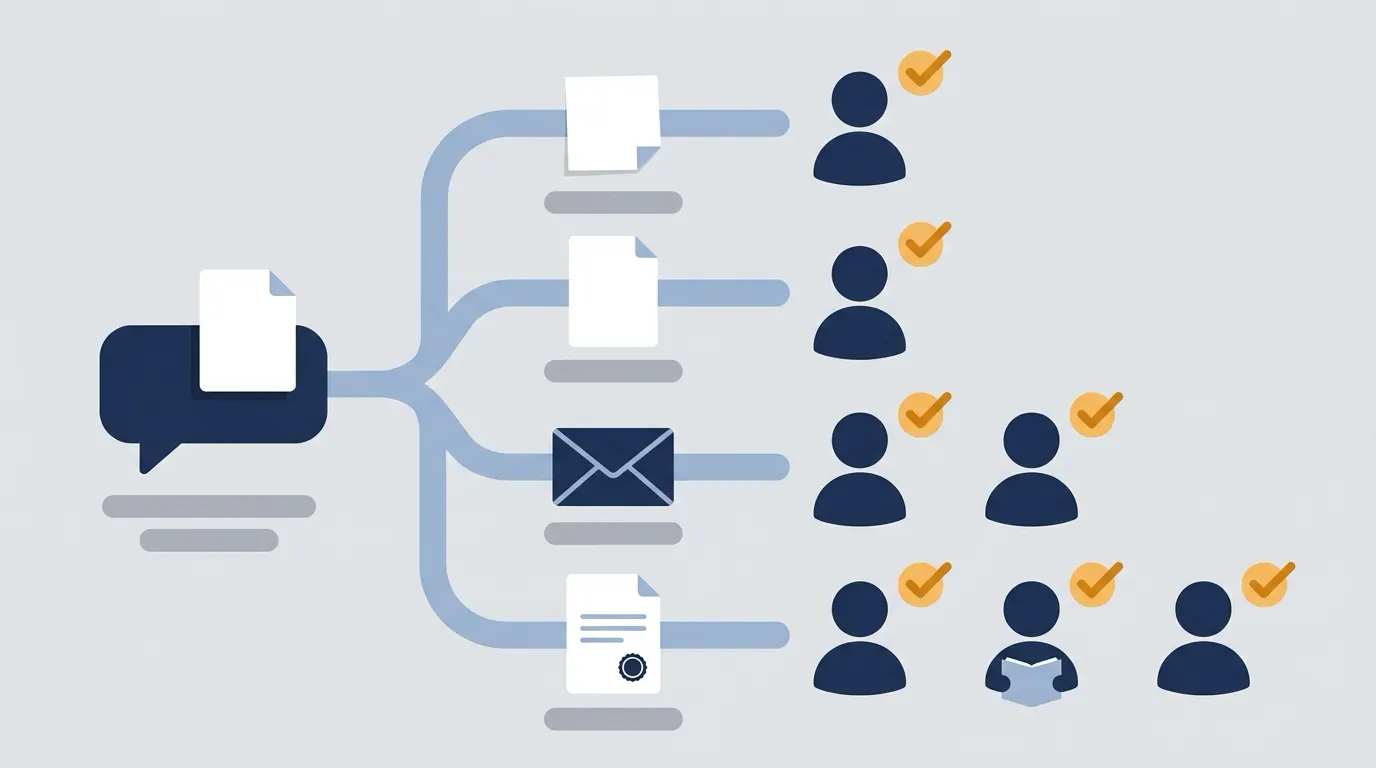
On top of that, varying the level of checking by purpose keeps things running smoothly.
| Purpose | Checking guideline |
|---|---|
| Internal notes, brainstorming, summaries for your own use | Fine if the person reads it and nothing seems off |
| Internal documents, draft manuals | The person verifies the facts (numbers and procedures) against the source materials |
| Documents going outside the company (emails, proposals, website text) | After the person verifies it, a supervisor or someone else reads it again |
| Anything involving contracts, law, tax, or medical matters | Don’t rely on AI output as the basis. Always verify with an expert or official information |
Text and images created by AI sometimes end up closely resembling existing works. It’s reassuring to state that anything going outside the company should be checked to make sure it isn’t too similar to another company’s text or design. Decide that when people are unsure, they should consult someone rather than use it as is.
Steps to Fit the Rules on One Page
Now put everything so far onto a single sheet of A4 paper. The reason to insist on one page is that long rules get read once and never opened again. Keep it to an amount people can refer back to when they’re stuck.
Step 1: Ask How People Use AI Today
First, ask employees what they’re already using AI for. If you make clear up front that this isn’t about blaming anyone, they’ll answer honestly. Once you know how it’s actually used, you can write the examples of “situations where use is allowed” directly from that.
Step 2: Decide Which Services and Accounts to Use
Decide which services the company allows. One or two is enough to start. This is also where you decide whether personal accounts are allowed or only accounts contracted by the company.
Step 3: Write the Three Information Categories in Your Own Words
Rewrite the table from the previous section to fit your business. Rather than writing “customer information,” name the things employees handle every day, such as “the contents of the customer management sheet” or “the body of emails from customers,” so no one is left guessing.
Step 4: Write Down Responsibility for Checking and Whom to Ask
Write down the guidelines for checking output and whom to ask when unsure. With rules that don’t name anyone to ask, people who are unsure will either go ahead on their own judgment or stop using AI.
Step 5: Set a Review Date and Distribute
AI services change their features and terms frequently. Write “Next review: [month/year]” at the bottom of the sheet, and after about three months of use, ask what people couldn’t follow and what uses they’d like to add, then revise.
If it’s hard to decide all of this within your company, or opinions inside the company are split over “which category does this work information belong in,” sorting it out once with a third party speeds things up. Our AI Utilization & Business Improvement Support offers a 60-minute sounding-board consultation where we hear about your business challenges and separate what AI can and can’t solve.
A Sample of the Items to Include on One Page
In the end, it’s enough to have the following items on the page.
- Purpose: Use AI within safe limits to make work easier (state up front that you encourage its use)
- Services and accounts that may be used
- Examples of situations where use is allowed (3 to 5)
- Information not to enter / information that may be entered after editing / information that may be entered
- The person in charge confirms at rollout that training has been turned off
- Responsibility for work products using the output lies with the person who used it, and anything going outside the company is also read by someone else
- Whom to contact when unsure or when something was entered by mistake
- Next review date
Be sure to include in particular whom to contact “when something was entered by mistake.” If people think they’ll be scolded, they’ll stay quiet. If you find out early, you still have options, such as deleting the conversation or contacting the business partner.
Frequently Asked Questions
- Do we need rules even if we only have a few employees?
-
Yes. But the fewer people you have, the more one page is enough. In a small company, information one person enters is effectively company information, so it’s actually safer to share at least the line on what can be entered from the start.
- Is it wrong to ban AI use entirely?
-
It can be a valid company decision, but even then you can’t stop people from using it on their personal smartphones and the like. If you ban it, also explain why it’s banned and when the ban will be reviewed. Bans without a clear reason are harder to keep.
- How often should we review the rules once they’re set?
-
Aim for the first review three months later. Once people start using AI, unexpected uses and hard-to-follow items always come up. After that, it’s enough to review when you add services or when terms change.
Summary
The longer and more detailed internal AI usage rules are, the less they get followed. What matters is narrowing down what you decide and fitting it on one page together with the situations where use is allowed.
- If you only list prohibitions, either nobody uses AI or it gets used in secret
- Decide what information may be entered using three categories: “do not enter / enter after editing / may enter”
- Check the settings that keep data out of training. But even with those settings, the information that must not be entered doesn’t change
- Responsibility for work products using the output lies with the person who used it. Anything going outside the company is also read by someone else
- Write down whom to ask and a review date, run it for three months, then revise
After you create the rules, what makes the difference is whether people can keep using AI in practice. If you want someone to consult regularly until usage takes hold, our AI Utilization & Business Improvement Support monthly ongoing support provides continued help with reviewing your rules and exploring new uses. Start today by asking one employee, “What are you using AI for?”